Axiom.ai v5.3: The Browser Agent builds your automations, AI selectors, and more
The Browser Agent is here, and it builds your automations inside the No-Code Tool.
Until now, you described what you wanted and the steps were added for you to configure. Now the agent builds the automation: it adds the steps and configures them, picks the selectors, connects the data from one step to the next, and works out the clicks a page needs along the way, such as the button that closes a cookie window.
It opens a cloud browser to do it, asks you in the chat for anything only you know, then saves the automation and runs it to prove it works. When a run fails later, the same agent can diagnose the error and repair the automation from the chat.
Around the agent, the selector tool now uses AI to write selectors a person could read, run recordings are real video, and the desktop app and the Claude skill have both had a round of improvements.
Read on for the detail on what we have shipped.
The Browser Agent builds your automation
Build from description now finishes the job. Write what the automation should do, one instruction per line, and click Suggest steps as before. The suggested steps stay visible and editable, so you can check the plan. Then click Configure steps and the Browser Agent takes over.
While it works, the agent:
- Opens a cloud browser and visits the pages your automation needs. Click Watch live to see what it is doing.
- Picks the selectors for each step and fills in the fields.
- Asks you in the chat for what only you know: which Google Sheet and which tab, what data to scrape, the URL a webhook should call. You can answer with a button or type a reply.
- Saves the automation under a name that describes it, then runs it to verify the result before handing it back to you.
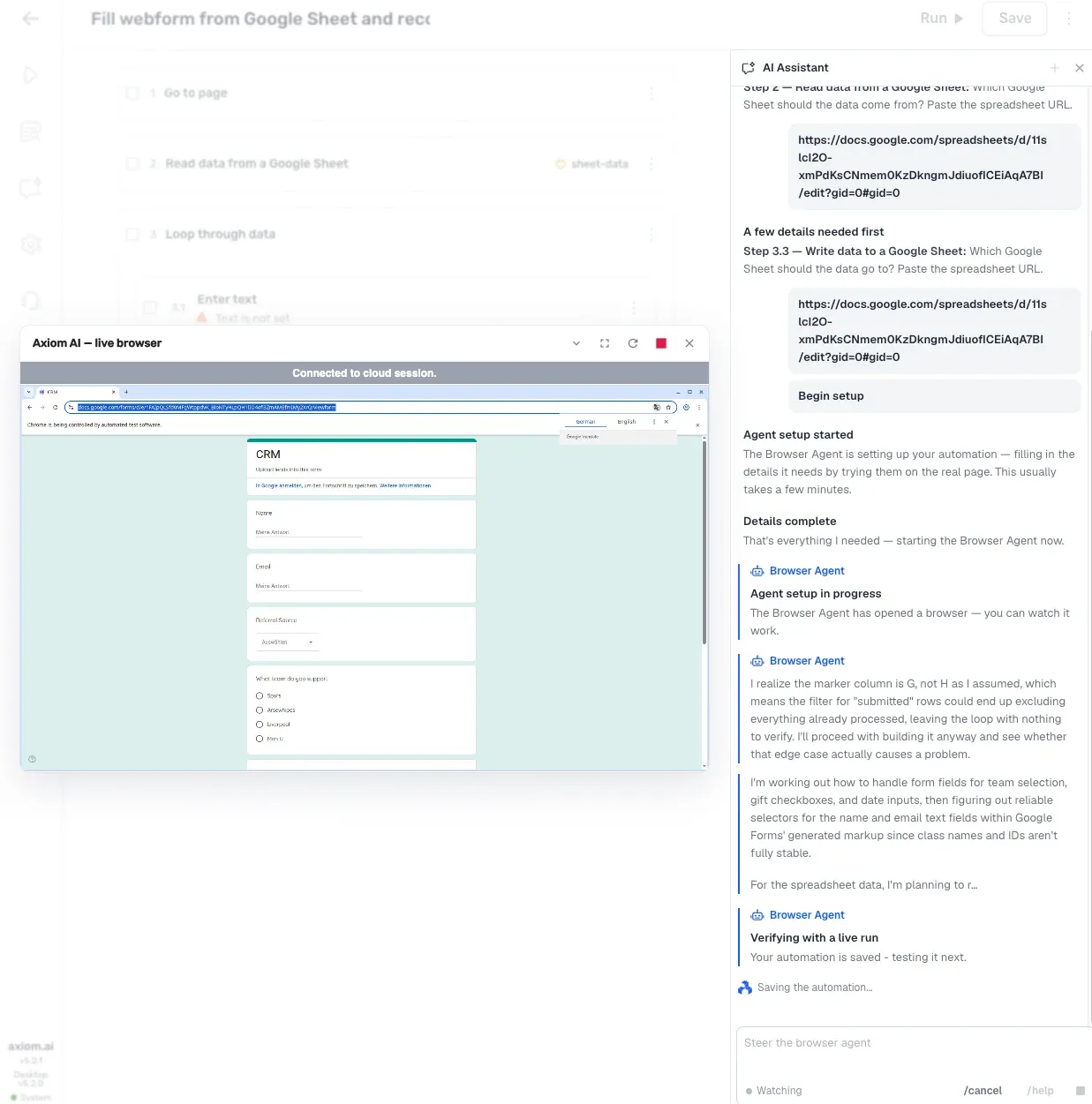
The agent asks before it scrapes, and it keeps to the limits you give it. It also refuses to build an automation for a description that would cause harm.
Your description is saved with the automation. Open the automation's settings to see it and edit it, up to 20 lines. The agent treats your description as the goal whenever it builds or repairs that automation, and your words always win over its own guesses.
On the website, every example prompt now opens straight into Build from description, so you can try one with a single click.
The agent logs in with your saved credentials
When the agent reaches a page that needs a login, it asks how to get through. You can share your current login session, as before, or choose Log in with saved credentials and pick one of your saved logins from a list in the chat. You can also add a new login there without leaving the Builder.
The agent adds a Log in with credentials step in front of the page that needs it. Your password never reaches the agent. It only knows the credential's name, and the password is filled in at run time, exactly as it is for a login step you build by hand.
Note: logins that carry a 2FA secret are greyed out in the list for now. Agent 2FA set-up follows in the next release.
Fix errors with the Browser Agent
When a cloud run fails, click Troubleshoot Error as usual. For errors the agent can act on, such as a broken selector or a page that has changed, the troubleshooter now offers Fix with Browser Agent. Choose it and the agent opens the page, works out what went wrong, repairs the step, including steps inside loops, and runs the automation again to confirm the fix.
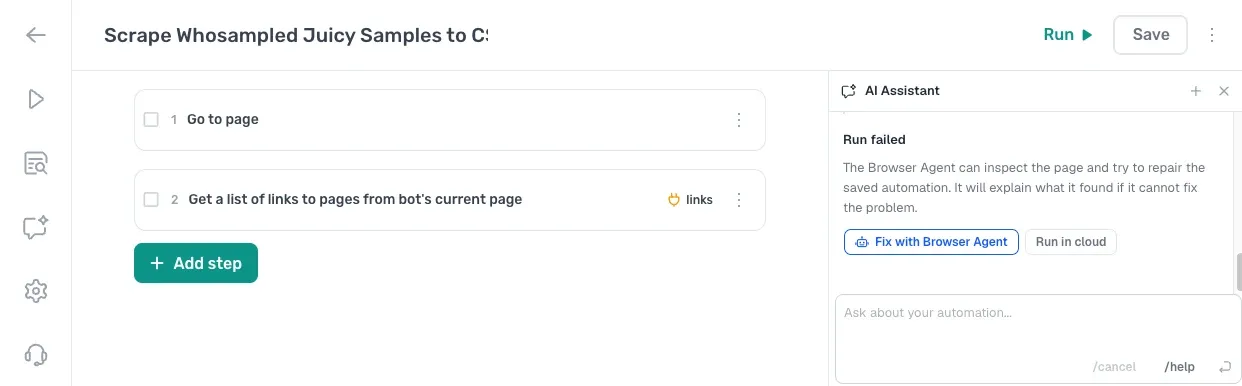
For an error it does not recognise, the agent can investigate and explain what it found, even when it cannot fix the problem itself. You can also ask for a repair in your own words: a question about a selector or a page that will not load offers the same handover alongside the usual suggestions. Nothing starts until you choose it.
The agent stays available for ten minutes after it finishes building or repairing. Ask for a change in the chat, such as a different starting cell for a Google Sheet, and the same agent applies it to the same automation. A minute before it stops, the chat asks whether your automation is working correctly, and a reply keeps it around for another ten minutes.
Selector tool v2.0 with AI integration
The single selector tool now asks an AI to write the selector. Pick an element on the page, or describe it in the new prompt box, such as the search button, and press Return. The AI writes a selector a person could read, with no generated class names, and the tool checks it against the live page before you see it: it must match the element you picked exactly.
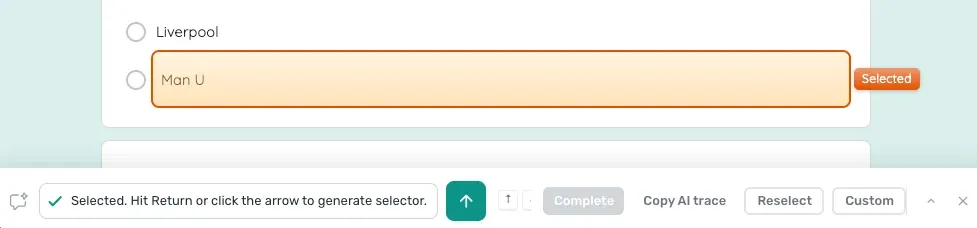
Click Custom to see the primary selector alongside its alternatives and fallbacks on three tabs, CSS, Text and Data. Click an alternative to make it the primary, or type your own.
If the AI is unavailable, the tool keeps working as it did before. Existing automations are unaffected: the selectors you have already saved do not change, and selectors picked by clicking are as instant as they were.
Run recordings are now video for cloud runs
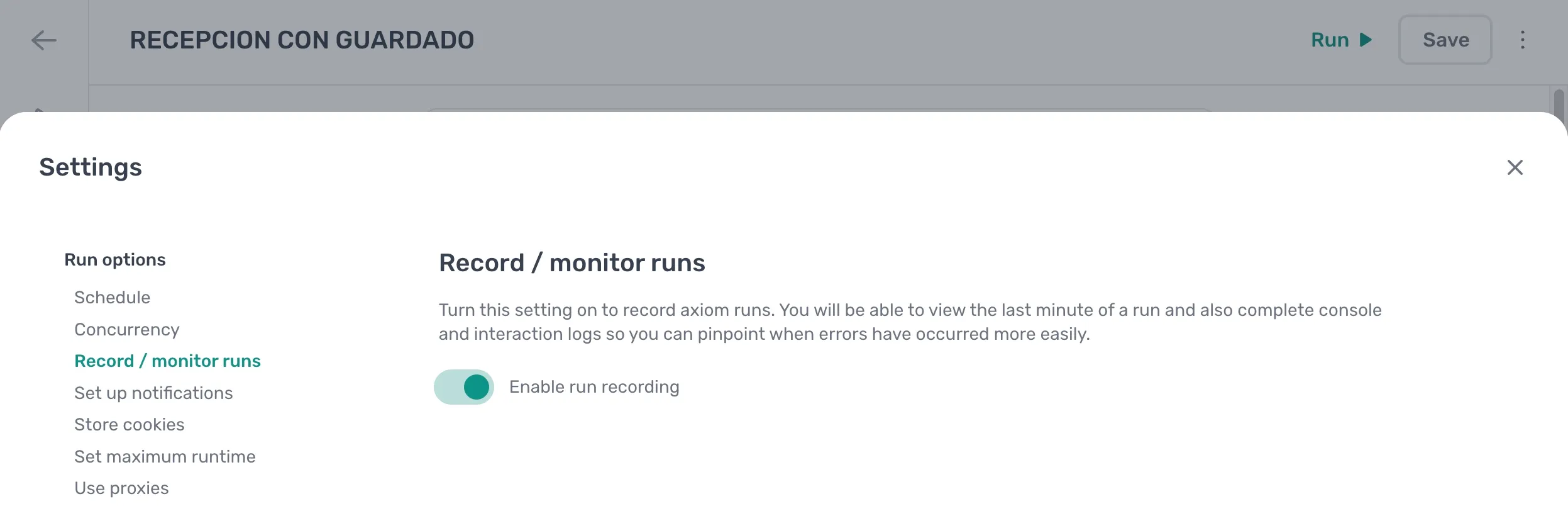
Run recording used to replay the page's DOM events. It now records a video of the browser for the last minute of the run, so what you see is what the browser showed, including pages the old replay could not reproduce. The console and interaction logs stay alongside it, and older recordings still play.
The same applies to the Code Tool: browserOpen({ record: true }) records a video of the run in the playground and from your scripts.
Desktop app fixes
A round of fixes for the desktop app released in 5.2:
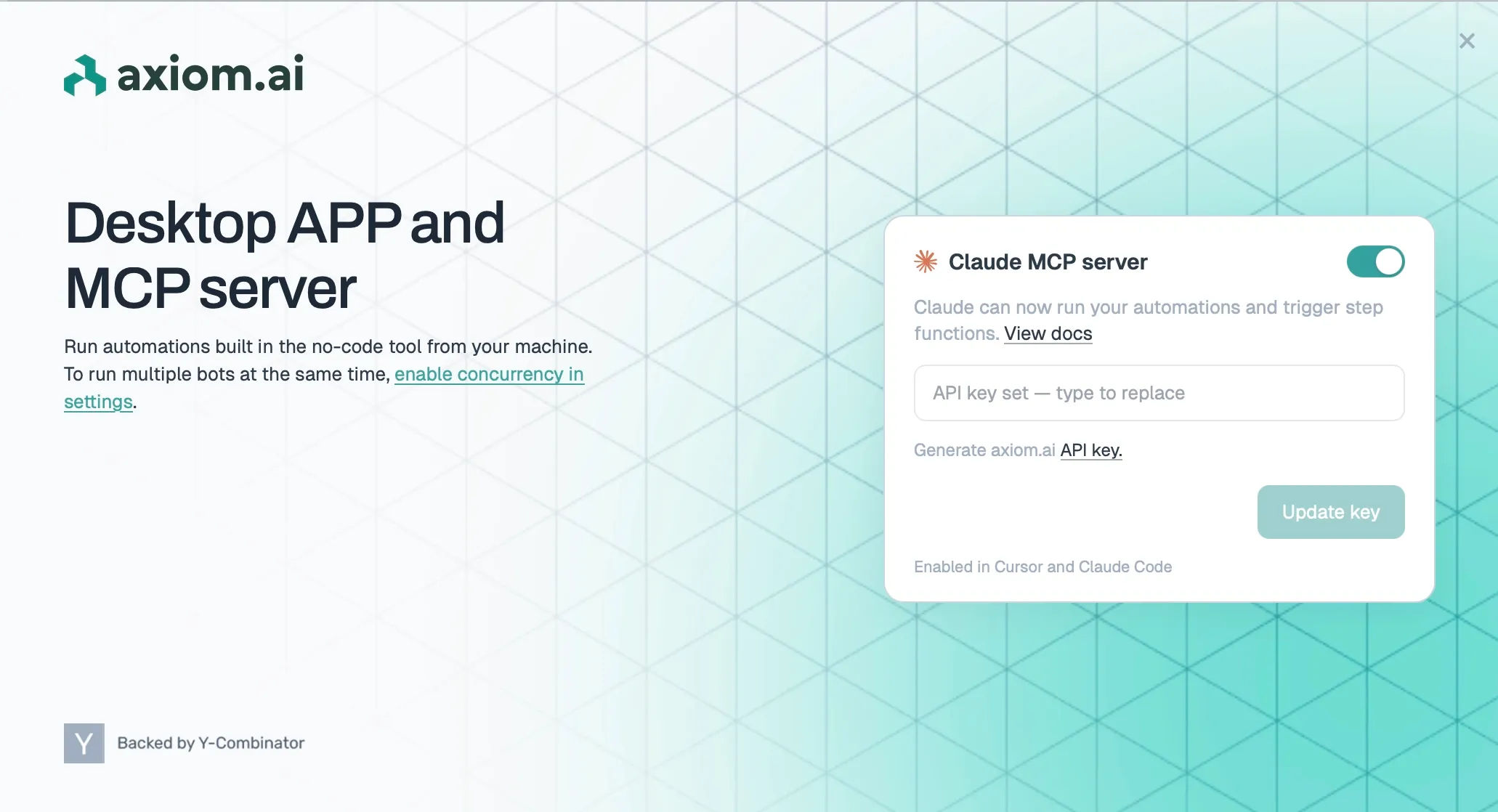
- The MCP setup window opens the first time you launch the app, so you can switch the server on and add your API key straight away.
- Your scheduler login stays signed in between launches, and runs triggered over the API keep their data.
- Download and screenshot steps with no folder set save to a sensible place instead of a relative path.
- The app only ever runs the Chrome build it was shipped with.
Claude skill and MCP updates
The Claude skill now knows which runs happen on your machine and which in the cloud, so Claude picks the right one when it builds and tests an automation through the desktop MCP server. There is a new guide on scraping a page from Claude Code with the MCP server and Step API.
The help links inside the extension now open the new documentation on axiom.ai, and the docs have new guides and updated content throughout.
Coming next
We will keep working on the Browser Agent, improving its harness and its skills so it can do more for you. In the next release we are aiming to integrate the agent fully with the Builder, from Build from description through to testing and running your automations, while we keep improving the manual build experience alongside it.
We are also building new infrastructure for subscribers: a VPS of your own, with an always-on agent and harness.
Minor fixes
- Schedules set to every N months ran every month.
- Webhook payloads failed as invalid JSON when a looped value contained an apostrophe, and the Write javascript step double-escaped apostrophes in multi-row data.
- Removing a token removed every identical token in the field.
- Upload a file from Google Drive could attach a file with the wrong extension.
- Watch windows for cloud runs sometimes opened empty.
- The queue for triggering an automation over the API counted other customers' jobs towards your limit of ten.
- The Step API refused Starter accounts the CDP API admitted.
- Cloud runs started faster after the pods stopped re-registering their plugins on every session, and the pods moved to the current Chrome and Node LTS releases.
- A fresh login was sometimes refused for a few seconds after signing in.
- The scheduler stopped when an automation's schedule was deleted mid-run.