n8n
n8n is a workflow builder you can connect to axiom.ai in either direction. Trigger an n8n workflow when an axiom.ai automation runs, or trigger an automation from any n8n workflow.
Trigger an n8n workflow from an axiom.ai automation
Use the Trigger webhook step to start an n8n workflow when your automation runs. You'll need an n8n instance.
In n8n:
- Create a new workflow.
- Add a trigger node and select Webhook.
- Set the webhook to listen for POST requests.
- Copy the webhook URL n8n provides. Save it for the next section.
- Optionally configure the webhook to accept specific data or parameters.
- Build out the rest of your workflow with the nodes you need.
In axiom.ai:
- Open your automation and add a Trigger webhook step.
- Set
Endpointto the webhook URL you copied from n8n. - Set
Payloadto the data you want to send.
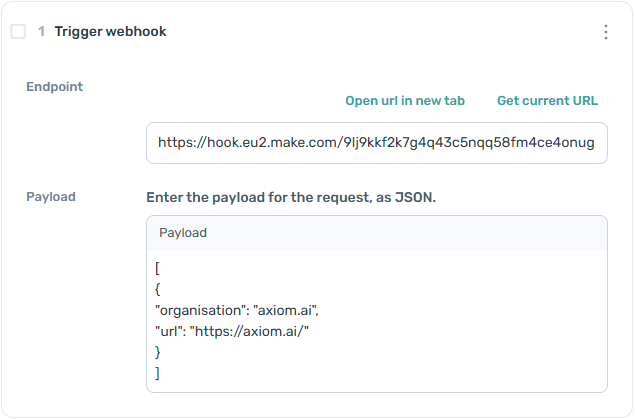
For n8n's side of the setup, see n8n's webhook documentation.
Trigger an axiom.ai automation from an n8n workflow
Note: A subscription that includes Webhooks is required to use the Receive data from another app step. See pricing for details.
You'll need:
- API key. Find it on the API key dashboard.
- Automation name. The exact name of the automation you want to trigger.
- Endpoint.
https://lar.axiom.ai/api/v3/trigger.
In n8n:
- Add an HTTP Request node to your workflow.
- Set
URLto the axiom.ai endpoint above. - Set
Methodto POST. - Set
Content Typeto JSON. - Add the JSON request body. See sending data with the API for the format.
In axiom.ai:
- Add a Receive data from another app step at the start of your automation.
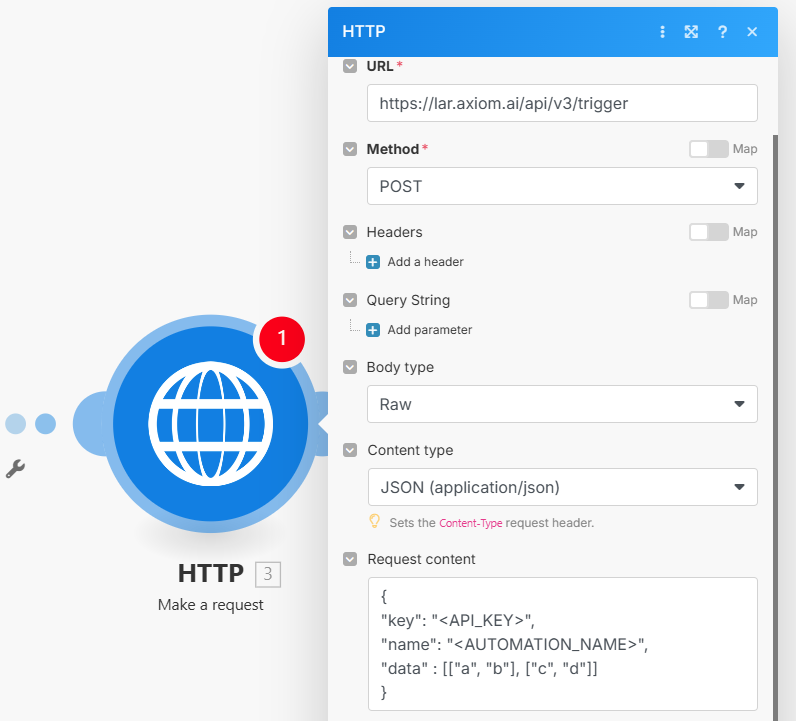
When the run is successful, axiom.ai returns a JSON response n8n can use in later nodes. See understanding the API response for the format.
Test the integration
To test the axiom.ai → n8n direction, click Run in the axiom.ai extension, wait a few seconds, then check the execution history in n8n.
To test the n8n → axiom.ai direction, manually execute the workflow in n8n, wait a few seconds, then check run reports in axiom.ai.
Future plans
axiom.ai doesn't yet have a dedicated n8n node, but webhooks and HTTP requests cover both directions reliably. We plan to expand the docs with more examples over time.