Use logic
Use logic steps to change what an automation does based on data. Every logic step takes a piece of data and checks it against a condition. The data can come from a scrape step, a Google Sheet, a previous user input, or anywhere else data flows through the automation.
Branch on a condition with If condition
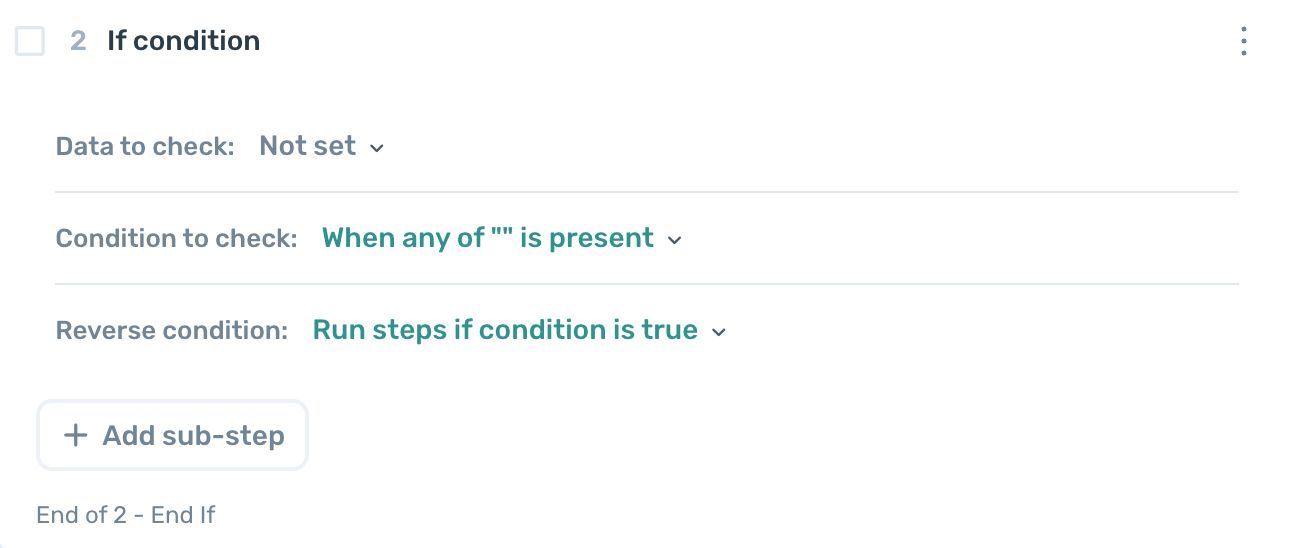
Use If condition to run a group of sub-steps only when a condition is met. Compare strings or numbers, run the sub-steps when the condition evaluates true (or when Reverse condition flips it false), and carry on with the rest of the automation either way.
- Open the step finder and add If condition.
- Set
Data to check. - Set
Condition to check. - Toggle
Reverse conditionif you want the sub-steps to run when the condition is false. - Add the sub-steps to run when the condition is met.
Example: On Instagram profile pages, scrape the message button. If the text message is found, the sub-steps click the button and send a message. If not, the automation skips those sub-steps and carries on with the rest of the run.
Branch either way with If / Else
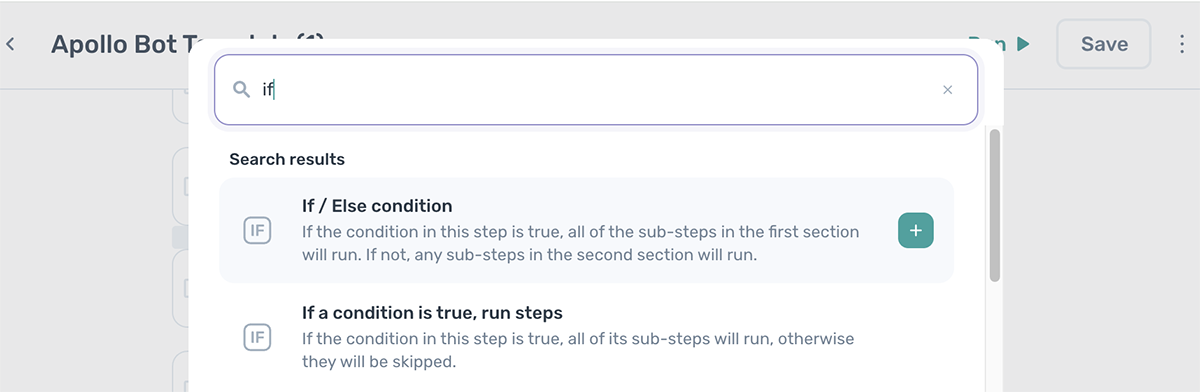
Use If / Else when you need to run one set of sub-steps if a condition is met and a different set if it isn't.
- Open the step finder and add If / Else.
- Set
Data to check. - Set
Condition to check. - Toggle
Reverse conditionif needed. - Add sub-steps to the If branch.
- Add sub-steps to the Else branch.
Example: Form filling where the form changes based on an earlier selection. The If branch fills the fields shown for option A; the Else branch fills the different fields shown for option B.
Stop the run unless a condition is met
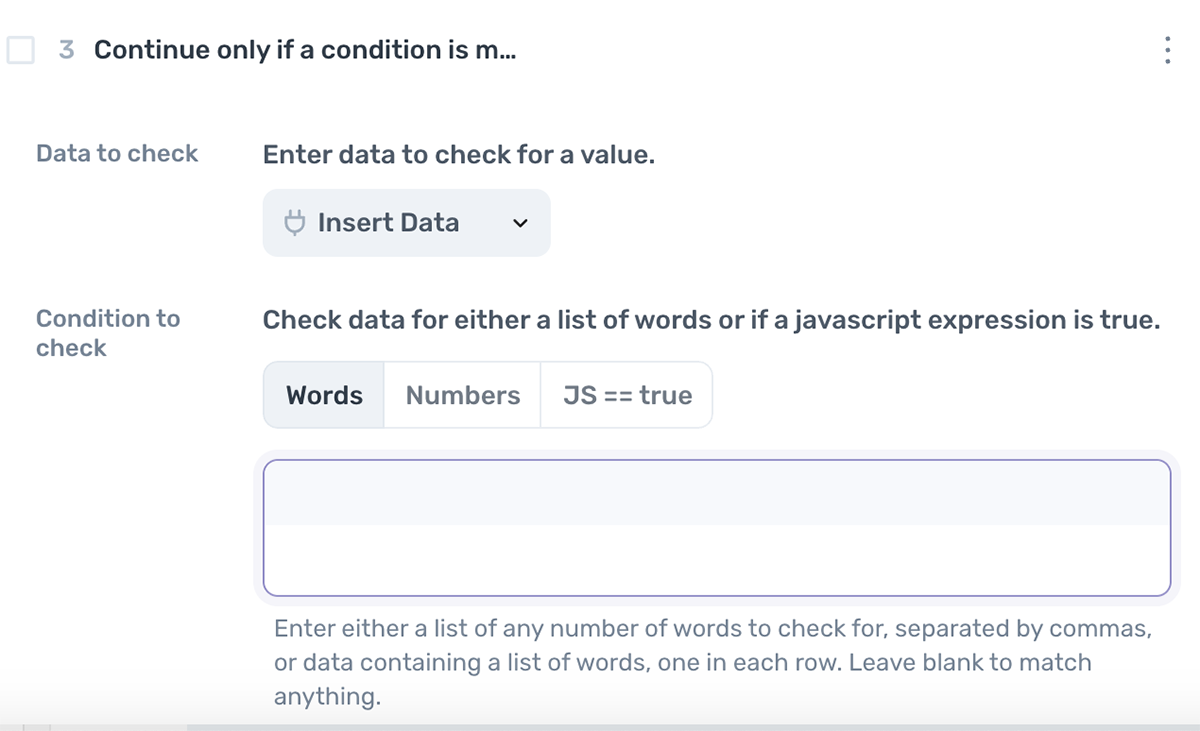
Use Continue only if a condition is met to check a condition and either keep the run going or end it.
- Open the step finder and add Continue only if a condition is met.
- Set
Data to check. - Set
Condition to check. - Toggle
Fail if condition not metto treat a failed condition as an error instead of a clean stop. - Toggle
Reverse conditionif needed.
Example: Check whether a Google Sheet contains data before continuing. If the sheet is empty, stop the run instead of wasting time on later steps that depend on that data.
Jump to another step with Conditionally jump to another step
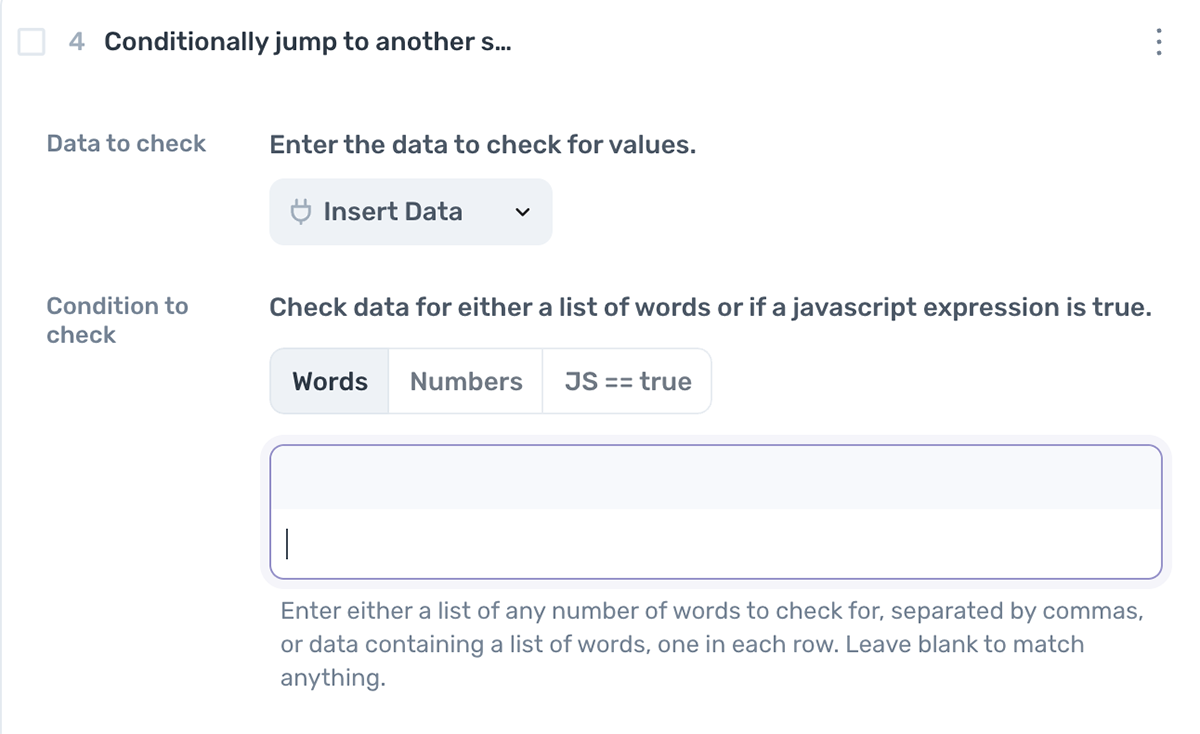
Use Conditionally jump to another step to skip forward or loop back in the automation based on a condition. Setting Maximum cycles caps how many times the automation can loop back through the same jump.
- Open the step finder and add Conditionally jump to another step.
- Set
Data to check. - Set
Condition to check. - Set
Jump to stepto the step you want to jump to. - Set
Maximum cyclesto cap how many times the automation can loop back. - Toggle
Reverse conditionif needed.
Example: Click a Next button and jump back to the click step until a target value appears on the page, capped at some maximum so the automation doesn't loop forever.
Catch errors with Try / Catch
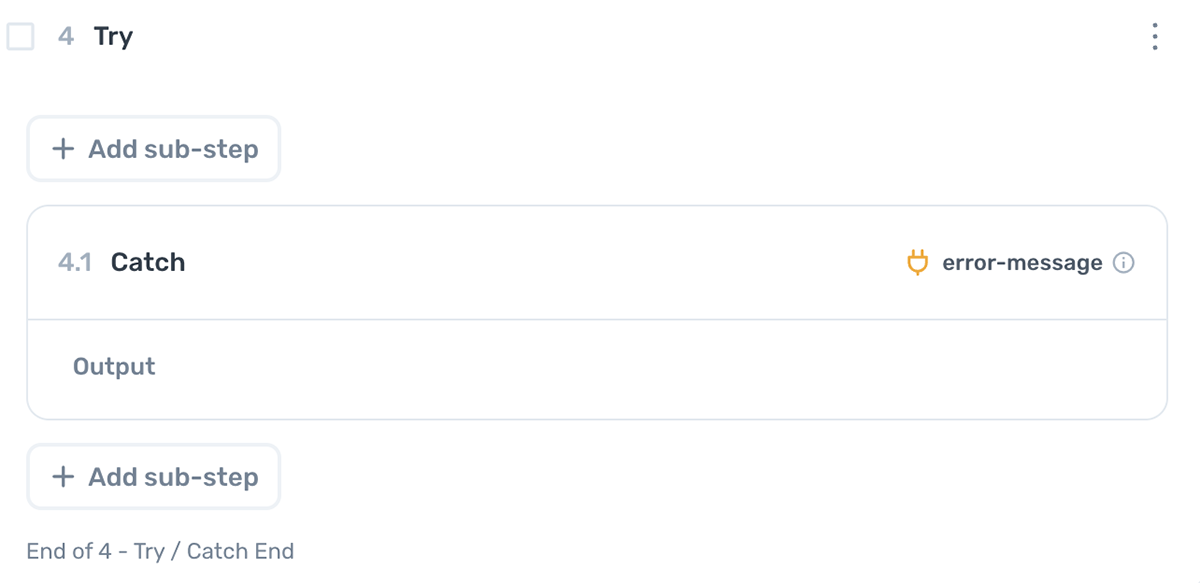
Use Try / Catch to run a set of sub-steps and, if any of them fail, run a different set instead of ending the run. Unlike the other logic steps, Try / Catch doesn't take a condition. The Catch branch triggers whenever the Try branch throws an error.
- Open the step finder and add Try / Catch.
- Add the sub-steps that might fail to the Try branch.
- Add recovery sub-steps to the Catch branch.
Example: A site occasionally triggers a popup that blocks the automation. Put the main sub-steps in the Try branch and, in the Catch branch, add the click needed to dismiss the popup before retrying.
Build custom logic with JavaScript
When the no-code logic steps don't fit, use the Write javascript step to build your own. Any value your script returns (a 2D array or a string) is available to later steps and can drive an If condition, If / Else, or any other logic step that reads data.