Loop through data
Looping is one of the most useful patterns in axiom.ai. A loop repeats a group of steps, usually once per row of data. For example, loop through a list of URLs to scrape data from each page, or loop through rows of a Google Sheet to fill in a web form.
There are three steps you can use to build a loop. The primary one is Loop through data. The Jump to another step and Conditionally jump to another step steps can also create loops, and you can use logic inside any of them.
Loop using the Loop through data step
The Loop through data step repeats its sub-steps once for each row of data passed into it. To use it, add the step and select the data you want to loop through.
Add a Loop through data step
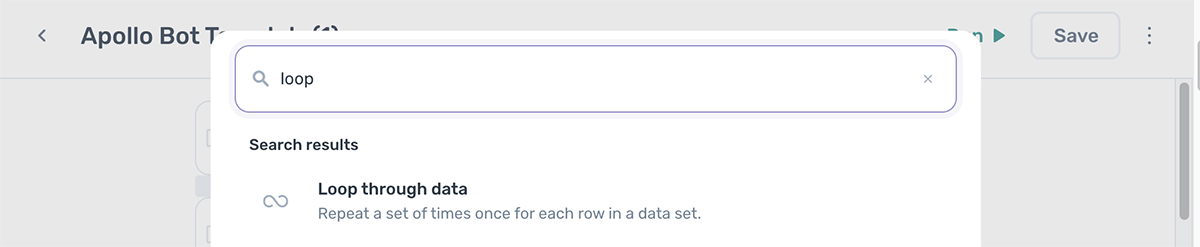
There are two ways to create a loop: use the step finder, or use the Move toolbar to wrap existing steps.
To add a loop with the step finder:
- Open the step finder, search for loop, and add Loop through data.
- Add the steps you want to repeat as sub-steps of the loop.
To turn existing steps into a loop with the Move toolbar:
- Tick the checkboxes next to the steps you want to loop.
- In the Move toolbar, click Loop.
- Select Loop through data to wrap the highlighted steps in a loop.
Select data to loop through
A loop won't iterate until you give it data. There are two ways to set the loop data.
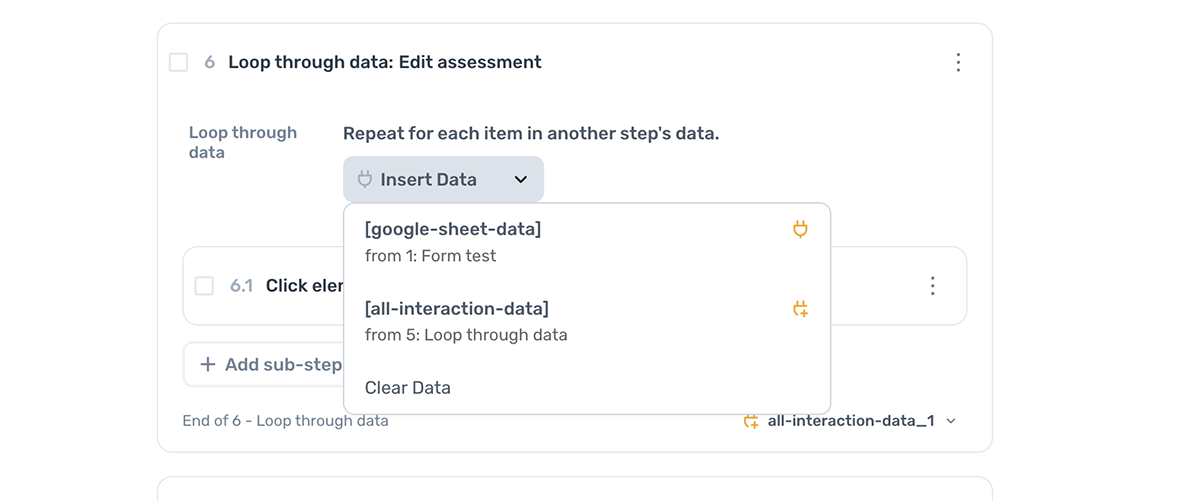
- From the loop step. Set
Data to loop throughby clicking Insert data and choosing the data variable. - From a sub-step. Edit a sub-step inside the loop and click Insert data. The variable you pick is automatically set as the loop's
Data to loop through.
Note: A loop returns an error if its data source is empty.
Insert sub-steps
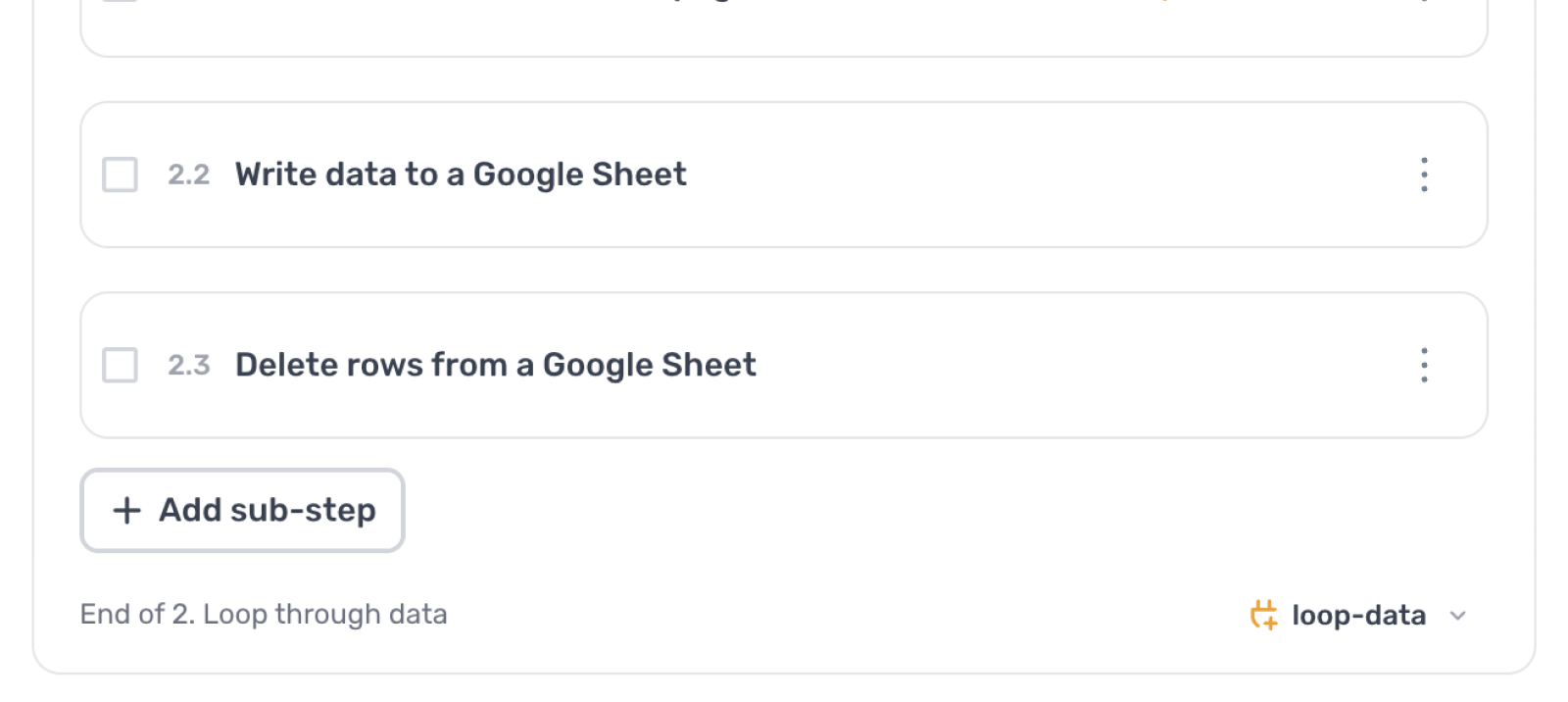
Add the steps you want to repeat inside the loop using Add sub-step. Steps outside the loop are not repeated.
Nest loops
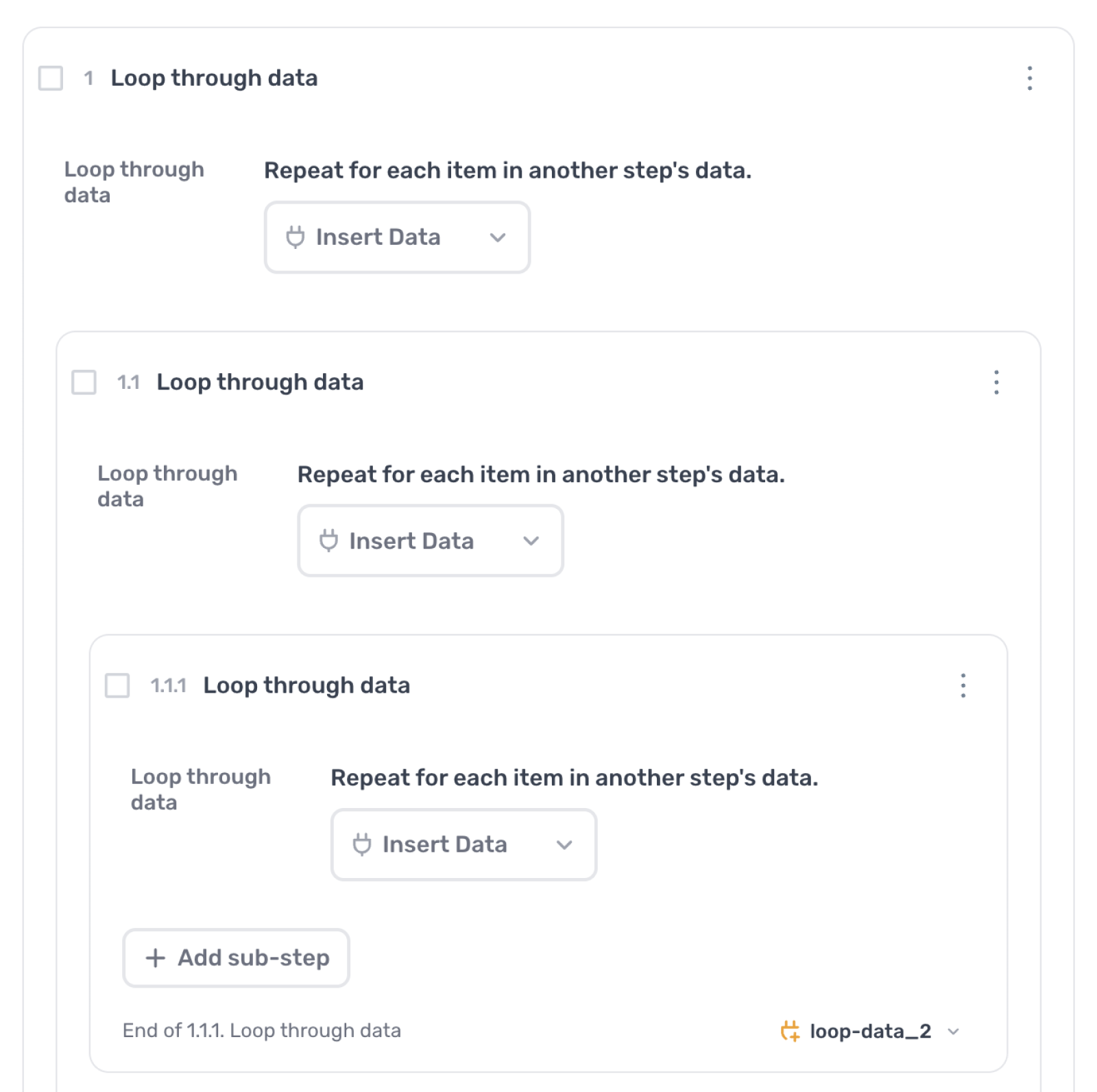
You can nest loops up to five levels deep. Three levels is usually enough, even for complex automations.
Output data from a loop
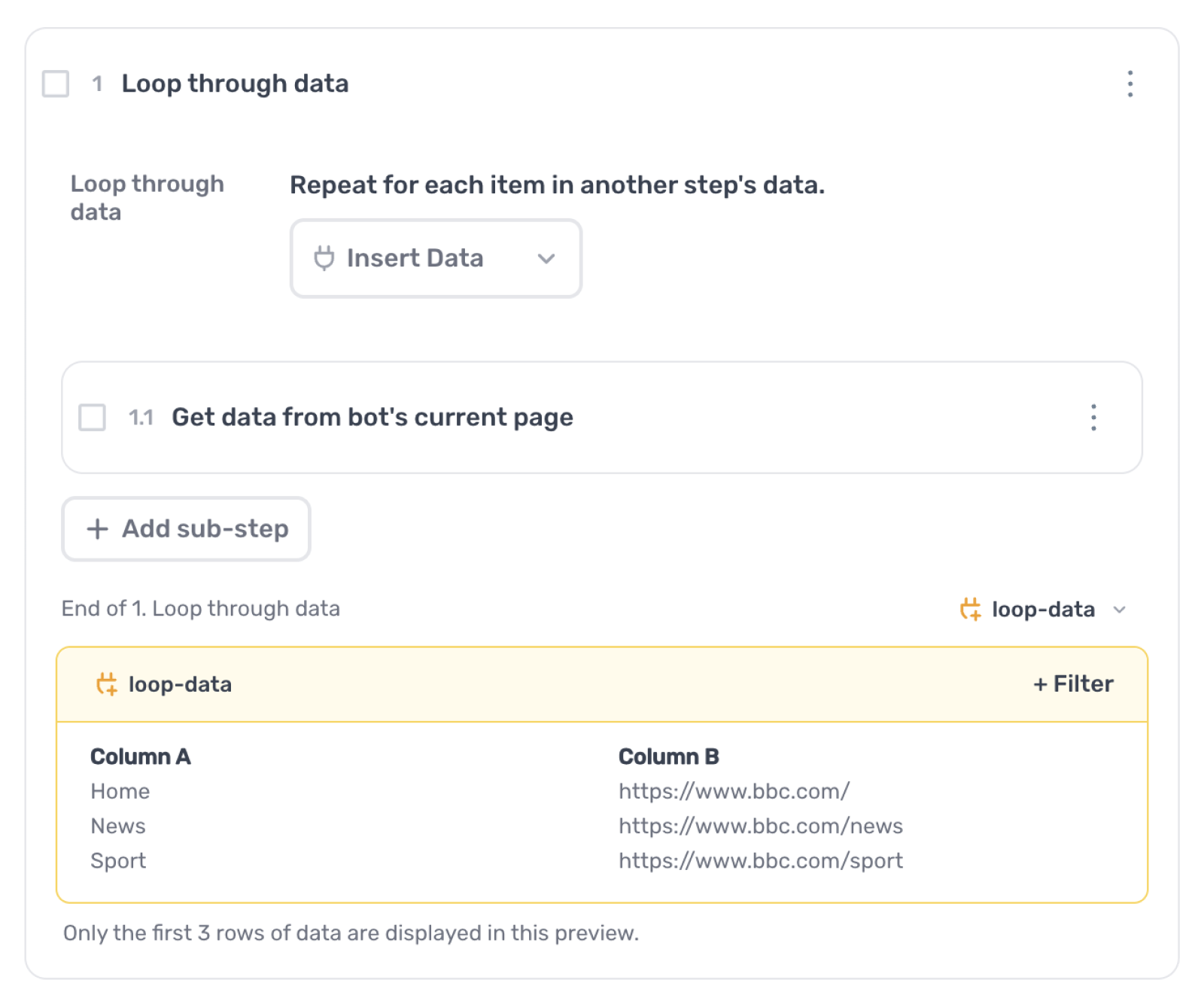
Every Loop through data step outputs a token that other steps can read. The token contains the data output by every sub-step in every iteration, assembled into a 2D array (a table).
Group data with a loop
You can use a loop to group the output of several steps into a single token, even if the loop only iterates once. Wrap the steps in a loop to combine their outputs.
End a loop early
Use the End loop step to stop a loop before it finishes its iterations. Combined with a control flow step, this lets you exit a loop when a condition is met (or not met).
Loop design patterns
These are common loop patterns. Each one starts by reading data from a Google Sheet and ends by deleting the processed row, so a re-run picks up where the last run left off.
Loop through links and scrape each one
- Read data from a Google Sheet
- Loop through data
- Go to page
- Get data from current page
- Write data to a Google Sheet
- Delete row from Google Sheet
Enter data into a web form
- Read data from a Google Sheet
- Loop through data
- Go to page
- Enter text
- Press keys
- Click element
- Delete row from Google Sheet
AI web scraper
- Read data from a Google Sheet
- Loop through data
- Go to page
- Get data from current page
- Extract data with ChatGPT
- Write data to a Google Sheet
- Delete row from Google Sheet
For full walkthroughs of each pattern, see:
- Loop through links and scrape data
- Enter text into a search field
- Scrape HTML and extract data with AI
Loop using the Jump to another step
The Jump to another step step creates a simple loop with two parameters: the step to jump to, and the number of cycles to run.
Use Jump to another step
The most common pattern is to add the jump step at the end of a series of steps you want to repeat.
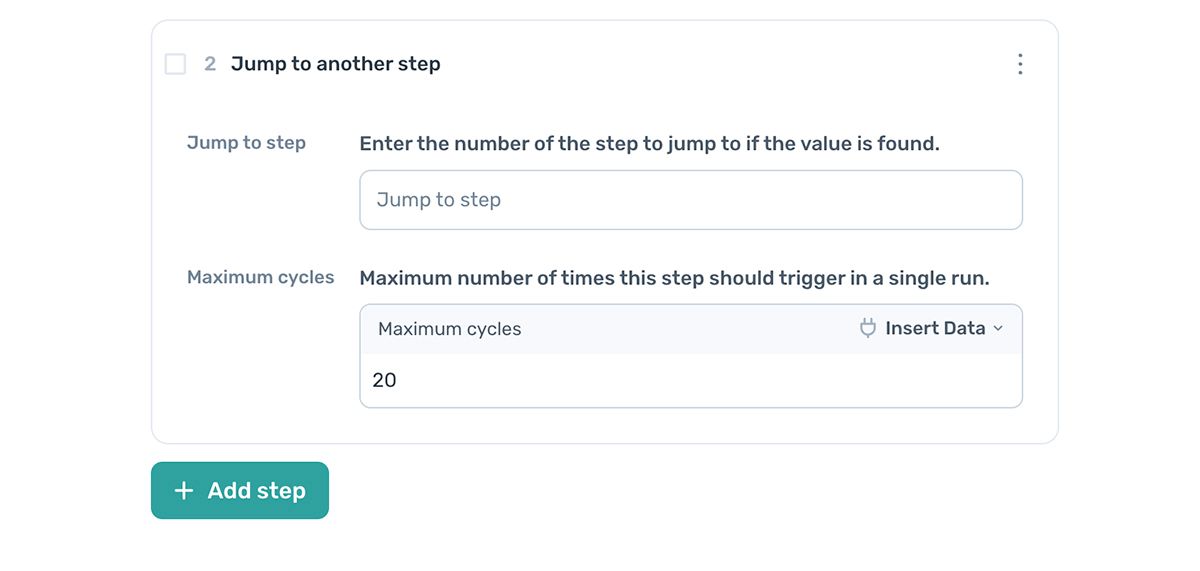
- Open the step finder and add Jump to another step.
- Set
Jump to stepto the step number you want to return to. - Set
Maximum cyclesto the number of times the loop should run.
Note: If you reorder the steps in your automation, check the
Jump to stepvalue still points at the right step.
Loop using the Conditionally jump to another step
The Conditionally jump to another step step works like Jump to another step but only jumps when a condition is met. Use it to behave differently based on data, for example pairing it with a scrape step to keep clicking Next until a target value appears on the page.
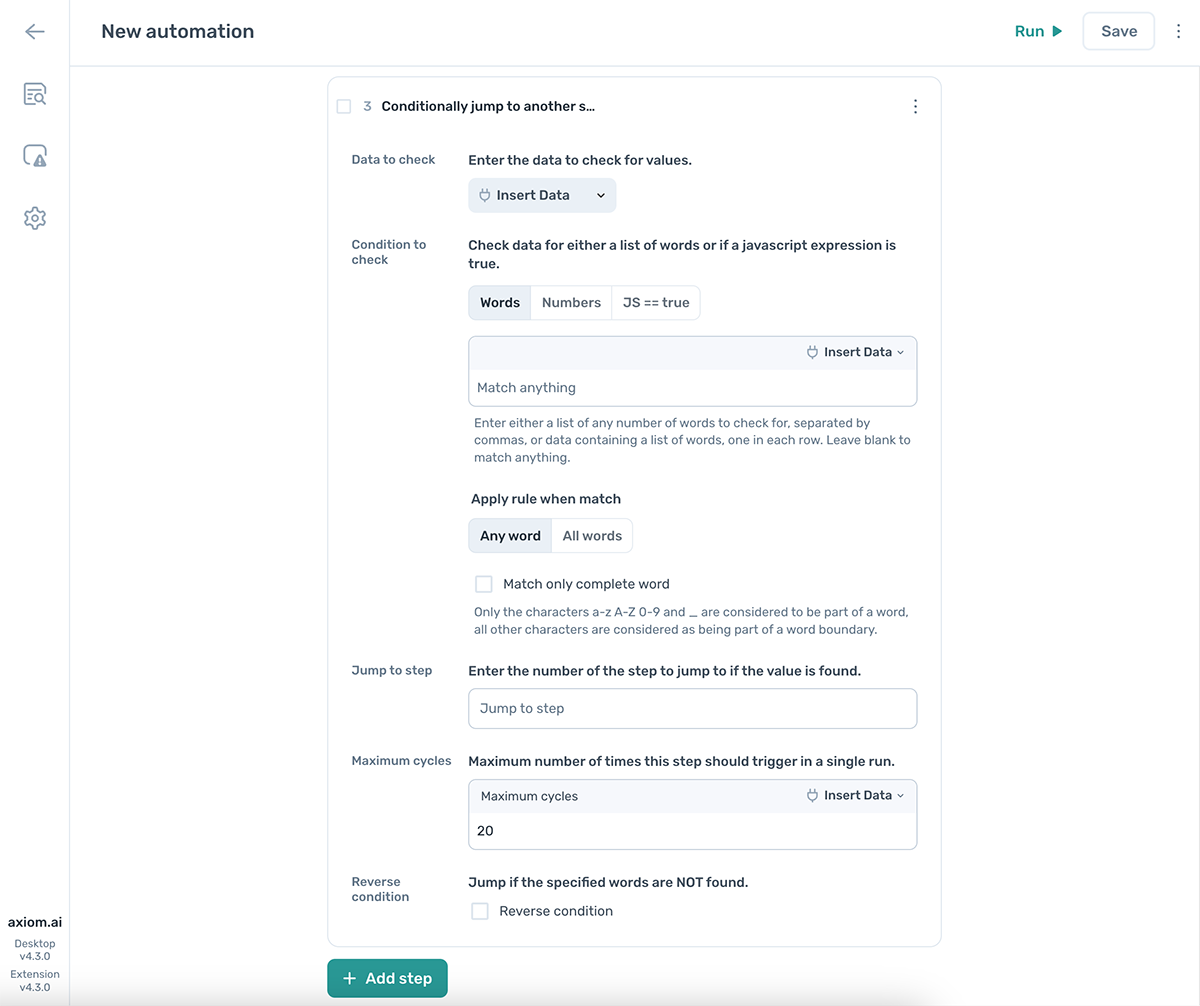
Use Conditionally jump to another step
- Set
Data to checkto the data you want to evaluate (for example scraped data or a Google Sheet value). - Set
Condition to checkto the value to compare against. Strings and numbers are accepted; advanced users can use JavaScript. - Set the matching rules: match any word, all words, or an exact match.
- Set
Jump to stepto the step number you want to return to. - Set
Maximum cyclesto cap how many times the loop can run. - Toggle
Reverse conditionto jump when the condition is false instead of true.