The dashboard
New to the dashboard? This guide walks through the features you'll use most: creating automations, checking run reports, and finding video guides.
Dashboard overview
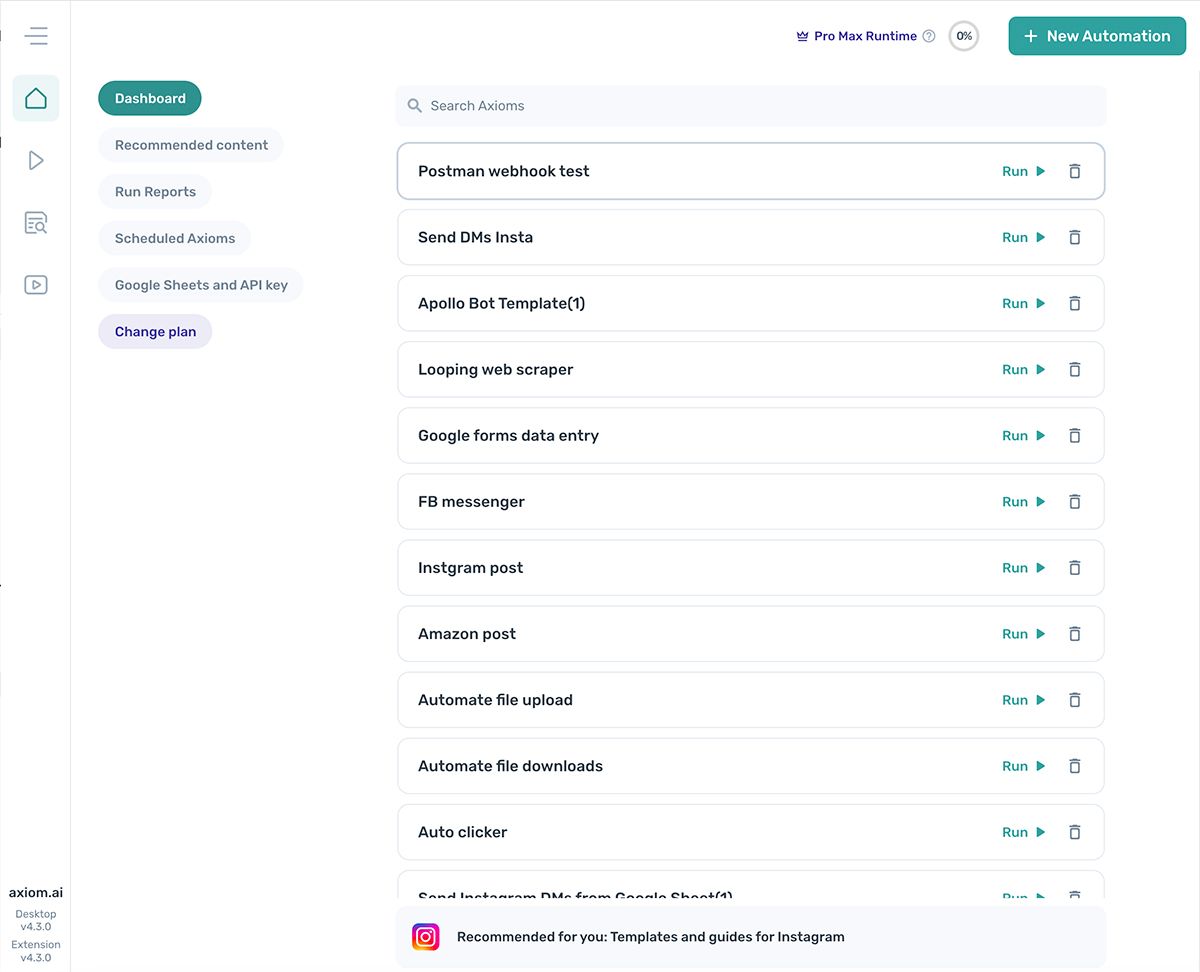
The dashboard is split into three areas, plus a vertical icon toolbar on the far left.
- Icon toolbar (far left). The burger menu opens account settings. Other icons cover home, run status, embedded docs, and video guides. Desktop and extension version numbers sit at the bottom.
- Header (top). Shows your runtime, subscription plan, and the New automation button.
- Left column. Menu links to recommended content, run reports, scheduled automations, Google Sheets, API keys, and your subscription plan.
- Main column (right). A searchable list of your automations.
Vertical icon toolbar
The icon toolbar gives you quick access to your account, the home dashboard, run status, and embedded help.
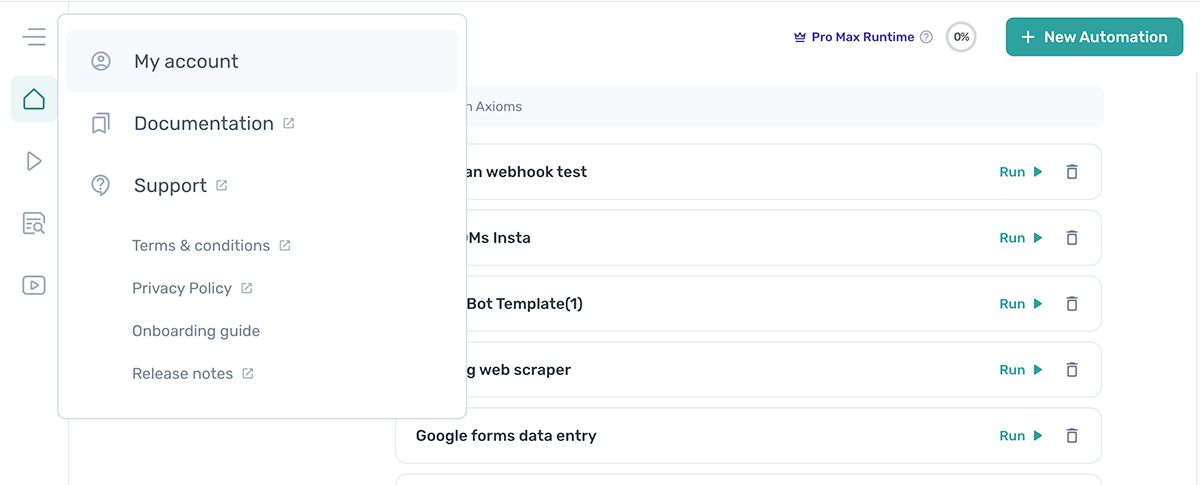
My account
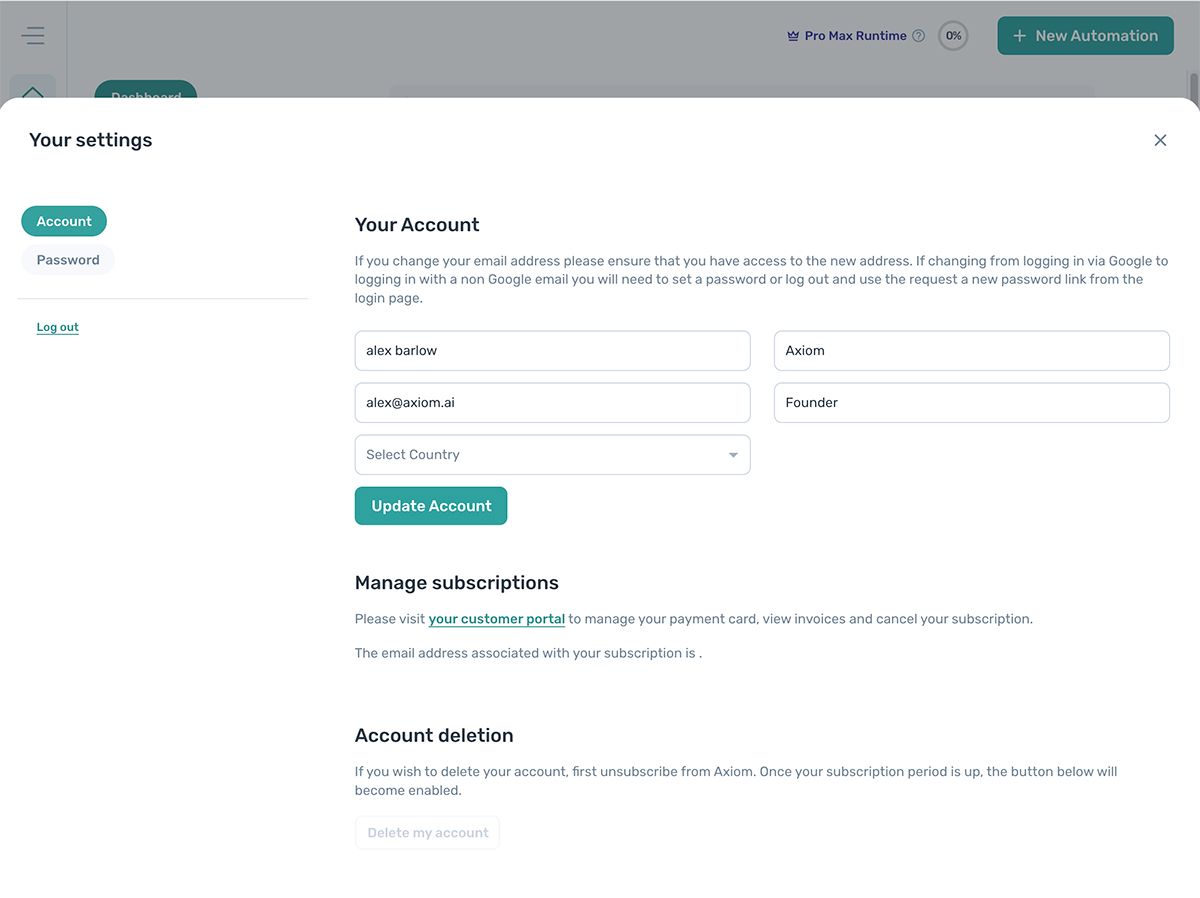
From My account you can edit your email and password, manage your subscription plan, and delete your account.
- Click the burger icon at the top left.
- Click My account.
Home
The home icon returns you to the default dashboard view, where your automations are listed.
Run status
The play icon shows the status of any currently running automations.
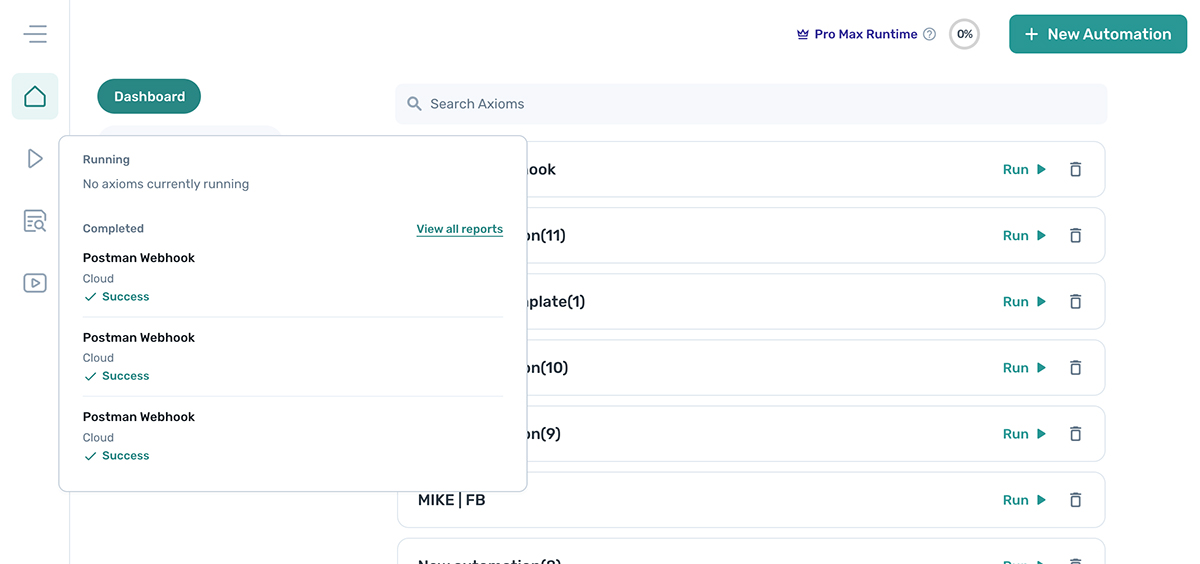
To see your run status, click the play icon.
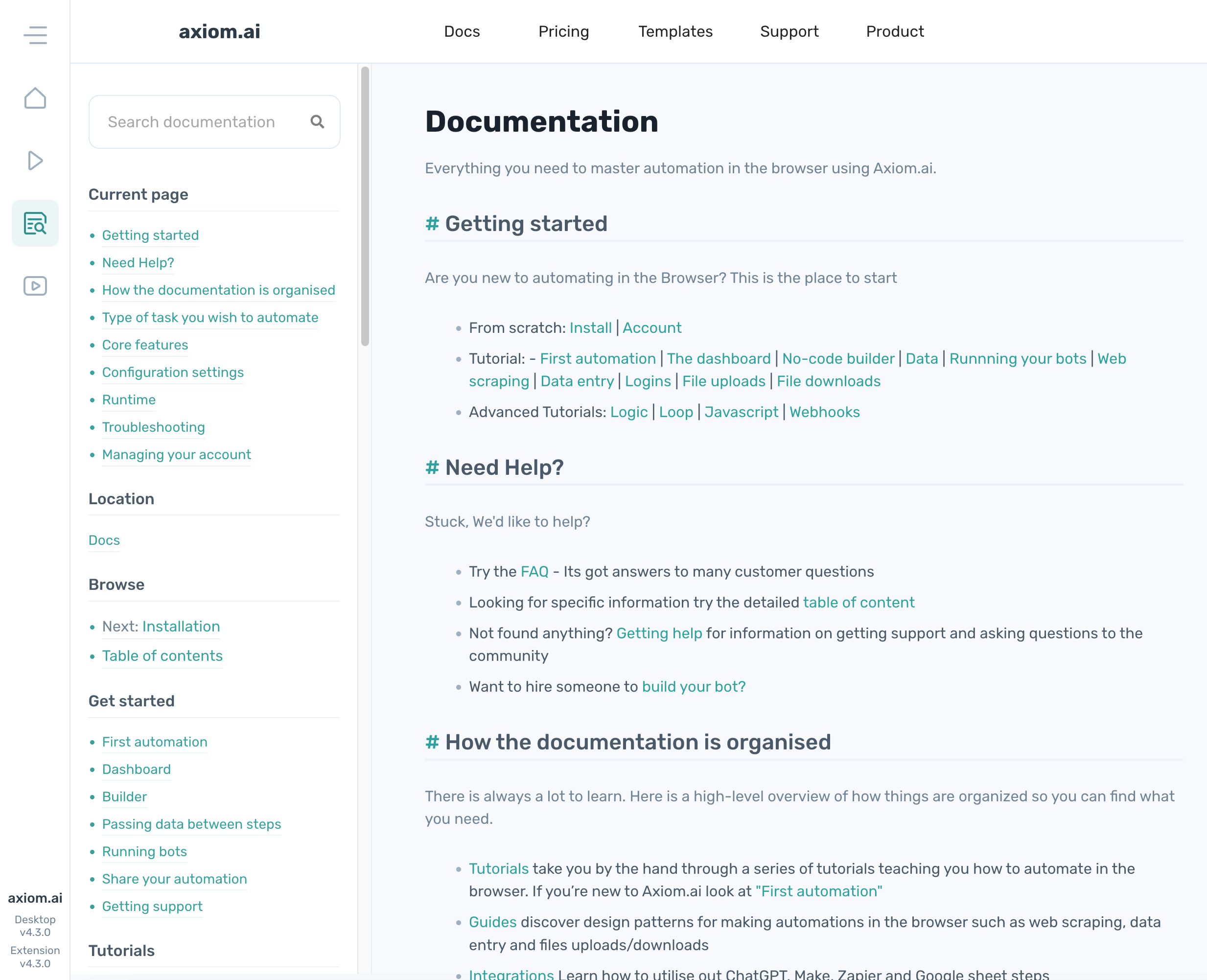
Embedded documentation
You can read the axiom.ai documentation inside the extension without leaving the app.
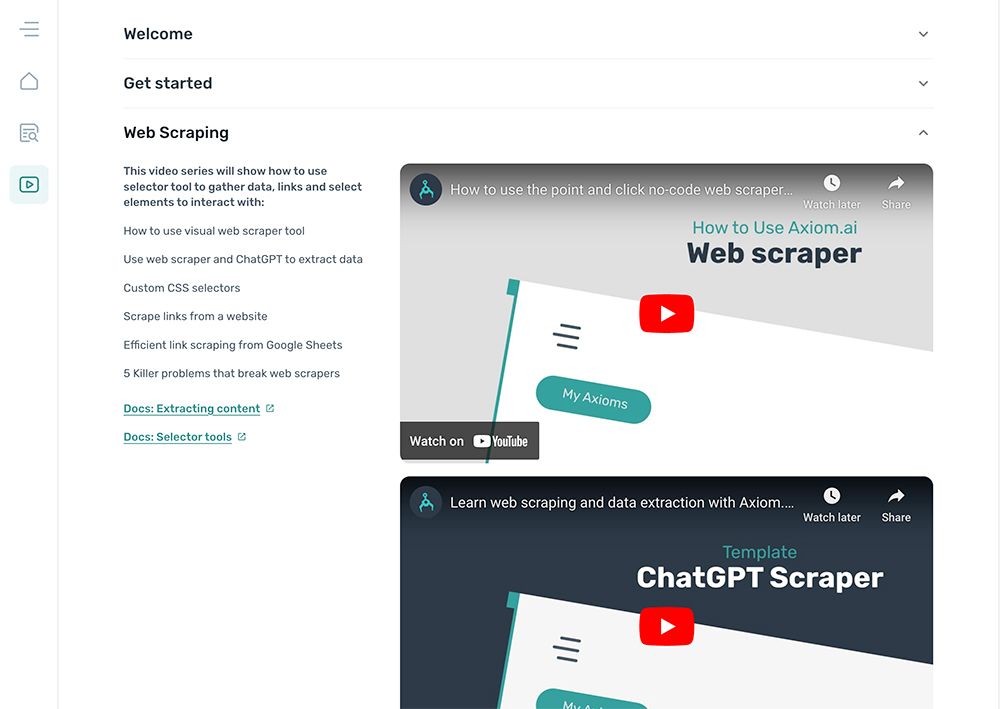
Video guides
Video guides cover use cases ranging from web scraping to social media automation, all accessible from the dashboard.
Vertical menu
The vertical menu, to the right of the icon toolbar, changes the content shown in the main dashboard area.
Dashboard
The default view, showing a list of your automations.
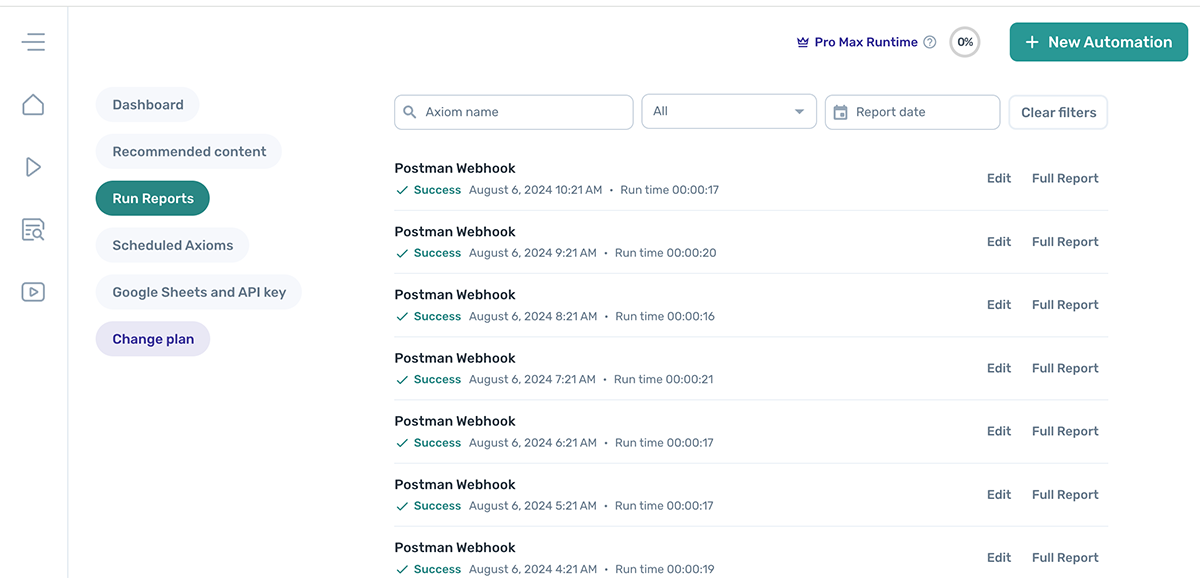
Run reports
To check the status of all your runs, click Run reports. Reports load into the main dashboard area.
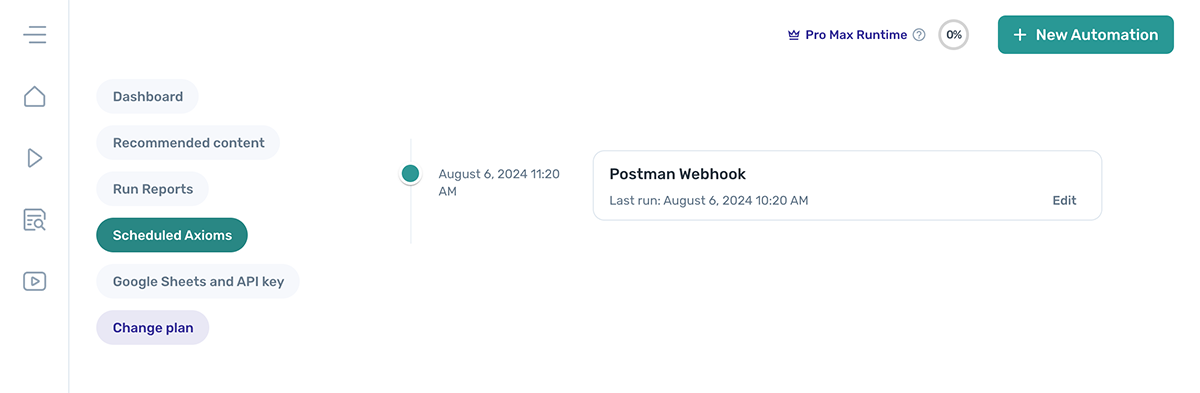
Scheduled automations
To view your scheduled automations, click Scheduled axioms.
Google Sheets and API key
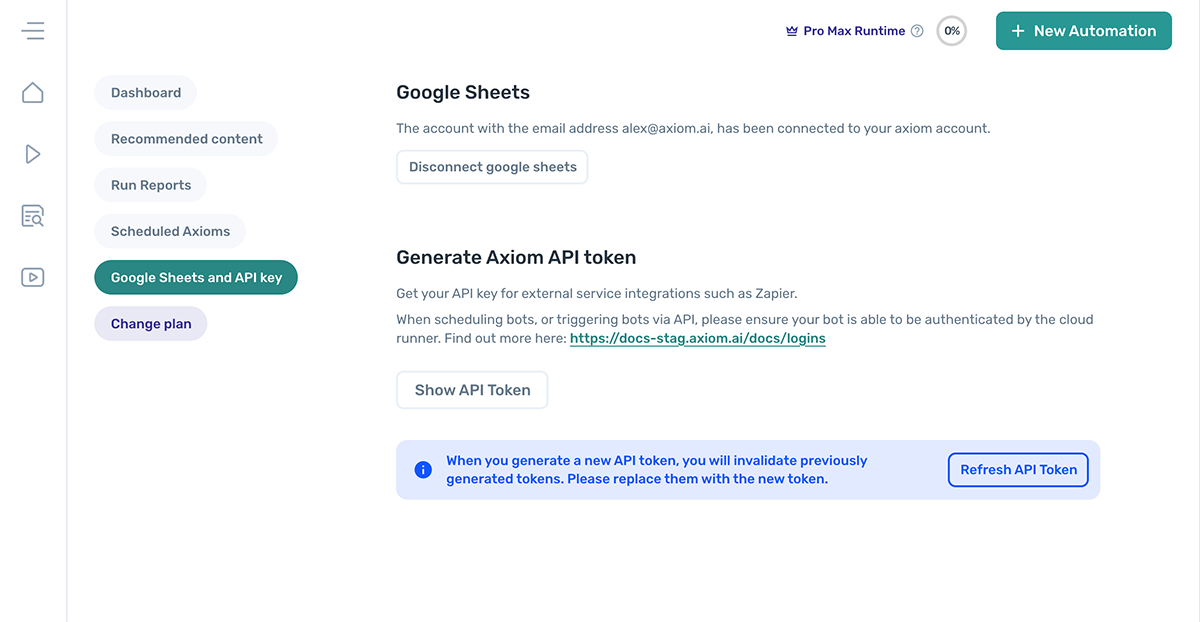
To connect or disconnect your Google Sheets account, or fetch your API key, click Google Sheets and API key.
Change my plan
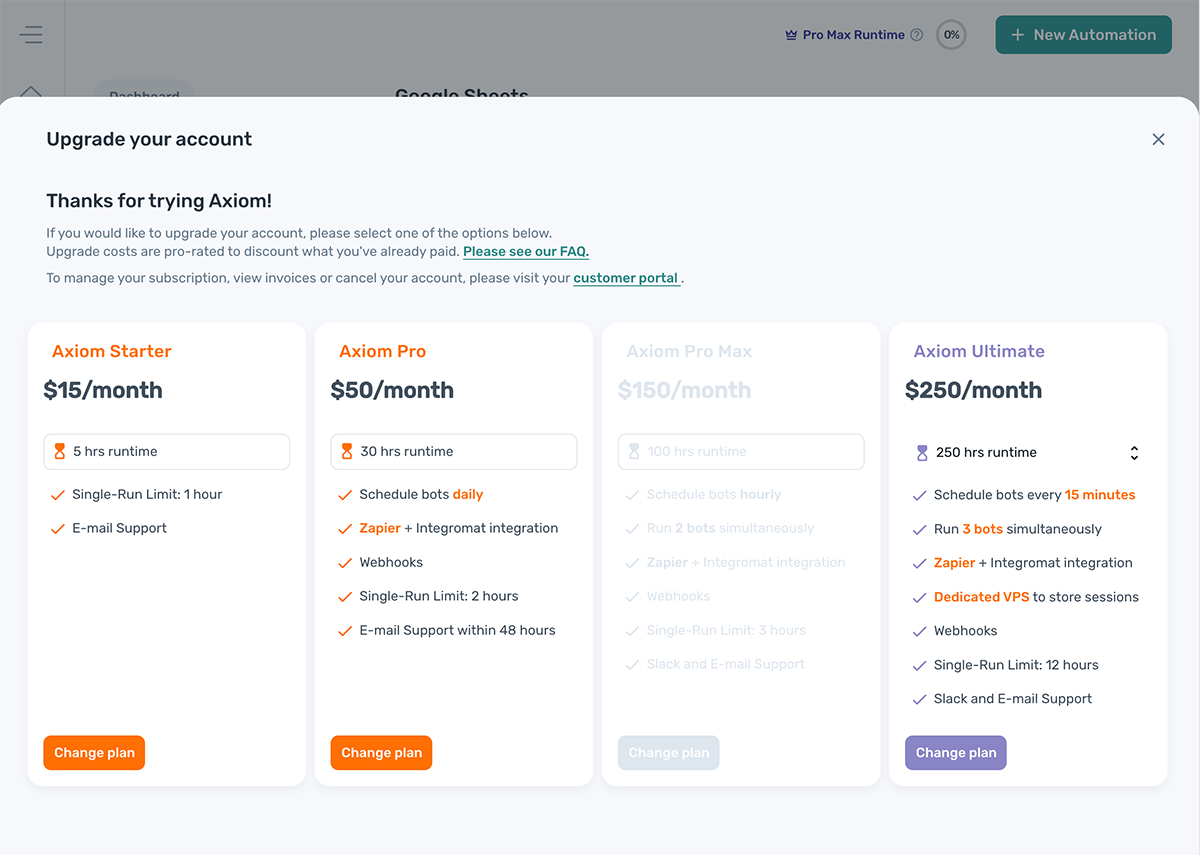
Out of runtime? Click Change plan to upgrade for more.
Main column
The main column lists your automations and is shown by default. From here you can search, edit, run, and delete automations.
Search for an automation
Use the search field to find an automation by name.
Edit an automation
Click an automation in the list to open it in the Builder.
Run an automation
Click the Run button next to any automation to start a run.
Delete an automation
Click the bin icon to delete an automation.
Warning: Deleted automations cannot be recovered.
Dashboard header
The header sits across the top of the dashboard and contains the New automation button along with your runtime and subscription details.
Create a new automation
The dashboard is the starting point for every automation. Click New automation in the top right corner to begin.

Runtime and subscription
Your subscription plan and runtime usage are shown in the top right corner. Runtime resets monthly and unused runtime does not carry over. Hover over the percentage to see a detailed breakdown.
