Bypass bot detection
Many websites use automated bot detection (most commonly Cloudflare) to block automated traffic. axiom.ai automations can get caught in those blocks even though they're not malicious. The bypass bot detection setting helps in two ways: it can solve common challenges automatically, or attach axiom.ai to an existing Chrome window that has already been validated as a real user.
Install the desktop app
Bypass bot detection requires the axiom.ai desktop application. Download it from the downloads page.
Choose a bypass method
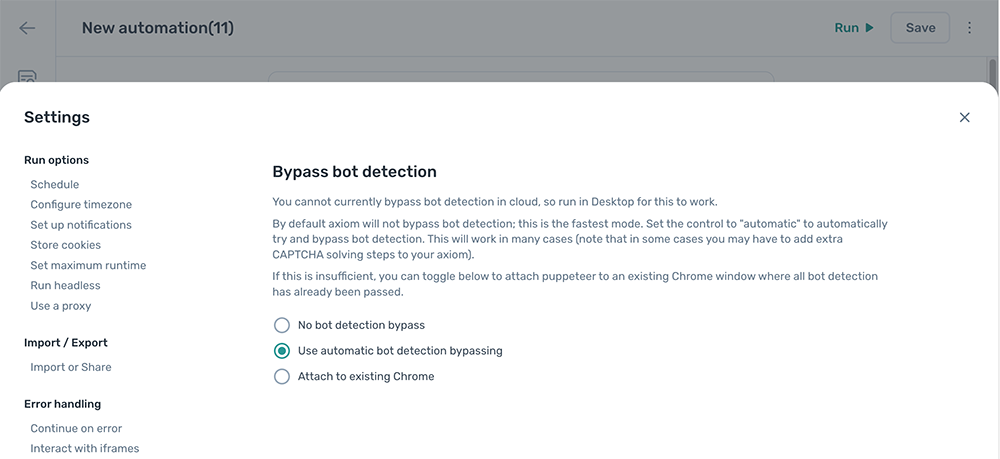
Bot detection bypass is off by default because the checks slow automations down. To turn it on, open the automation, click the Cog icon in the toolbar on the left, and select the Bypass bot detection section.
There are three options:
- No bot detection bypass. The default. axiom.ai runs without any bot detection workarounds.
- Use automatic bot detection bypassing. axiom.ai detects and solves bot challenges automatically where it can.
- Attach to existing Chrome. axiom.ai connects to a Chrome window you've manually validated.
Use automatic bot detection bypassing
With this mode on, axiom.ai detects bot challenges and solves them automatically. It works for many sites but isn't infallible. When automatic bypass can't solve a challenge, you'll need to solve it manually.
For complex challenges, use the Solve Captcha step from the 2Captcha integration.
For simple checkbox challenges, record the keystrokes to solve them with the Press key(s) step:
- Record Tab the correct number of times to move focus onto the checkbox.
- Record Space to tick the box and complete the challenge.
For more on keystroke automation, see record keystrokes.
Attach to existing Chrome
This method connects axiom.ai to a Chrome window you've already validated as a real user, so the bot blocker sees legitimate-looking traffic.
Open Chrome with remote debugging enabled
Chrome needs to be started with the remote debugging port flag for axiom.ai to attach to it. The Bypass bot detection settings panel includes a button to open one for you. To start one manually instead, run a command like this in a terminal:
/path/to/Chrome/chrome --remote-debugging-port=21222
Adjust the path to your Chrome executable. You can also create a shortcut or symbolic link with the flag built in for easier reuse.
Solve the challenge in your Chrome window
In the new Chrome window, navigate to the site you're trying to automate, then to the page where bot blocking happens. The site validates the session, often automatically, sometimes by asking you to solve a captcha. Once you've passed the validation, the session is ready for axiom.ai to take over.
Adjust the automation start point
The automation needs to start on the page you've validated, not before it. If validation happens after a login, sign in manually first, then change the automation so it only contains the steps that come after sign-in.
When you click Run, axiom.ai picks up the validated browser window and runs from the configured start step.
Note: In this mode, the Chrome window doesn't close when the automation stops. The automation finishes its current action, then leaves the window open for you to close manually.