Use a proxy
The proxy option routes an automation's traffic through a proxy server. Useful for working around sites that block automated traffic, or for reaching content that's restricted to a specific region.
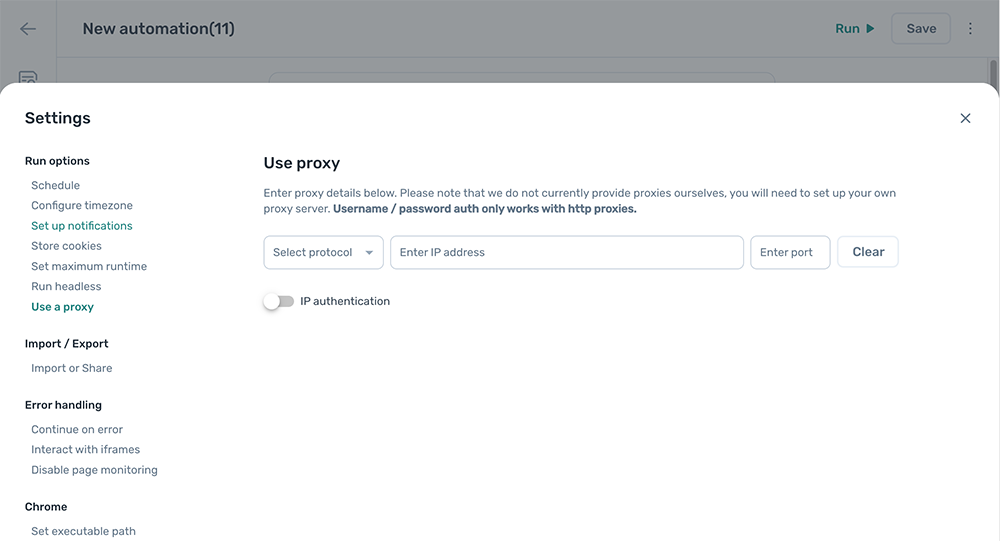
Note: axiom.ai doesn't offer proxy services. Use a third-party proxy provider, or a self-hosted proxy server.
Parse your proxy URL
Most proxy providers give you a single URL containing every detail you need. The form in axiom.ai splits that URL across separate fields, so before configuring a proxy you'll need to break the URL into its parts.
A proxy URL has this shape:
<protocol>://<username>:<password>@<host>:<port>
For example, a proxy from a typical provider might look like this:
http://4bd1c98f3a72de01:xQRtwNZUBsa19YFm@res.proxy-seller.com:10000
Mapped onto axiom.ai's fields:
Protocolis HTTP (the part before://).Usernameis4bd1c98f3a72de01(the part before the colon, before the@).PasswordisxQRtwNZUBsa19YFm(the part after the colon, before the@).IP addressisres.proxy-seller.com(the part after the@, before the colon). This is a hostname rather than a numeric IP, but the field accepts both.Portis10000(the part after the final colon).
Note: The example above is an HTTP proxy with credentials. Username and password authentication typically only works with HTTP proxies; SOCKS proxies usually authenticate by IP allowlisting at the provider instead. See Configure a proxy below for details.
Note: The example credentials above are not real. Use the credentials your provider gave you.
Configure a proxy
- Open the automation and click the Cog icon in the toolbar on the left.
- Open the Proxy section.
- Set
Protocolto your proxy's protocol (typically HTTP, HTTPS, SOCKS4, or SOCKS5). - Set
IP addressto your proxy's hostname or IP. - Set
Portto your proxy's port. - If your proxy needs authentication, set
UsernameandPasswordto the credentials your provider gave you.
Note: Username and password authentication typically only works with HTTP proxies. SOCKS proxies usually authenticate by IP allowlisting on the provider's dashboard rather than by credentials in the connection. If you've set the protocol to SOCKS4 or SOCKS5 and the proxy still rejects the connection, check your provider's dashboard for an IP allowlist instead.
Troubleshooting
The proxy connection times out
Confirm the proxy URL works outside axiom.ai before debugging the automation. A quick test from the terminal:
curl -x http://<username>:<password>@<host>:<port> https://www.google.com
If curl can't reach the proxy either, the issue is with the proxy itself, not with axiom.ai. Contact your proxy provider.
Pages load but the wrong region appears
Some proxy providers route traffic through different regions automatically. Check whether your provider offers a region-specific endpoint or sticky session, and use that hostname instead of the rotating one.
Authentication errors
If you see a 407 Proxy Authentication Required error in run logs, double-check that Username and Password exactly match the credentials your provider issued. Pay particular attention to leading and trailing whitespace, which can sneak in when copying from a provider's dashboard.
SOCKS proxy with credentials isn't working
Username and password authentication typically only works with HTTP proxies. If your provider gave you a URL with embedded credentials but the protocol is SOCKS4 or SOCKS5, the credentials usually aren't used by the proxy connection itself. Instead, sign in to your provider's dashboard and add the IP address of the machine running the automation to their allowlist. After the IP is allowlisted, the proxy will accept connections from that machine without any credentials in axiom.ai.