Block resources
Block resources stops an automation from loading images, fonts, scripts, media, and other webpage assets it doesn't need. Skipping these cuts bandwidth, reduces network traffic, and speeds up runs, especially on heavy pages where the automation only needs the HTML.
Warning: Blocking some resources, like JavaScript, can break the page. Always test the automation after changing these settings.
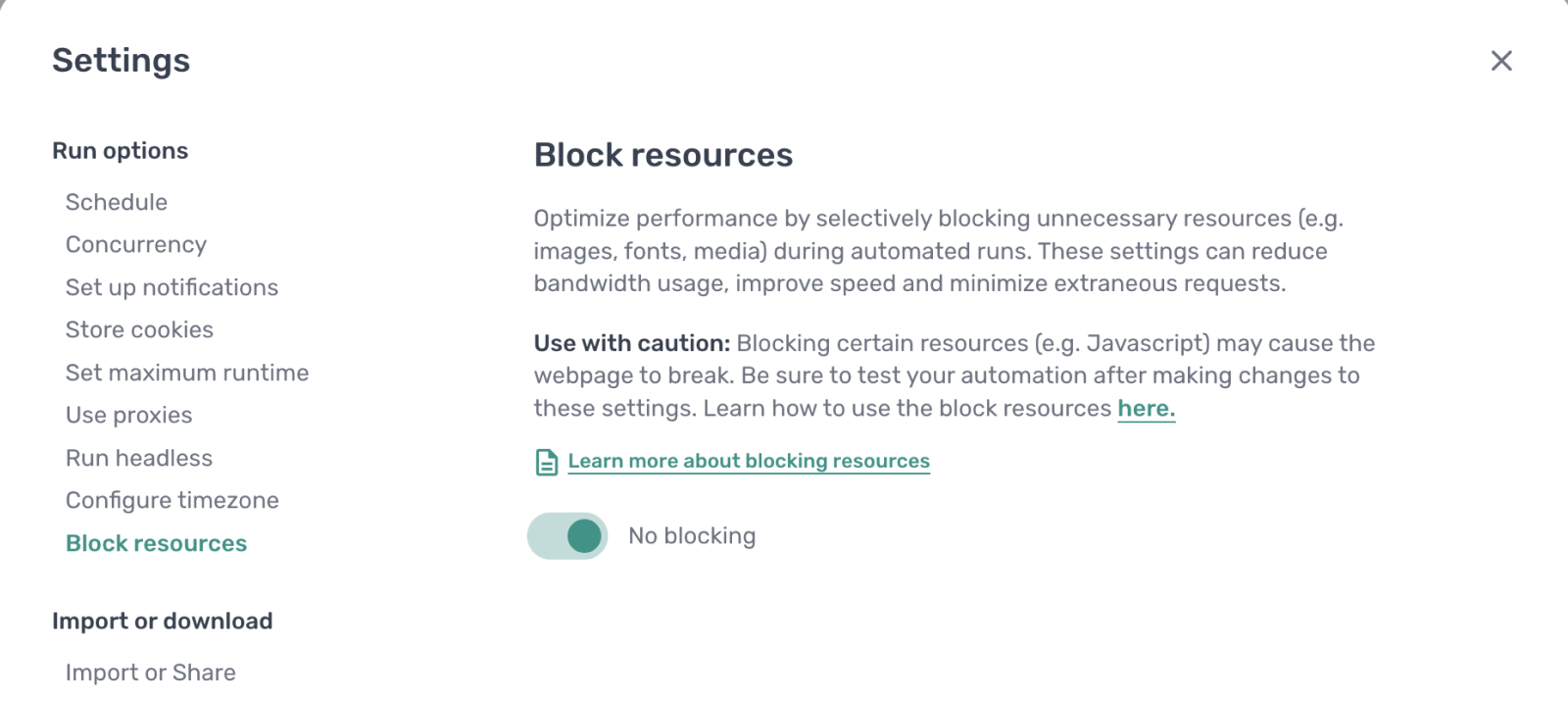
Block resources for an automation
- Open the automation and click the Cog icon in the toolbar on the left.
- Open the Block resources section.
- Toggle
Block individual resourceson. - Enter a domain or URL pattern in
Domain or pathand click Add. - For each entry, pick which resource types to block (images, fonts, scripts, media, and so on).
Repeat for every domain or path the automation loads during a run.
Domain and URL patterns
Use * as a wildcard to match a group of URLs:
*blocks all URLs.axiom.ai/*/scriptsblocks any path matching that pattern onaxiom.ai.*.axiom.ai/*blocks every subdomain ofaxiom.ai.
Specific patterns let you block bandwidth-heavy resources on third-party domains (analytics, ad servers, image CDNs) while leaving the main site you're scraping untouched.
When to use it
- Scraping text-heavy pages. Block images, fonts, and media to load pages faster.
- Avoiding tracking and ads. Block known analytics or advertising domains so they don't slow the run.
- Working around heavy third-party scripts. Block embedded widgets, chat boxes, or video players that aren't needed for the task.
Don't block resources the page genuinely depends on, particularly JavaScript, unless you've tested that the automation still works without them.--- title: Block resources metaTitle: Block images, fonts, and scripts to speed up automations description: Block images, fonts, scripts, and other webpage resources during a run to cut bandwidth and speed up automations. order: 9
Block resources stops an automation from loading images, fonts, scripts, media, and other webpage assets it doesn't need. Skipping these cuts bandwidth, reduces network traffic, and speeds up runs, especially on heavy pages where the automation only needs the HTML.
Warning: Blocking some resources, like JavaScript, can break the page. Always test the automation after changing these settings.
Block resources for an automation
- Open the automation and click the Cog icon in the toolbar on the left.
- Open the Block resources section.
- Toggle
Block individual resourceson. - Enter a domain or URL pattern in
Domain or pathand click Add. - For each entry, pick which resource types to block (images, fonts, scripts, media, and so on).
Repeat for every domain or path the automation loads during a run.
Domain and URL patterns
Use * as a wildcard to match a group of URLs:
*blocks all URLs.axiom.ai/*/scriptsblocks any path matching that pattern onaxiom.ai.*.axiom.ai/*blocks every subdomain ofaxiom.ai.
Specific patterns let you block bandwidth-heavy resources on third-party domains (analytics, ad servers, image CDNs) while leaving the main site you're scraping untouched.
When to use it
- Scraping text-heavy pages. Block images, fonts, and media to load pages faster.
- Avoiding tracking and ads. Block known analytics or advertising domains so they don't slow the run.
- Working around heavy third-party scripts. Block embedded widgets, chat boxes, or video players that aren't needed for the task.
Don't block resources the page genuinely depends on, particularly JavaScript, unless you've tested that the automation still works without them.