 Get data from a webpage
The 'Get data from a bot's current page' step in axiom.ai is a versatile web scraping tool that can extract data from tables, pages, and listing pages the bot is currently on. It supports pagination and infinite scroll. The tool includes a point-and-click selector for easy content selection without coding. It's suitable for scraping data for simple reports or extensive databases.
If you are looking to create a large scale scraper we recommend a design pattern called 'batch scraping'. You will also find a batch scraping template here. If you just want to scrape links use this 'scraper'.
You can use this step to scrape:
- Amazon product page links, like Amazon Book pages
- Social media links
- LinkedIn profile links from Sales Navigator
- Links from any website
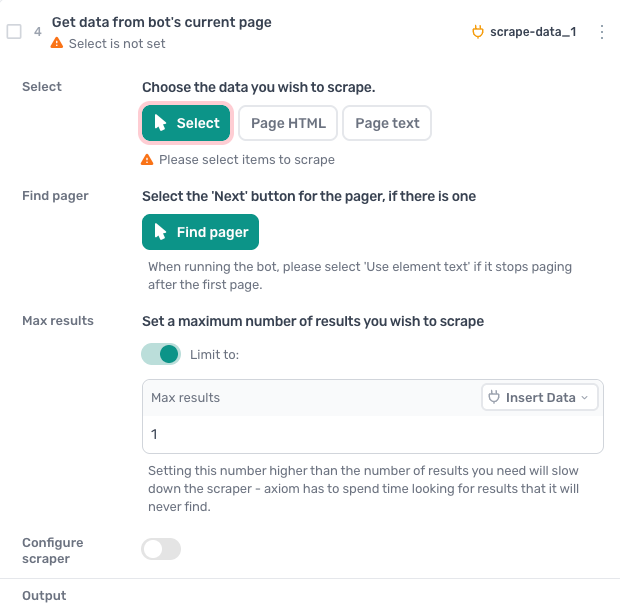
How to configure the Get data from a bot's current page step
Select
Click 'Select' to choose the data you wish to scrape. The display will transform into the selector tool, and it will guide you by showing you how to select data from the webpage.
The Multi-selector tool comes with several valuable features accessed by clicking custom:
- Ability to use custom CSS selectors
- 'Use element text' allows you to click buttons based on the button text i.e. 'Submit'
- Pass CSS selectors in from data sources
Watch these guides to learn more about the selector tool.
Find pager (optional)
Select the 'Next' button for the pager, if there is one. If the button features text such as 'Next,' why not try the 'Use element text' method? Click 'Custom' on the selector toolbar, then click 'Use element text'.
Max results
We set the max results to 1 to speed up the testing of your bots as you make them. It's best to do short runs while testing your bot.
Wait time between scrolls (ms)
Adjust the wait time between scrolls to increase or decrease the loading time of content. This feature is particularly useful when scrolling down listing pages with slow-loading content. However, insufficient waiting time could mean that content is not loaded. Therefore, experiment with caution.
No. of retry attempts when results not found
To speed up your runs, reduce the retry runs. But keep in mind content could be missed. Make sure to do some test runs.
Minimum wait before scraping (ms)
To speed up your runs, reduce your wait time. However, keep in mind that some content may not have finished loading yet, which is why we wait.
Page number to start scraping on
For paginated pages, you can specify a starting page. However, not all pages support this.
Specify exact number of pixels to scroll
Instead of auto-scrolling set a pixel height to scroll.
Force a re-scrape after each page change
Use if you are only getting the first page of results.
Output
A preview of the scraped data.
Guides that use this step
Monitor a web page for new items and send a webhook
- Go to the listing page I give you
- Scrape the title and link of every item
- Keep only the ones not already in my sheet
- Add the new ones to my sheet and post my webhook
Scrape every page in a list of links into a Google Sheet
- Open each link in the Links tab of my sheet
- Scrape the title, price and description
- Add them to the Data tab
- Delete the link row once it is scraped
Check if a website needs a login and log in only when it does
- Go to the site I give you
- Check if it is showing a login page
- If it is, log in with my email and password
- Then carry on with the rest of the task
Scrape data from a list of URLs in a Google Sheet
- Open each link in column A of my Google Sheet
- Ask me which data to scrape from each page
- Put the details in that URL's row from column B
Screenshot a list of websites from a Google Sheet
- Open each website link in column A of my sheet
- Save a screenshot of the page to my computer
- Write today's date in column B of the same row
Scrape a Spotify discography into a Google Sheet
- Open each artist link in the Artists tab
- Go to the artist's full discography
- Open every album and scrape the title and date
- Add them to the Data tab and delete the artist