 Click element step
The "Click element" step automates clicks in web automation, essential for actions like liking content or submitting forms. Learn about optional clicks and using element text for button selection.
You can use this step to:
- Click submit on a form
- Close a pop-up window by clicking 'X'
- Like an Instagram post
- Click on a select list
- Tick a box
- Send an email
- Click to generate reports
- Click to discover even more uses for the Click element step.
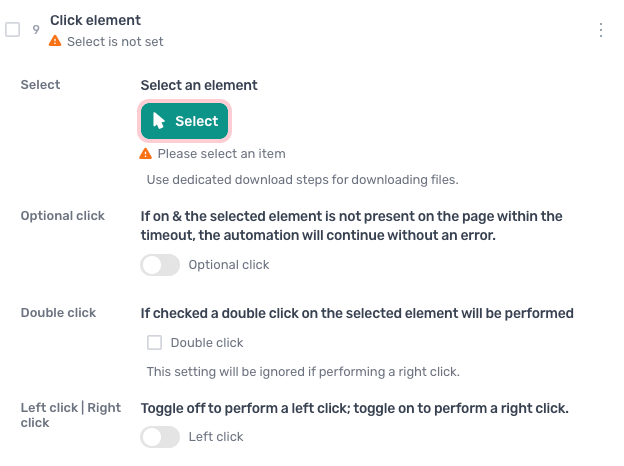
Configuration
Select
Click Select to choose the button or link you want to click. The display transforms into the Single Selector: describe the element or click it on the page, and AI generates the selector with a fallback.
The Single Selector also lets you set the selector yourself, by clicking Custom:
- Use a custom CSS selector
- Select the element by its text, for example Submit for a submit button, using the Text option
- Pass a selector in from a data source like a Google Sheet, using the Data option
Double click
If checked, a double click is performed on the selected element. The setting is ignored when the step performs a right click.
Left click | Right click
Toggle off to perform a left click; toggle on to perform a right click.
Optional click (Can be very handy)
By default, if the selected element is missing, the step throws an error and stops the run. In some cases you want to click an element that isn't always present, such as a cookie window. Turn on Optional click and the step waits up to 10 seconds for the element. If it hasn't appeared by then, the step is skipped without an error and the run continues.
The wait is in milliseconds, and you can change it in the box that appears when the switch is on: 10000 is 10 seconds. Raise it for a dialog that appears late, or lower it to keep runs quick on pages where the element is usually missing.
Guides that use this step
Close pop-ups and dialogs during an automation
- Go to the page I give you
- Close the pop-up if one appears
- Then scrape the title and price of every item
Keyboard shortcuts as a workaround in browser automation
- Go to the page I give you
- Click inside the box with the scrollbar
- Press the down arrow key to scroll it
Clear text from an input field before typing
- Go to the form page I give you
- Clear the text already in the name field
- Type the new name into that field
Close cookie pop-ups and notification prompts automatically
- Open the site's login page
- If a cookie window appears, reject the cookies
- Carry on either way
- Then sign in with my saved login
Loop through a list of buttons with CSS selectors
- Go to the page with the list of buttons
- Read the button selectors from my sheet
- Click each of those buttons in turn
Tick checkboxes and choose options from a Google Sheet
- Read the sign-ups from my Google Sheet
- Open the form and enter each row's name and email
- Tick the newsletter box if the row says yes
- Choose the team the row names
- Submit the form