 Select list step
This step automates the select list (or dropdown) web action. Select the dropdown you wish to automate and the value you wish to select. Use this step with other web action steps like 'Enter text' and 'Click element' to automate tasks like data entry.
You can use this step to:
- Automate select lists when entering data into web forms
- Change search filters on a web page
- Configure web-based software
- Enter data into a CRM
- Choose options when uploading files
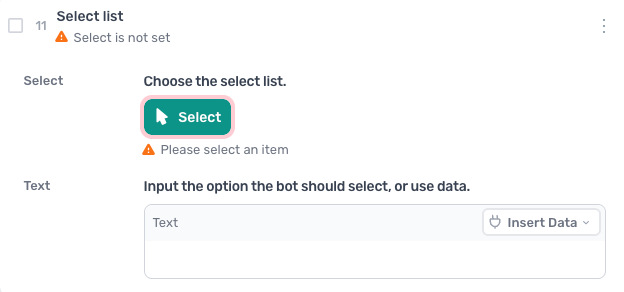
How to configure the Select list step
Select
Click Select to choose the select list. The display transforms into the Single Selector: describe the list or click it on the page, and AI generates the selector with a fallback.
The Single Selector also lets you set the selector yourself, by clicking Custom:
- Use a custom CSS selector
- Select the list by its text, for example Country for a country dropdown, using the Text option
- Pass a selector in from a data source like a Google Sheet, using the Data option
Text
Input the option the bot should select, or click Insert Data to pass a value from another step, such as Read data from a Google Sheet. The text must match the option as it appears in the list.
Guides that use this step
Tick checkboxes and choose options from a Google Sheet
- Read the sign-ups from my Google Sheet
- Open the form and enter each row's name and email
- Tick the newsletter box if the row says yes
- Choose the team the row names
- Submit the form
Automate adding Apollo.io prospects to a list
- Open my Apollo.io search page
- Select all the people on the page
- Save them to my prospect list
- Go to the next page and do the same
Scrape Helium 10 Black Box product data into a Google Sheet
- Read the search criteria from my Google Sheet
- Enter each set into Helium 10 Black Box
- Run the search and scrape every product
- Add the products to the Products tab
Automate data entry into a web form from Zapier
- Take the rows Zapier sends me
- Open the contact form on my site
- Fill in each row's name, email and message
- Submit the form and go to the next row
Automate data entry from a Google Sheet into a web form
- Read the rows from my Google Sheet
- Open the contact form on my site
- Fill in the name, email and message from each row
- Submit, then delete the row from the sheet
Copy data from a Google Sheet into a web form
- Read the rows from my Google Sheet
- Open my web form
- Match each column to a field on the form
- Click the submit button
- Loop through every row of the sheet
- Date each row in the sheet once submitted