Use the Single Selector
The Single Selector tells a step which element on the page to use: the button to click, the field to type into. Describe the element or click it, and AI generates the selector. It appears in Click element, Enter text, Select list and the file steps.
Type what you want or click it on the page, and the AI selector tool generates the selector with a fallback.
Pick the element
- In the step, click Select.
- Type what you want, for example
searchorthe blue Submit button, or click the element on the page. - Press the return arrow or Enter. AI reads the page and generates the selector.
- Click Complete.
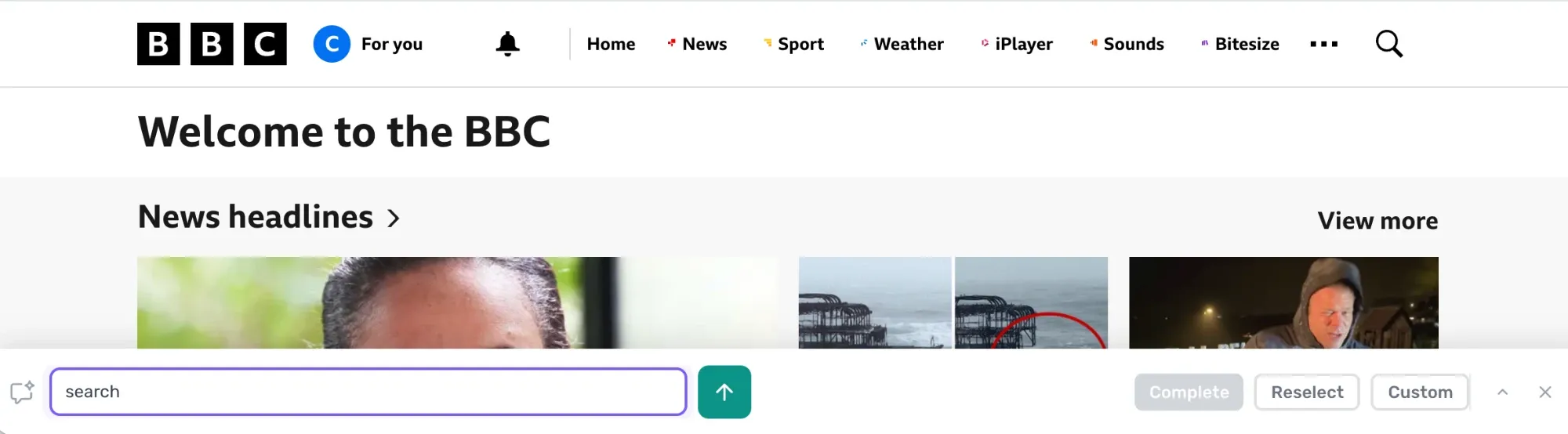
Every AI selector carries a fallback, so if the page changes and the first selector misses, the step tries the fallback before it fails. There is nothing to set up.
Set the selector yourself
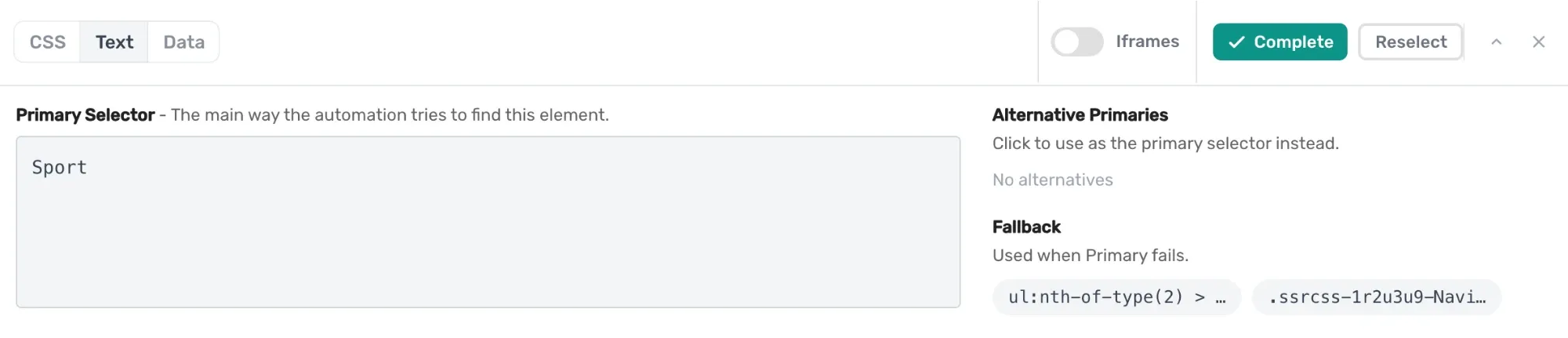
Click Custom to open the selector panel. It holds the Primary Selector, any alternatives, and the Fallback used when the primary fails. Three tabs:
- CSS: type or paste any CSS selector, or click an alternative to make it the primary. See custom CSS selectors.
- Text: match the element by its visible text, for example
Sportfor the Sport link. AI chooses this itself where the text is steadier than the markup; use it when a generated selector keeps missing an element whose label never changes. - Data: take the selector from a data source, such as a Google Sheet, so a loop can run the step against a different element each time round, as with the cells of a calendar.