How to scrape Amazon product data from Black Box into a Google Sheet
Black Box, a tool from Helium10, is a product research tool designed for Amazon sellers. It helps users find profitable products by filtering through millions of listings based on criteria like demand, competition, and sales volume.
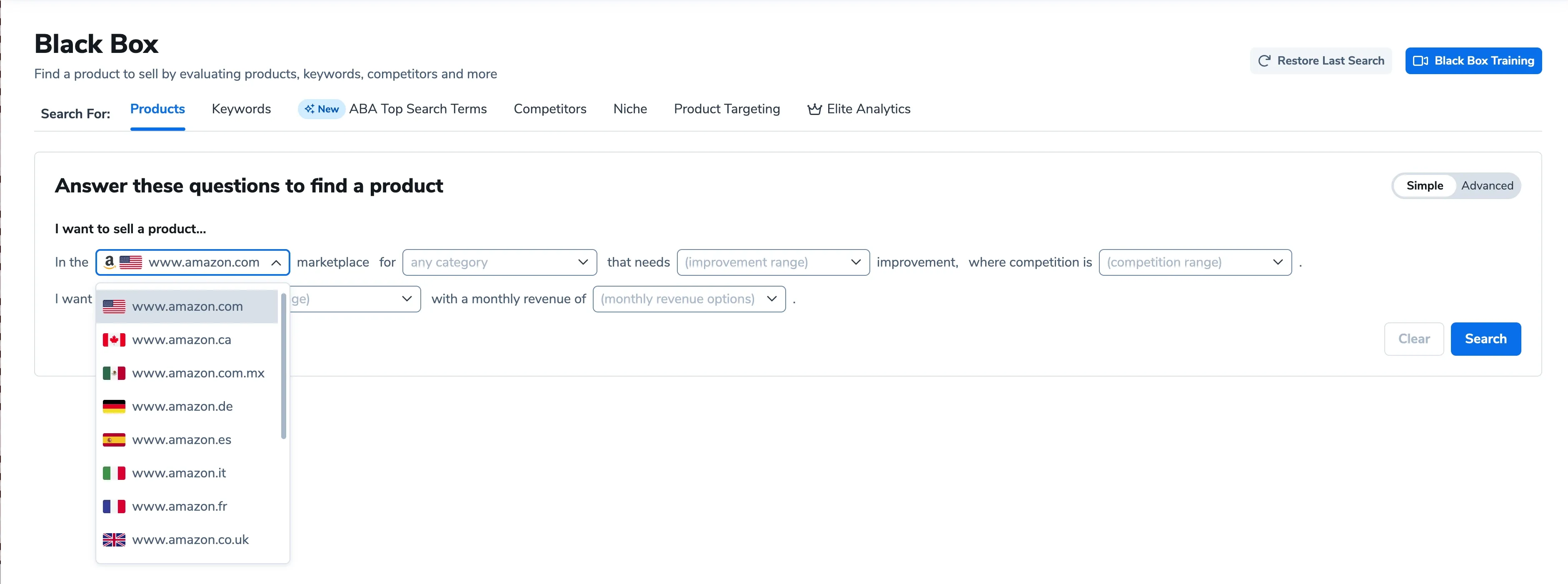
In this guide, you'll learn how to use a bot to load the Black Box homepage, automate the input of search criteria, and click "Search." The bot will then scrape the results and extract them into a Google Sheet.
For this guide, we'll focus on Simple Search Mode, but the same principles apply to automating an Advanced Search. Check out our other Helium 10 guides if you're interested in automating Cerebro or BlackBox.
Getting Started
To begin, create a Google Sheet and add two tabs for search criteria and another to store the extracted data.
- Create a new Google Sheet: If you're logged into Google, type sheet.new in your browser to quickly create a new sheet.
- Set up tab one: Enter your criteria into the first tab.
- Set up tab two: Name the second tab "Products" and leave it blank.
How to automate extracting product data from Black Box
To start building your bot, open axiom.ai and click "New automation" to use the no-code bot builder. Then, click "Add first step" and follow the guide.
Download the template we created for this scraper. Click to learn how to upload it.
- 1.0
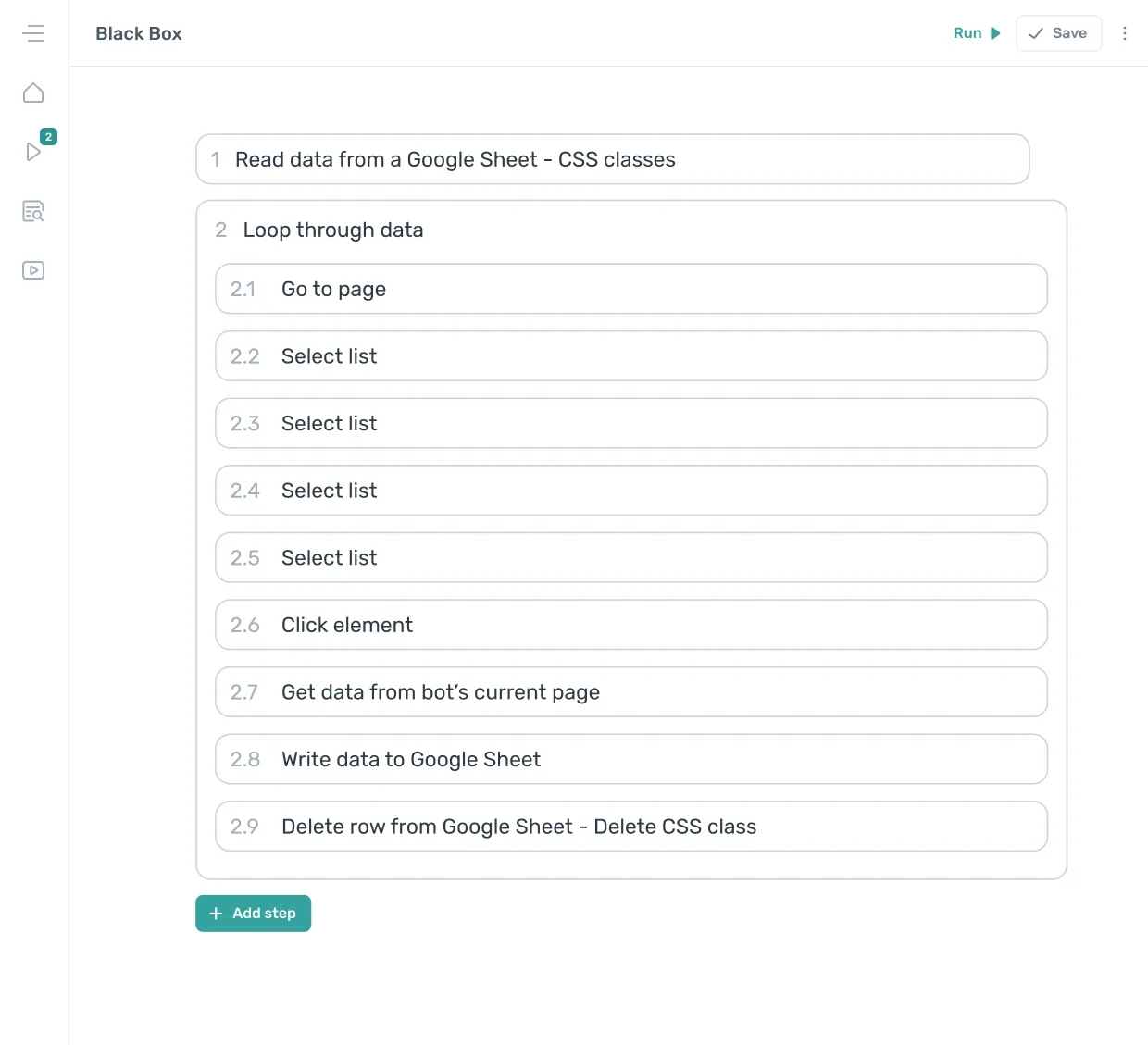
Read data from a Google SheetSpreadsheet: Search for and add the Google Sheet you created.Sheet name: Choose the tab containing the search criteria.
- 2.0
Loop through dataLoop through data: ClickInsert Dataand selectgoogle-sheet-data. The loop step will now iterate through the search criteria in the Google Sheet.
- 2.1
Go to pageEnter URL: The URL will look something like this: "https://members.helium10.com/black-box/products?accountId=xxxxxxx".
- 2.2
Select listSelect: ClickSelect, then select theMarket placedropdown.Text: In the text field, clickInsert Dataand choose the Google Sheet data. In the data preview, select columnAwith the marketplace value.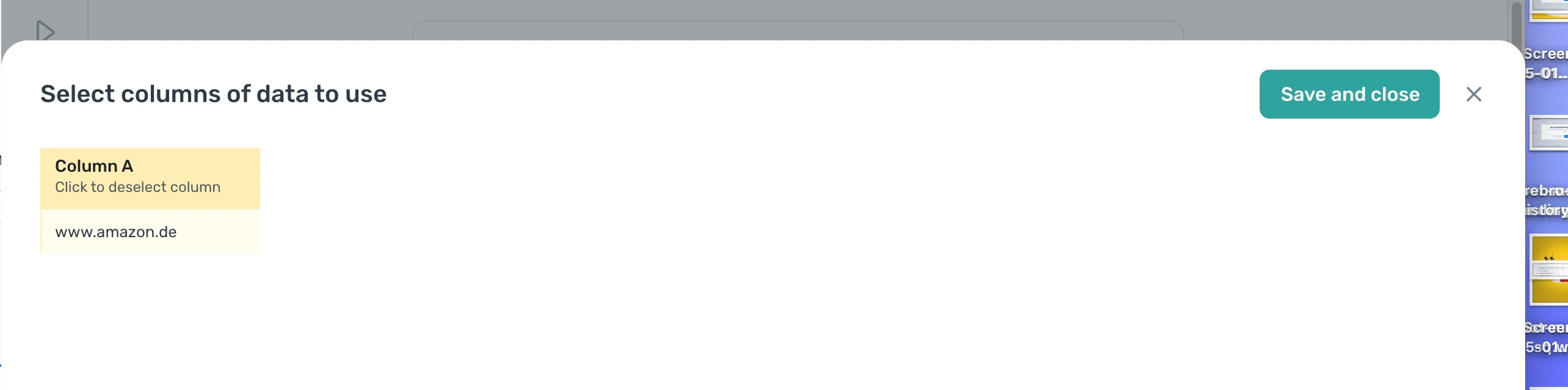
- 2.3
Select listSelect: ClickSelect, then select theCategorydropdown.Text: In the text field, clickInsert Dataand choose the Google Sheet data. In the data preview, select columnAwith the category value.
- 2.4
Select listSelect: ClickSelect, then select theImprovement rangedropdown.Text: In the text field, clickInsert Dataand choose the Google Sheet data. In the data preview, select columnAwith the improvement range value.
- 2.5
Select listSelect: ClickSelect, then select thePrice rangedropdown.Text: In the text field, clickInsert Dataand choose the Google Sheet data. In the data preview, select columnAwith the price range value.
- 2.6
Click elementSelect: ClickSelect, then click onCustomand tickUse element text. Finally, clickComplete.
- 2.7
Get data from bot's current pageSelect: ClickSelectto open the multi-selector tool.- In column
A, click the arrow, then clickSelect link. On the Black Box page, click the image in theProductcolumn, then repeat in the row below.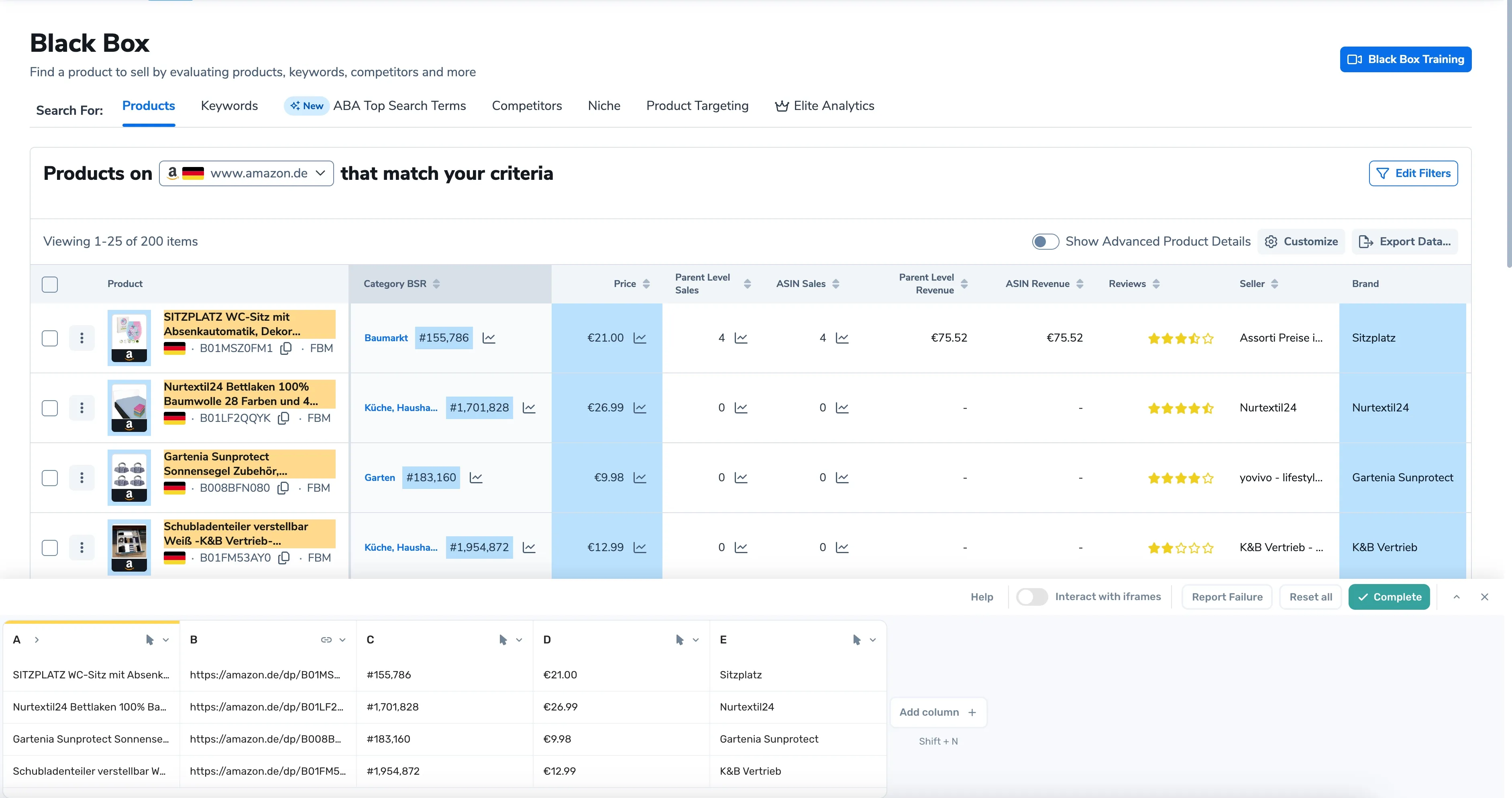
- Press
Shift + Nto add a new column. On the page, select theProduct titlein one row, then repeat in the next. - Add another column. On the page, select the
BSR, selecting the number in one row, then repeat in the next. - To extract the
Price, pressShift + Nto add a new column. Then, in the new column, click the arrow and selectCustom Selector, insert[data-testid="table-cell-price"], then pressComplete.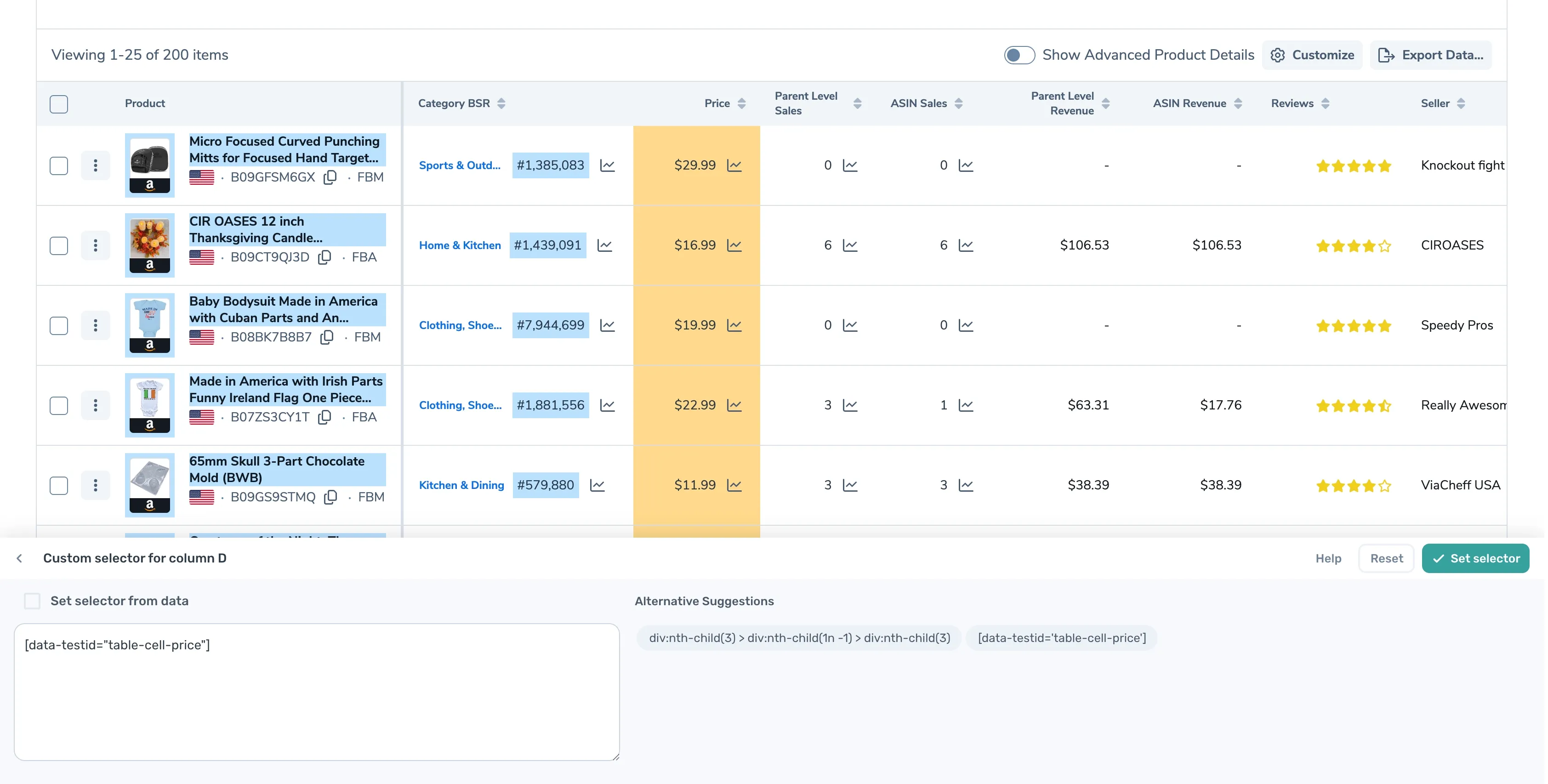
- Add one more column. On the page, select the
Brandin one row, then repeat in the next. - Select the
Nextbutton for pagination using the right arrow key. - Set a maximum number of results you wish to scrape. I chose
100when making this bot.
- 3.0
Write data to a Google SheetSpreadsheet: Select your Google Sheet.Sheet Name: Choose the tab where you want to write the Amazon product data.Data: ClickInsert Dataand choosescraped-data-.Write Options: SelectAdd to Existing Datato append new data without deleting existing data.
- 4.0
Delete rows from a Google SheetSpreadsheet: Select your Google Sheet.Sheet Name: Choose the tab containing the search criteria.First Row to Delete: Leave this set to1.Last Row to Delete: Set to10.
The Black Box automation, when completed, should resemble the diagram below.
Testing your Black Box automation
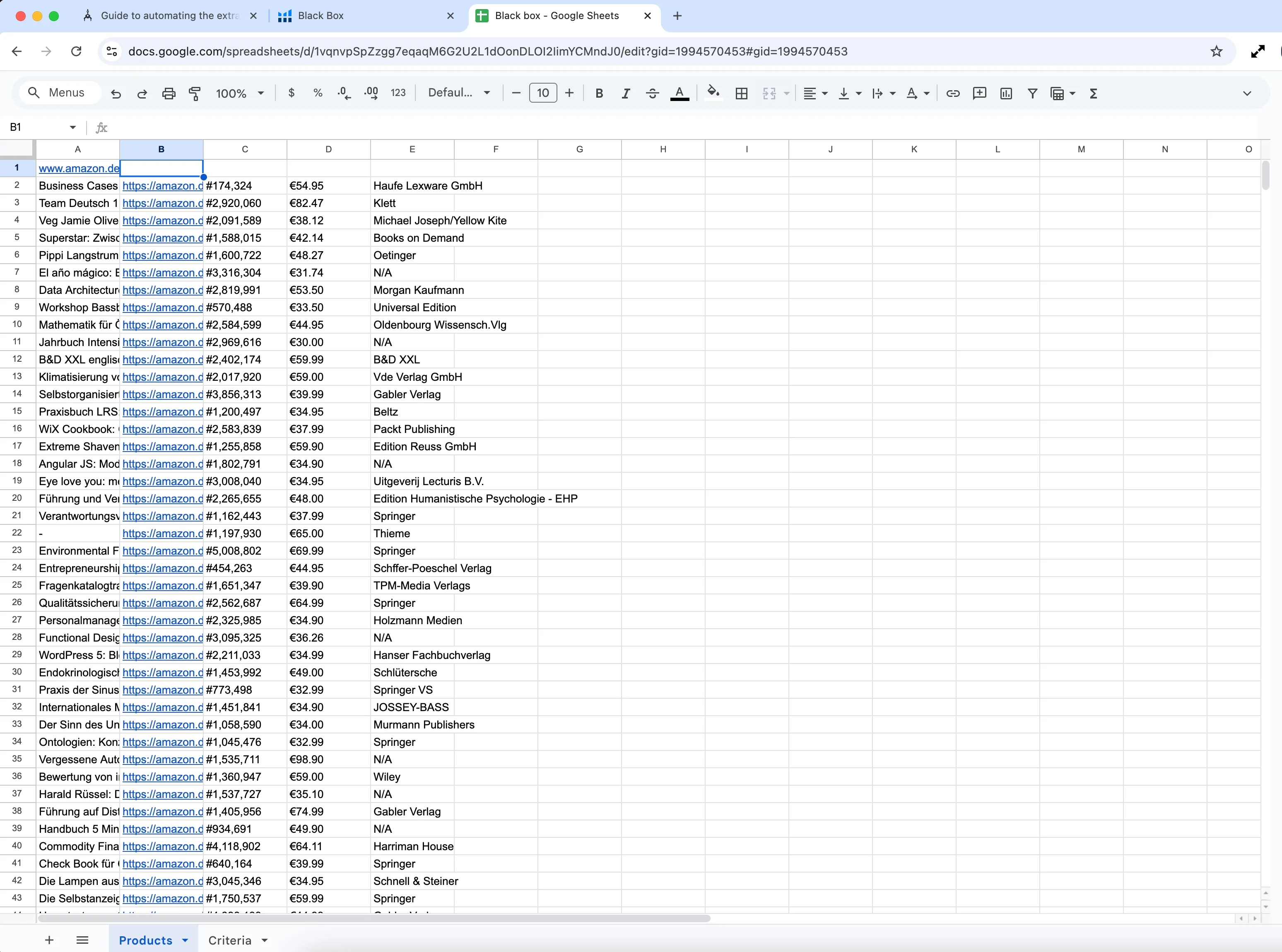
Once you have saved your Helium 10 Black Box automation, click "Run" within the axiom.ai extension to start extracting Amazon product data.
Troubleshooting
- Elements not found?
If elements are not being clicked, try reselecting them. Changing marketplaces can affect selectors. - Keyword data not loading in time?
InStep 8, adjust the wait time. The Cerebro tool can sometimes be slow to load data.
Try out the template
While creating this guide and testing axiom.ai on Helium 10, we also built a template. If you choose to use the template, you will need to do the following:
- Step 1: Add your own Google Sheet.
- Step 2.1: Add the URL to the Black Box page while logged in.
- Step 2.7: Select the data you wish to scrape.
- Steps 2.8 and 2.9: Add your Google Sheet.
Please note that this template is a starting point, and you may need to customize it.
Click to download the Black Box template.
Wrapping up
Extracting product data from Black Box is straightforward. You can simply point and select the data you want to extract. Some fields, like Price, may require a custom selector, but it’s easy to set up.
You can fully customize this automation by adding the search criteria you want and selecting the data you wish to scrape.
The same methods also apply to Advanced Search Mode. If you need help automating Helium 10, reach out to support@axiom.ai.
Testing was completed on January 29, 2025. Features in Helium 10 or axiom.ai may change over time, and updates may be needed.