Set up notifications
Notifications let you know when an automation has finished, so you don't have to keep checking the dashboard. Choose the conditions that should trigger a notification, and pick whether to receive it by email or webhook.
You can be notified when a run:
- Fails
- Finishes with warnings
- Succeeds
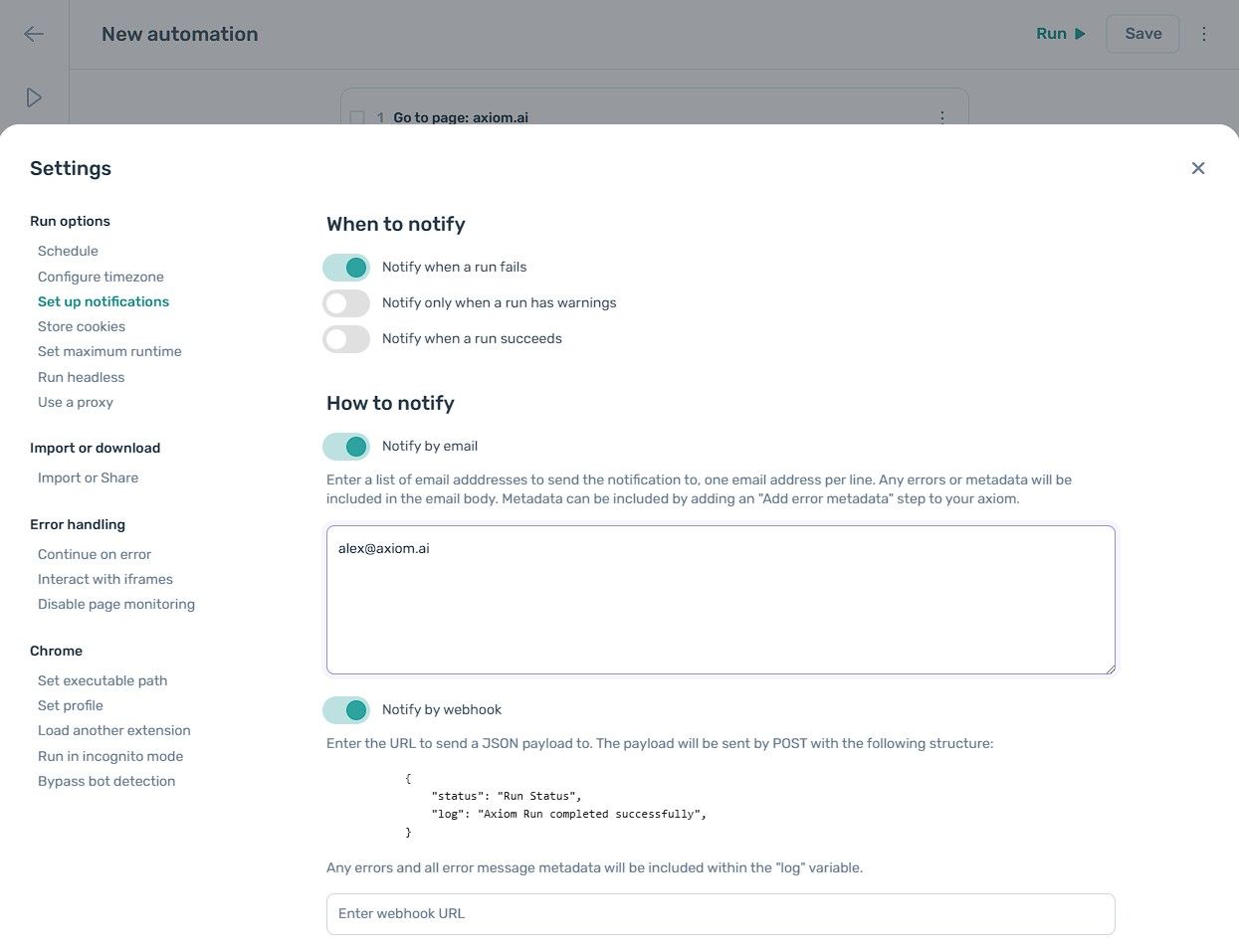
Set up notifications
- Open the automation and click the Cog icon in the toolbar on the left.
- Open the Set up notifications section under Run options.
- Toggle the conditions you want notifications for:
Notify when run fails,Notify when run has warnings,Notify when run succeeds. - Choose
Notify by emailorNotify by webhook.
Notify by email
Enter one or more email addresses, one per line. The email body includes any errors and metadata. To include extra metadata, add an Add error metadata step to your automation.
Notify by webhook
Enter the URL to send a POST request to. axiom.ai sends a JSON payload with this structure. Errors and metadata are included in log:
{
    "status": "Run Status",
    "log": "Axiom Run completed successfully"
}
Send notifications to Slack
To get run notifications in Slack, enable Notify by webhook and point it at a Slack Workflow that accepts the JSON payload above. For setup details, see "Triggering a Slack workflow with an axiom.ai automation" in the Slack guide. The Slack Workflow needs to be modified to parse the payload format shown above.