 Download a file to Google Drive step
Use this step to download a file from a link on a page straight into your Google Drive. It runs in the cloud, so no desktop app is needed. To save to your computer instead, use the Download file step; to put a local file into Drive, use the Upload a file to Google Drive step.
You can use this step to download files from:
- Amazon Seller Central
- Social media platforms like Instagram or YouTube
- Digital asset management sites
- Government websites
- E-commerce stores
For a walkthrough, see how to automate downloading a file from a website.
Note: The step supports files up to 250 MB.
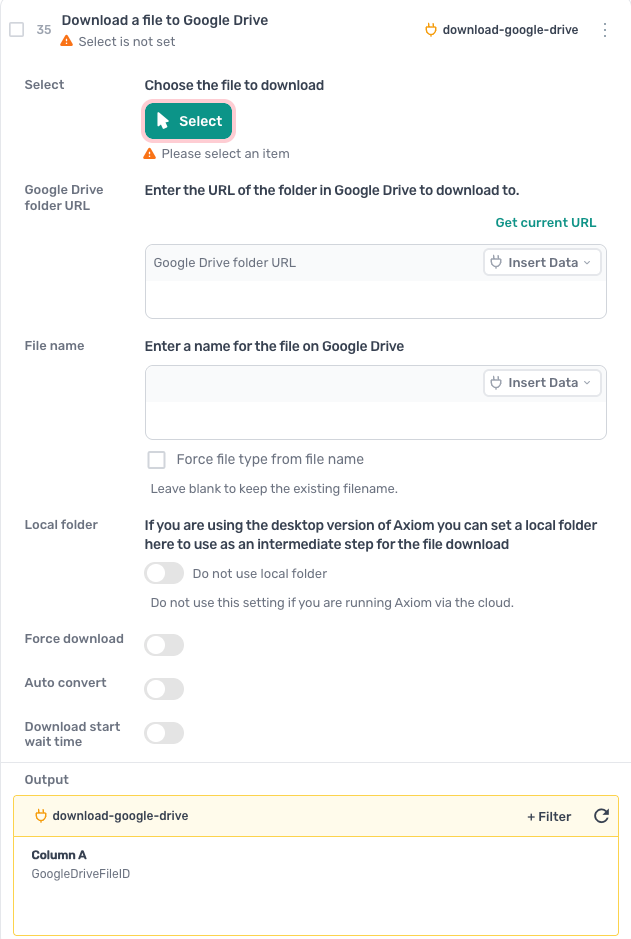
How to configure the Download a file to Google Drive step
Select
Click Select to choose the download link. The display transforms into the Single Selector: describe the link or click it on the page, and AI generates the selector with a fallback.
The Single Selector also lets you set the selector yourself, by clicking Custom:
- Use a custom CSS selector
- Select the link by its text, for example Download PDF, using the Text option
- Pass a selector in from a data source like a Google Sheet, using the Data option
Google Drive folder URL
Enter the URL of the Drive folder to download into. Click Insert Data to pass it in from a data source, or Get current URL to use the folder the bot has open.
File name
Enter a name for the file on Google Drive, or click Insert Data to take it from a data source such as a Google Sheet. Leave it blank to keep the file's existing name. Tick Force file type from file name to use the extension you typed instead of the one the site sends.
Local folder
On the desktop app, turn the switch on and set a local folder to use as an intermediate step for the download. Leave it off when the automation runs in the cloud.
Force download
Some files open in the browser window instead of downloading. Turn the switch on to force a download. It does nothing for files that download anyway.
Auto convert
Turn the switch on to convert the downloaded file to the matching Google Docs editor format, a spreadsheet to Google Sheets for example. ZIP files and images are not converted.
Download start wait time
Turn the switch on to change how long the step waits for the download to start, in milliseconds. The default is 10000, 10 seconds.
The step outputs the file's Google Drive ID as the [download-google-drive] token.
Guides that use this step
Bulk download files from a website to a folder
- Go to the page I give you
- Download every PDF on it
- Save them in my Downloads folder