How to automate downloading a file from a website
If your job or business requires you to spend lots of time downloading files from websites, you might want to consider automating this process with axiom.ai’s no-code bots.
The reason for automating repetitive browser tasks such as file downloading is simple: it saves you time and money. Instead of spending time on repetitive, manual tasks yourself, or employing someone to do so, they’re taken care of by easy-to-build bots.
Read on to learn how to make your very own customized bot to help you reduce manual effort and save valuable time.
What exactly is a bot and how does it work?
Axiom’s bots are powerful tools that you can delegate browser tasks to. Think of them as your very own digital assistant. They’re built using a simple step-by-step process - without the need for code - that replicates your actions in the Chrome browser, allowing you to automate all sorts of repetitive tasks, including file downloading.
The beauty of learning how to create bots is that they can be tailored to your specific requirements. If you have several file downloading tasks, you can run multiple bots, either on demand or scheduling them according to your preference.
What would you recommend using a file download bot for?
Customizing bots to fit your specific use case is easy with our platform. If you are manually downloading files from websites in the Chrome browser, then these tasks can be automated. To give an example, you can build bots to assist you with downloading report files, CSV files or image files, making migrating sites or carrying out research a breeze.
Let’s learn how to build a file download bot with axiom.ai
Use axiom.ai’s simple point-and-click interface to create as many file download bots as you want. By following the steps below, you'll have a working bot in no time.
If you're eager to start, why not give this template. a try?
1. Add your first step: ‘Go to page’

Use the Step Finder to search for ‘Go to page’ and click on it. The step will be added to Axiom for you to configure.
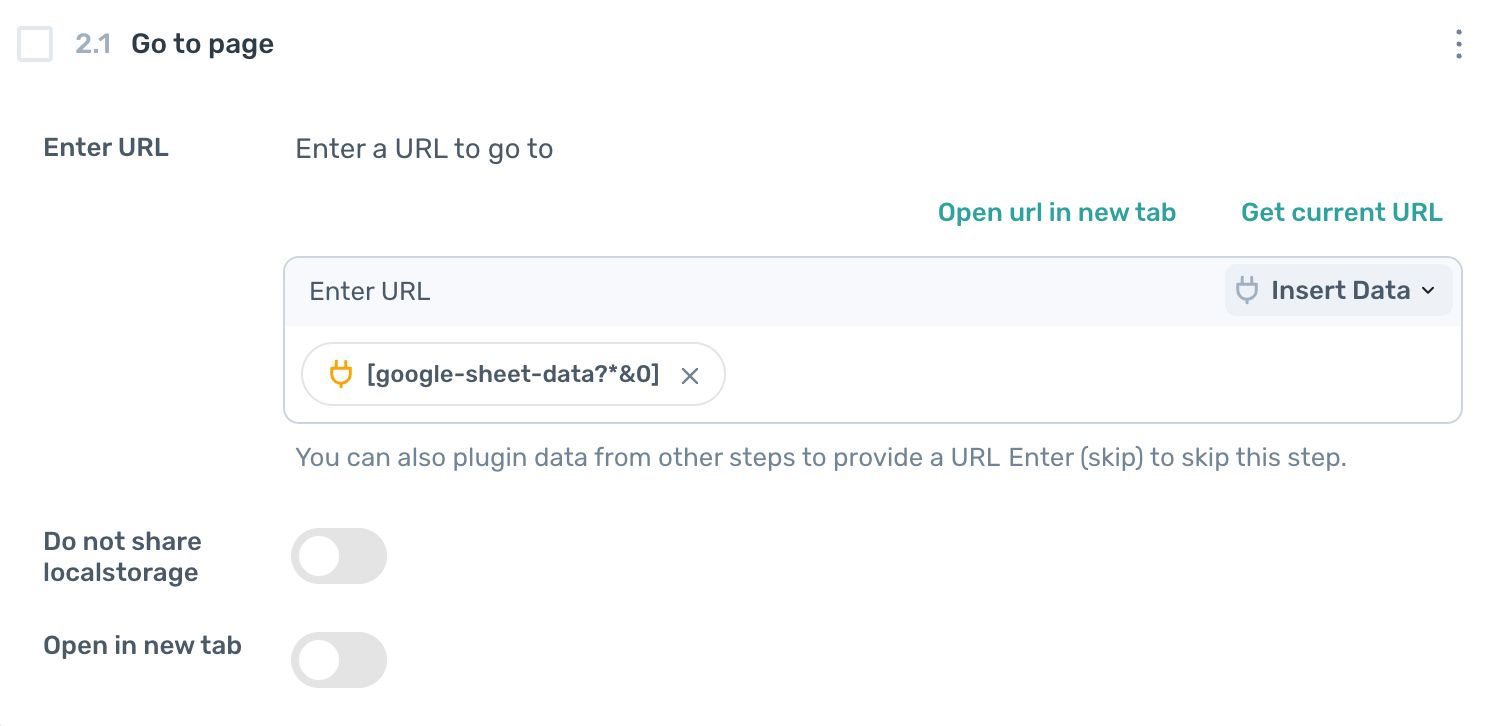
In the field called 'Enter URL', paste the URL for the web page you would like to download files from. This step will open up the web page.
2. Add the ‘Download File’ step
Use the Step Finder to search for ‘Download File’ and click on it to add the step to Axiom.
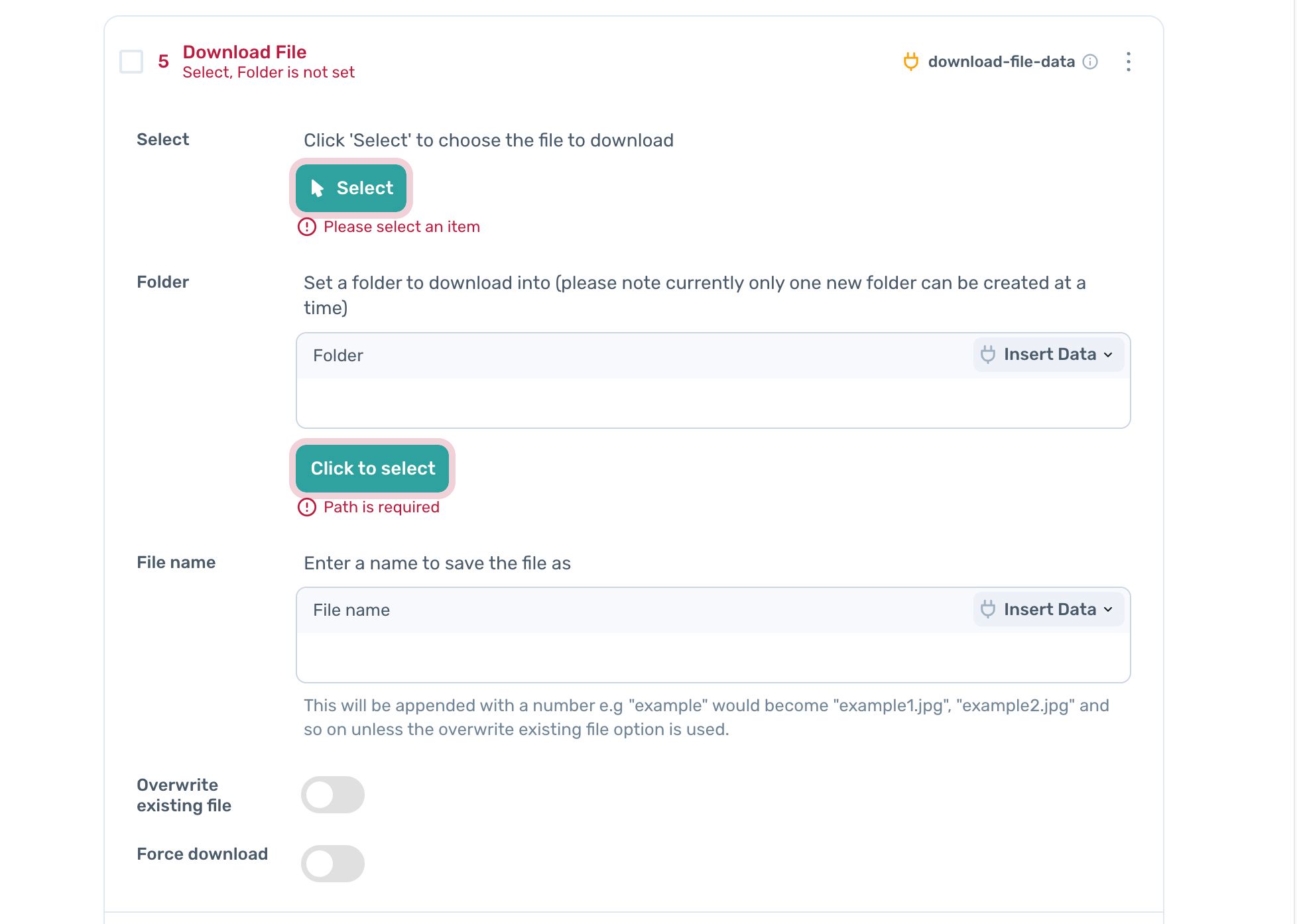
Note: If you want to download multiple files at once, add the ‘Download Files’ step, instead.
Here you can select the file you want to download, and choose the location you would like it to download to.
3. Ready to test
And that’s it! Your bot should look something like the below.
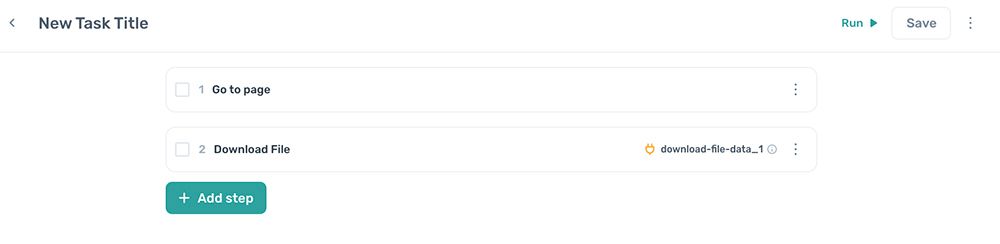
Now you’re ready to test it, by clicking ‘Run’.
4. Running the bot
You can run this bot on the desktop app. If you want to download files in the cloud you will need to use the Google Drive download step.
Please note that if you build a bot on the desktop app when logged in, your session will be shared. However if you run the bot in the cloud, the session will not be shared. Learn how to work around this here.
Issues you may encounter with your data entry bot
Troubleshooting the file download axiom
- Files open in a browser window - Try setting the Force download option in the step.
- Files not downloading - Check the folder write permissions on your computer.
Don't forget we offer excellent customer support. If you need help, get in touch.
Alternative file download steps
- Download files - Axiom desktop only
- Download files from a URL directly - Axiom desktop only
- Download files to a Google Drive - Cloud or Desktop
Conclusion
Congratulations, you've learned how to make and use a file downloading bot. With this newly acquired skill, you know how to download single or multiple files and set the download location. The sky's the limit with your new super powers.
What else can I automate with Axiom?
If you're excited, here are some ideas for other bots: extract data from your email app such as Gmail, generate content, and send direct messages on Instagram. We have steps to extract data with AI and to generate text with AI. Take a look at our templates here.