Login with a scheduled automation
When running your bot in the Cloud, automating a task behind a login, you will need to either pass the cookie from your browser or add steps to log into the application you are automating.
If you do not, the automation will most likely fail when scheduled to run in the Cloud because it cannot get past the login.
Don't worry; it's simple enough to do.
Setting up your scheduler
Set up your scheduler as normal when done choose one of the methods below.
How to use Cookies to login
By storing cookies, you can share a logged-in session with the cloud runner. This means your automation will be logged in when it runs, without adding any login steps to the automation.
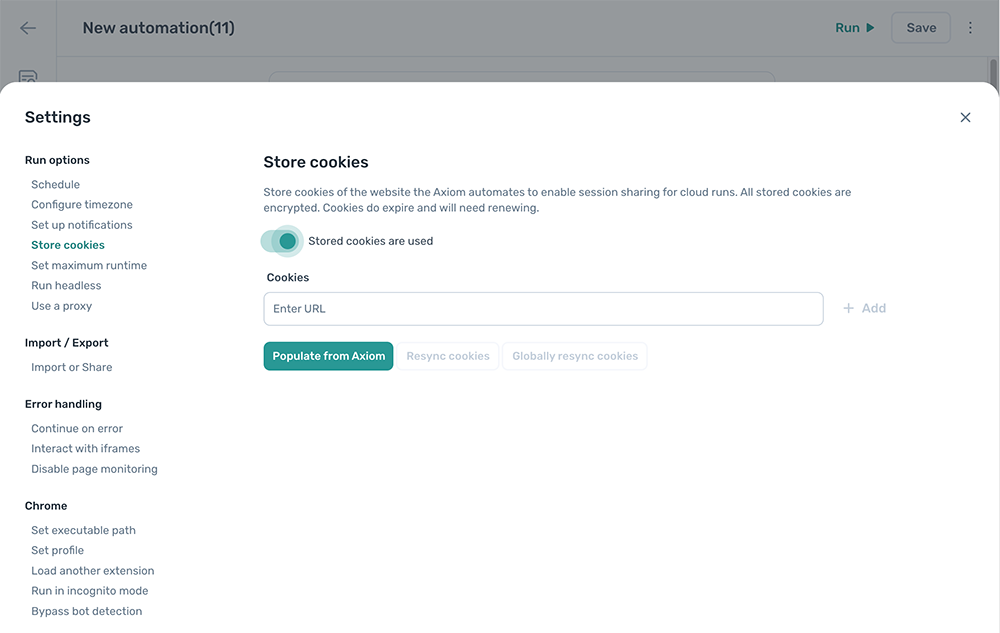
To share your cookies, follow these steps:
- In the scheduled automation, click the kebab menu in the top right corner or the setting cog in the vertical toolbar on the left and select "Settings".
- Next, select "Store cookies" and toggle "Local cookies are used" to "Stored cookies are used".
- Enter the URLs of the sites for which you wish to add cookies for.
- If the cookies expire, click "Resync cookies".
Now you can run your automations in the cloud while being logged in. Please note, all stored cookies are encrypted. However, cookies do expire and will need renewing periodically.
How to use steps to login
- 1 Read data from a Google Sheet
- 2 Go to page
- 3 Enter text
- 4 Enter text
- 5 Click element
To log in using steps, you will need to store the username and password. We do not recommend doing this directly within the automation, but the data in the fields is encrypted. Whenever possible, we recommend creating accounts with limited permission sets and storing your password in a Google Sheet.
Please note that Google Sheets, and the security Google provides, is among the most secure systems available. The only argument against this method is that Google could potentially read the password. However, in all honesty, how could they read millions of Google Sheets? Anyway, the choice is yours.
To use this method, follow these steps:
- Create a Google Sheet to store the username and password, and do not share the sheet with others.
- Use a "Read data from a Google Sheet" step to fetch the login information.
- Add a "Go to page" step, two "Enter text" steps, and one "Click element" step.
- Insert the login URL, select the username and password fields, and then the submit button.
- Finally, insert the data from the Google Sheet into the "Enter text" fields.
Please do test the login steps before scheduling the automation.