Manage scheduled automations
Learn how to view, stop and edit scheduled runs and change your scheduler to a local time zone. If you want to learn how to schedule a run or login when scheduling a run click the links.
View upcoming scheduled runs
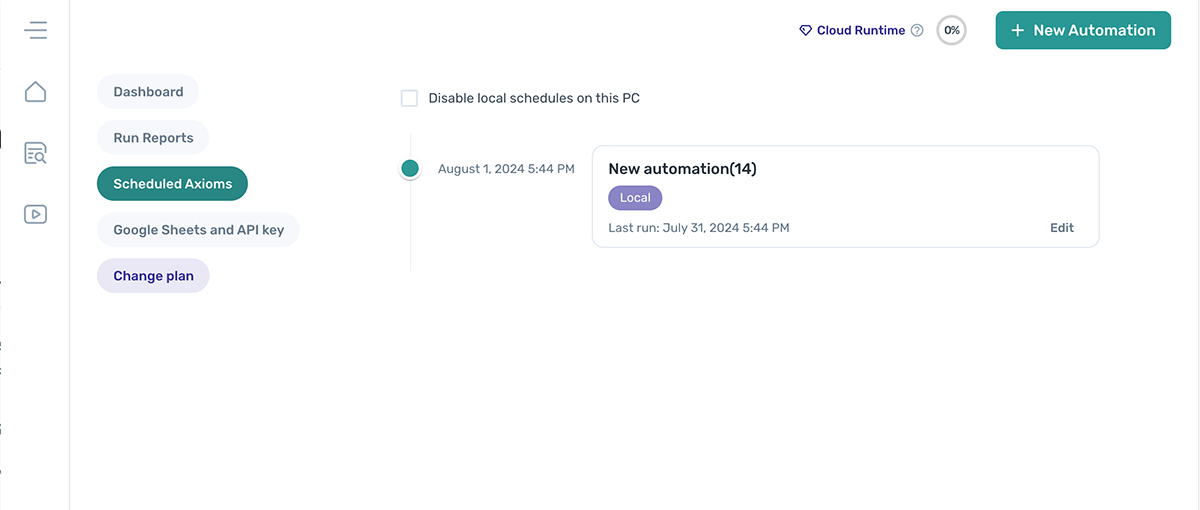
To view a list of all scheduled automations, navigate back to the dashboard if you are in the builder. Then, using the left-hand side menu, click on "Scheduled Axioms". You will see a timeline of their upcoming schedules, as well as the date of their last run.
Edit scheduled automations
Additionally, you can edit the automations by clicking on the ‘Edit’ link which will take you to the axiom.ai No-code tool.
Disable local schedules on this PC
If you have installed axiom.ai on multiple PC's and you want to disable a run, tick the box.
Watch a scheduled run
You can watch any automation running on a scheduler by doing one of the following:
- From the dashboard, on the "My Axioms" listing page, search for the automation and click "Watch".
- Inside the builder, to the left of the save button, click "Watch".
This can be helpful when trying to understand why a bot run failed.
Stop a scheduled run
The best method for stopping a scheduled run is to click "Scheduled Axioms" on the dashboard, then click "Edit" for the automation you want to stop. Once in the builder, click "Stop".
Changing Timezone
By default, Axiom Cloud will run scheduled automations using the UTC timezone. You can change your scheduler to run from your local timezone. To edit the timezone:
- From the builder, click the kebab menu in the top left corner.
- Click the 'Settings' option from the dropdown.
- Finally, click "Configure Timezone" and toggle to the local timezone.