 Download file step
Use the Download file step to download one file from a link on a page: an image from Instagram, a report from a legacy system with no API, anything behind a download link. The file is saved where the automation runs, so it needs the desktop app; to download in the cloud, use the Download a file to Google Drive step instead. To download many files from one page, use the Download files step.
You can use this step to download files from:
- Amazon Seller Central
- Social media platforms like Instagram or YouTube
- Digital asset management sites
- Government websites
- E-commerce stores
For a walkthrough, see how to automate downloading a file from a website.
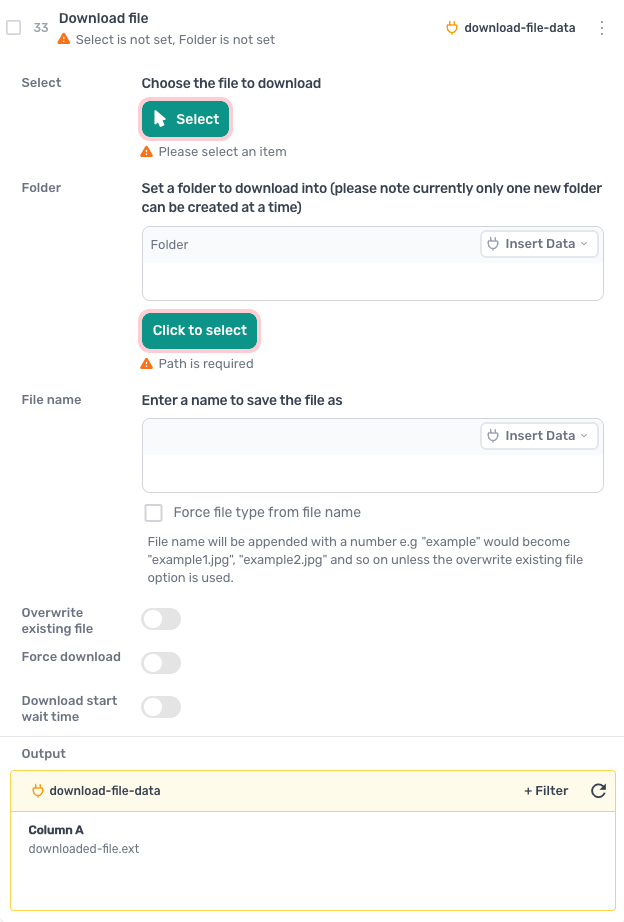
How to configure the Download file step
Select
Click Select to choose the download link. The display transforms into the Single Selector: describe the link or click it on the page, and AI generates the selector with a fallback.
The Single Selector also lets you set the selector yourself, by clicking Custom:
- Use a custom CSS selector
- Select the link by its text, for example Download PDF, using the Text option
- Pass a selector in from a data source like a Google Sheet, using the Data option
Folder
Set the folder to download into: click Click to select to pick it, paste its path, or click Insert Data to pass the path in from a data source. Only one new folder can be created at a time.
File name
Enter a name to save the file as, or click Insert Data to take it from a data source such as a Google Sheet. If a file of that name already exists, a number is added to the new one: example becomes example1.jpg, then example2.jpg, unless the overwrite option is on. Tick Force file type from file name to use the extension you typed instead of the one the site sends.
Overwrite existing file
Turn the switch on to replace an existing file of the same name rather than numbering the new one.
Force download
Some files open in the browser window instead of downloading. Turn the switch on to force a download. It does nothing for files that download anyway.
Download start wait time
Turn the switch on to change how long the step waits for the download to start, in milliseconds. The default is 10000, 10 seconds.
The step outputs the saved file's name as the [download-file-data] token.
Guides that use this step
Export Helium 10 Cerebro keywords for a list of ASINs to a Google Sheet
- Read 10 ASINs from my Google Sheet
- Enter them in Cerebro and get keywords
- Export the keyword data as a CSV
- Add the CSV rows to my ASIN data tab
- Delete those ASINs and repeat
Automate date inputs with the Date and time step
- Go to the form page I give you
- Get today's date in the format the form uses
- Type it into the date field
- Submit the form