Record a run
With run recording on, every cloud run keeps the last minute of browser activity as a replay, with the console output and a log of every click, type, navigation and scrape. When a run fails, the replay shows what the browser was doing just before.
Turn it on and open a recording
Turn on Record runs in the automation's Run options; the Record and monitor runs setting page has the steps, what is captured and the plans it is part of. Recording starts from the next cloud run; desktop runs are not recorded.
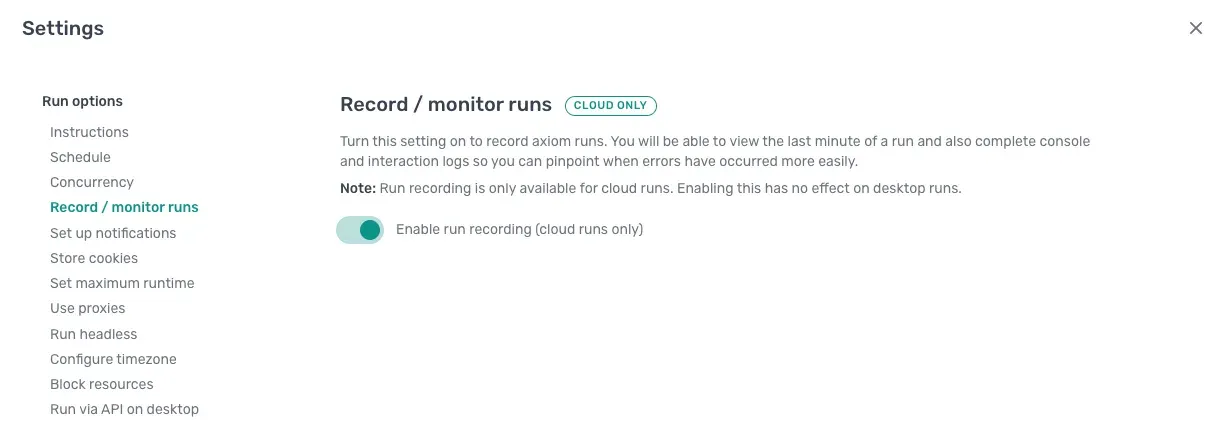
To view one, open the run in Run reports. The replay, console output and interaction log sit beside the report. Scrub to the moment before the error to see what the browser showed.
What to look for
- A different page from the one you built against. A cookie window, a sign-in prompt or a notice over the page explains an Element not found on page error on the next step. Add an optional click that presses the dialog's button by its text: see automate closing cookie windows, notification prompts and pop-ups.
- The right page, the wrong element. The interaction log shows which element a click landed on. If it is not the one you meant, re-select it in the step.
- A page that was still loading. The replay shows the step firing before the content arrived. Add a Wait step before it, or increase the step's wait time.
- Your own messages. Anything a Write javascript step logs with
console.logis in the console output, the cloud equivalent of Chrome DevTools.
Tip: The replay keeps the last minute. The interaction log covers the whole run. Turn on run notifications as well, so you hear about a failure.