 Write javascript step
Write custom JavaScript for any operation inside your automation, from posting to an API to formatting the data of earlier steps, which you can use as variables in the script. Data in axiom.ai is a grid of rows and columns, so return an array of arrays and it becomes the [code-data] token; return anything else and the token is empty. For what the step can do, see JavaScript in axiom.ai and the JavaScript snippets.
You can use this step to:
- Create custom logic
- Format data from other steps
- Use Puppeteer's API
- Use the Node file system API
- Click buttons and scrape content
- Run JS in the browser or in the desktop app
If you use this step for something you need often, tell us: it may become a step of its own.
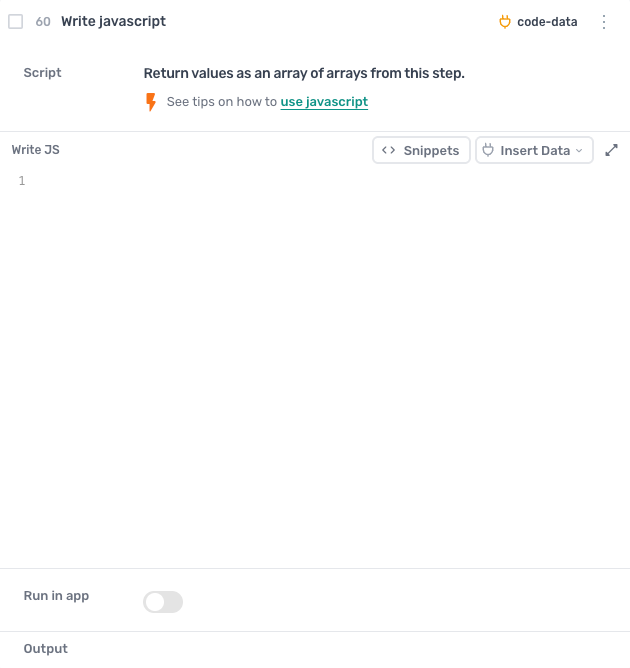
How to configure the Write javascript step
Script
Write your JavaScript in the Write JS editor. Click Snippets for ready-made pieces of code, and Insert Data to use the data of earlier steps; only steps above this one are available. Click the expand icon to open the editor full size.
Run in app
Turn the switch on to run the script inside the desktop app rather than in the browser window. That gives it the APIs the app has and the browser does not, such as Puppeteer, the file system and ChatGPT, and it is the better way to send API requests, which often hit CORS errors from the browser.
Guides that use this step
Combine variables from different steps into one
- Go to the page I give you
- Scrape the value I point out
- Get today's date
- Join them into one row in my Google Sheet
Send and receive webhooks in a browser automation
- Start when another app sends me data by webhook
- Open the page in each row and get its title
- Post the results to my app's webhook URL
How to capture network requests from a page
CodeLearn how to capture network requests from a page using an axiom.ai automation
Export a web page as a PDF automatically
- Go to the page I give you
- Save the whole page as an A4 PDF
- Wait for the download to finish
Extract email addresses from a website into a Google Sheet
- Go to the page I give you
- Find every email address on it
- Add them to my Google Sheet, no duplicates
Post data to Airtable with the Airtable API
- Go to the page I give you
- Scrape the details I want from it
- Add each row as a new record in my Airtable table