Load another extension
By default, axiom.ai runs in a clean Chromium window with no extensions installed. Load another extension to bring its functionality (an ad blocker, a tracking blocker, a password manager, and so on) into the automation's browser session.
Note: Only one extension can be loaded at a time. Not all extensions work in Chromium. Ad blockers and other resource-blocking extensions can affect axiom.ai itself; if one is loaded, ask the developer to whitelist axiom.ai.
Note: You can't interact with the extension's UI during a run. You can interact with elements the extension inserts into the page's HTML, but only if those elements are inserted before axiom.ai's script runs.
Tip: As an alternative, run the automation in your local Chrome instead with set executable path. You won't be able to drive the extension's UI, but extensions tend to behave more reliably in your real Chrome.
Load an extension
The extension needs to already be installed in your local Chrome (or another Chromium-based browser) via the Chrome Web Store or a manual install.
- Open Chrome and navigate to
chrome://extensions. Find the extension and copy its ID. - Navigate to
chrome://versionand copy the Profile path. - In your file system, open the profile path and find the
Extensionsfolder. - Open the folder named with the extension ID from step 1.
- Open the version folder inside it (the most recent version of the extension).
- Copy the full file path of that version folder.
- In the automation, click the Cog icon, open the Load another extension section, and paste the path into
Extension path.
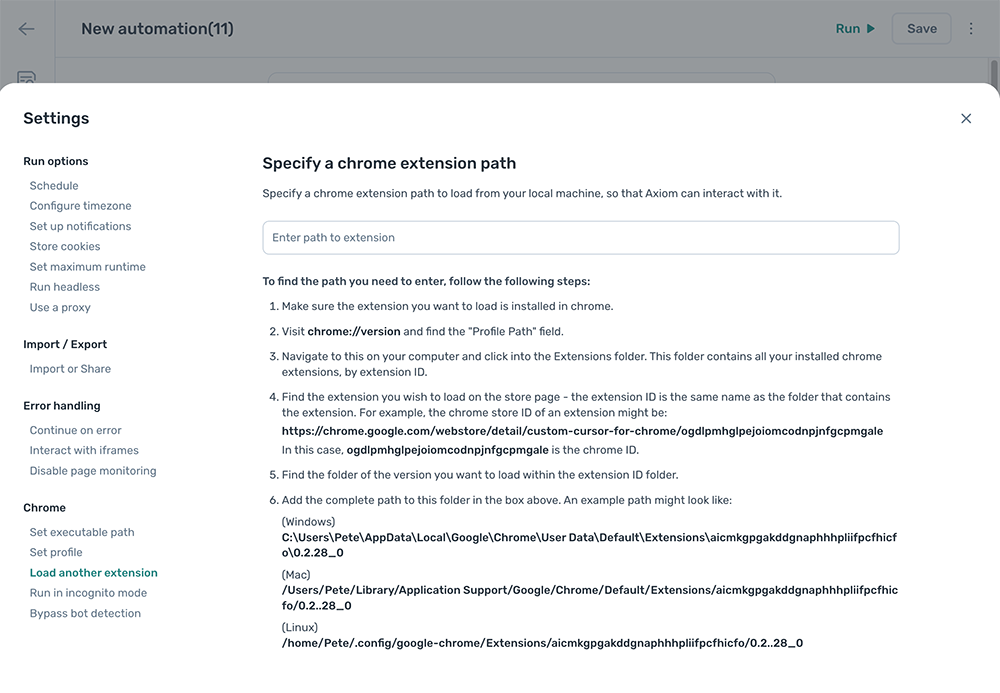
Note: Extension paths can change when the extension updates. If the path includes a version number, you may need to update the path after each update.
Understand the file path
The path looks similar to these examples, where <EXTENSION_ID> is from step 1 and <EXTENSION_VERSION> is the latest version folder:
- Windows:
C:\Users\<USER>\AppData\Local\Google\Chrome\User Data\Default\Extensions\<EXTENSION_ID>\<EXTENSION_VERSION> - macOS:
/Users/<USER>/Library/Application Support/Google/Chrome/Default/Extensions/<EXTENSION_ID>/<EXTENSION_VERSION> - Linux:
/home/<USER>/.config/google-chrome/Extensions/<EXTENSION_ID>/<EXTENSION_VERSION>
Troubleshooting
The extension isn't loading
Double-check the file path points at the correct extension and the latest version folder. Update the path if the extension has been updated since you set it.
The extension loads but doesn't work
The extension may not work in Chromium, may need configuration that isn't possible in this context, or may require a sign-in (which isn't supported here). Try running the automation in your local Chrome instead. See set executable path.
Browser could not be started
See Browser could not be started.--- title: Load another extension metaTitle: Load a Chrome extension into an axiom.ai automation description: Load a Chrome extension into the Chromium window axiom.ai uses, with one extension at a time and known limitations on interactivity. order: 4
By default, axiom.ai runs in a clean Chromium window with no extensions installed. Load another extension to bring its functionality (an ad blocker, a tracking blocker, a password manager, and so on) into the automation's browser session.
Note: Only one extension can be loaded at a time. Not all extensions work in Chromium. Ad blockers and other resource-blocking extensions can affect axiom.ai itself; if one is loaded, ask the developer to whitelist axiom.ai.
Note: You can't interact with the extension's UI during a run. You can interact with elements the extension inserts into the page's HTML, but only if those elements are inserted before axiom.ai's script runs.
Tip: As an alternative, run the automation in your local Chrome instead with set executable path. You won't be able to drive the extension's UI, but extensions tend to behave more reliably in your real Chrome.
Load an extension
The extension needs to already be installed in your local Chrome (or another Chromium-based browser) via the Chrome Web Store or a manual install.
- Open Chrome and navigate to
chrome://extensions. Find the extension and copy its ID. - Navigate to
chrome://versionand copy the Profile path. - In your file system, open the profile path and find the
Extensionsfolder. - Open the folder named with the extension ID from step 1.
- Open the version folder inside it (the most recent version of the extension).
- Copy the full file path of that version folder.
- In the automation, click the Cog icon, open the Load another extension section, and paste the path into
Extension path.
Note: Extension paths can change when the extension updates. If the path includes a version number, you may need to update the path after each update.
Understand the file path
The path looks similar to these examples, where <EXTENSION_ID> is from step 1 and <EXTENSION_VERSION> is the latest version folder:
- Windows:
C:\Users\<USER>\AppData\Local\Google\Chrome\User Data\Default\Extensions\<EXTENSION_ID>\<EXTENSION_VERSION> - macOS:
/Users/<USER>/Library/Application Support/Google/Chrome/Default/Extensions/<EXTENSION_ID>/<EXTENSION_VERSION> - Linux:
/home/<USER>/.config/google-chrome/Extensions/<EXTENSION_ID>/<EXTENSION_VERSION>
Troubleshooting
The extension isn't loading
Double-check the file path points at the correct extension and the latest version folder. Update the path if the extension has been updated since you set it.
The extension loads but doesn't work
The extension may not work in Chromium, may need configuration that isn't possible in this context, or may require a sign-in (which isn't supported here). Try running the automation in your local Chrome instead. See set executable path.