Schedule an automation
The schedule option runs an automation automatically on a date, time, and frequency you set. Use it for recurring tasks like daily scrapes, weekly reports, or end-of-month rollups.
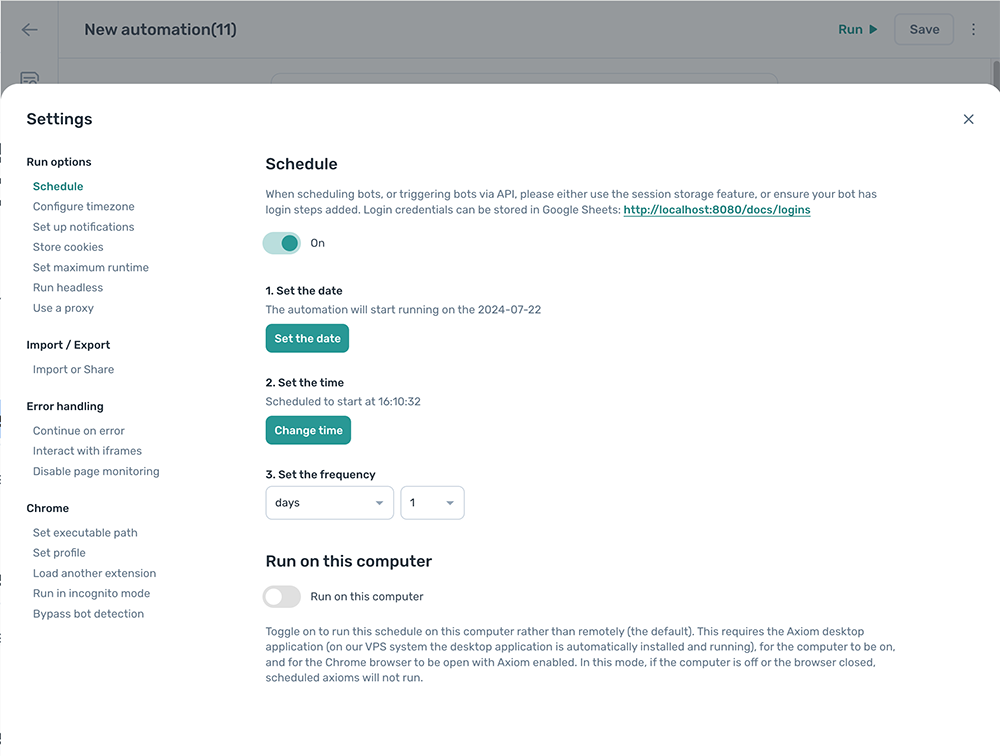
Configure the schedule
Open the automation, click the Cog icon, and open the Schedule section. Then configure each field.
Set the date
Set the date the automation should first run. Click Set the date and pick a date. The start date must be in the future.
Set the time
Set the time of day the automation should run. Click Change time and pick a time. This is the time of the first run.
Set the frequency
Set how often the automation repeats. The available frequencies depend on your subscription plan.
For example, with the time set to 16:00:00 and frequency set to Daily, the automation runs at 16:00:00 every day.
Run on this computer
By default, scheduled runs happen in the cloud. Toggle Run on this computer on to run them on your local machine instead. The computer needs to be on and the browser open at the scheduled time.
Advanced schedules with JavaScript
The standard scheduler covers most cases, but you can extend it with a JavaScript condition for patterns it doesn't support directly (weekdays only, end of month, and so on).
To set up a JavaScript schedule:
- Set the standard schedule to run at least once on each candidate day. For "weekdays only", schedule it daily.
- Add a Continue only if a condition is met step at the start of the automation.
- Set
Condition to checkto JS == true. - Paste one of the snippets below into the JavaScript field.
Run only on weekdays
return date => date.getDay() % 6 !== 0;
Run only on weekends
return date => date.getDay() % 6 === 0;
Run only on the last day of the month
const today = new Date();
const nextMonth = new Date(today.getFullYear(), today.getMonth() + 1, 1);
nextMonth.setDate(nextMonth.getDate() - 1);
return today.getDate() === nextMonth.getDate();