Set a custom Chromium profile
By default, axiom.ai uses Chromium's default profile. Set a custom profile to carry over browser settings (download behaviour, default file locations, and so on) into your automation runs.
Note: This setting is only available in the axiom.ai desktop app. Profiles must be created in Chromium, not Chrome.
Warning: If you run an automation without a profile, then run it again with a profile set, the custom profile is deleted. This appears to be a Chromium bug. To avoid it, restart the axiom.ai desktop app before running an automation that uses a custom profile.
Warning: Chromium must be fully closed before the automation runs. Chromium can crash if it tries to load a profile that's already open in another window.
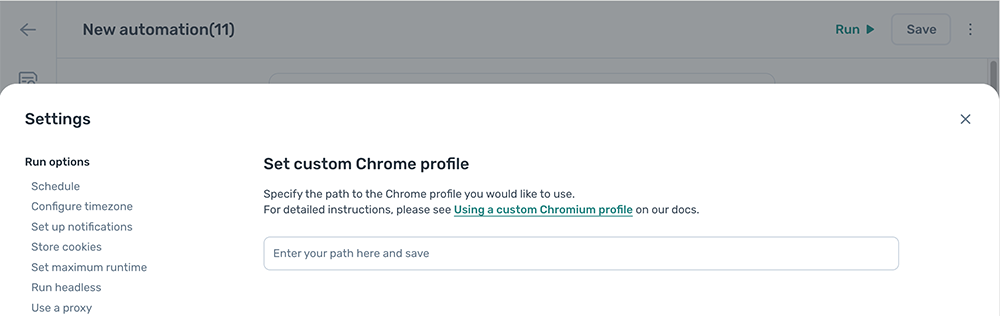
Set a custom Chromium profile
You'll need Chromium installed in addition to Chrome.
- Open Chromium and navigate to
chrome://version. - Copy the Profile path value.
- In the automation, click the Cog icon, open the Set profile section, and paste the path into
Profile path.
If chrome://version shows an empty Profile path, Chromium may be installed in the same location as profiles. In that case, the profile is in one of these default locations:
- Windows 7, 8.1, 10, 11:
C:\Users\<USER>\AppData\Local\Google\Chrome\User Data\Default - macOS:
/Users/<USER>/Library/Application Support/Google/Chrome/Default - Linux:
/home/<USER>/.config/google-chrome/default
Modify settings inside the profile
To change browser settings the automation will use, open Chromium (with the profile loaded), make the changes, then close Chromium before the next run. Common settings worth changing:
- Whether downloaded PDFs save to disk or open in the browser.
- The default download location.
Troubleshooting
Chromium opens to about:blank and the automation doesn't start
Close Chromium completely and start the automation again. Chromium can't load a profile already open in another window.
Chromium prompts you to select a user
Compare the profile path in your automation against the value in chrome://version. The two must match exactly. Trailing slashes count: /Profile works, but /Profile/ does not.
The profile was removed
Restart the axiom.ai desktop app before running the automation again. This is the most reliable workaround for the Chromium bug described in the warning above.
The profile reports as corrupt
Set the executable path to your downloaded version of Chromium and try again.