 Upload a file step
Use the Upload a file step to put a file from your computer into a file field on a web page: an attachment on an email, an image on a social media post, a document on a form. The file is read where the automation runs, so it needs the desktop app; in the cloud, use the Upload a file from Google Drive step instead.
You can use this step to upload files to:
- CMS pages
- Social media platforms like X
- Digital asset management sites
- Government websites
- E-commerce stores
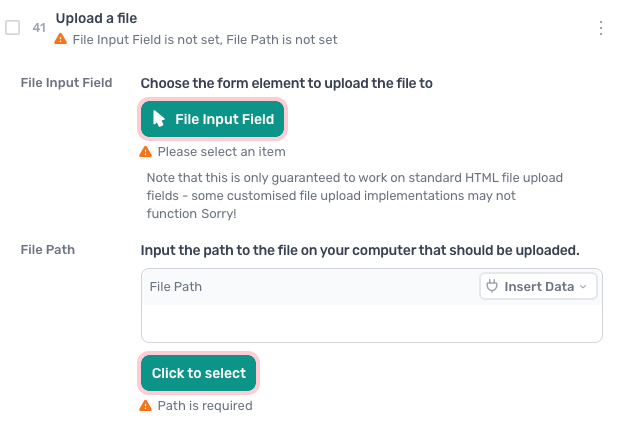
How to configure the Upload a file step
File Input Field
Click File Input Field and select the form element the file is uploaded through. The display transforms into the Single Selector: describe the field or click it on the page, and AI generates the selector with a fallback. The step is only guaranteed to work on standard HTML file upload fields; some customised upload controls may not work.
File Path
Enter the full path to the file on your computer: click Click to select to pick it, paste the path, or click Insert Data to pass it in from a data source such as a Google Sheet.
Guides that use this step
Upload files to a website from a list in a Google Sheet
- Read the file paths from my Google Sheet
- Open the upload page on my site
- Upload each file into the file field
- Wait for the upload to finish before the next
Automate posting on X (Twitter) from a Google Sheet
- Read the posts from my X post sheet
- Open the X compose page for each row
- Type the post and upload its image
- Click Post, then delete the row
Upload every file in a Google Drive folder to a website
- Open my Drive folder and scrape every thumbnail
- Cut the file ID out of each address
- Build each file link and upload it to the page
Automate Instagram posts from a Google Sheet
- Read the posts from my Instagram posts sheet
- Open Instagram and start a new post
- Upload the image and add the caption from the row
- Click Share and delete the row
Automate Facebook posts from a Google Sheet
- Read the posts from my Facebook posts sheet
- Open Facebook and start a new post
- Type the text and attach the image from the row
- Click Post and delete the row
Automate Threads posts from a Google Sheet
- Read the next post from my Google Sheet
- Open Threads and start a new post
- Type the message and attach the image
- Post it and delete the row