 Join different data sources based on matching columns step
Use this step to join two sets of data on a column they share, like a lookup: each row of the base data gets the matching row of the join data added to it. For example, join product data from two e-commerce sites on the product name, or merge a Google Sheet with a CSV on an email address. To stick two sets together without matching, use the Append or merge data step instead.
You can use this step to:
- Merge a CSV with a spreadsheet
- Join data from separate e-commerce stores
- Merge scraped data sets
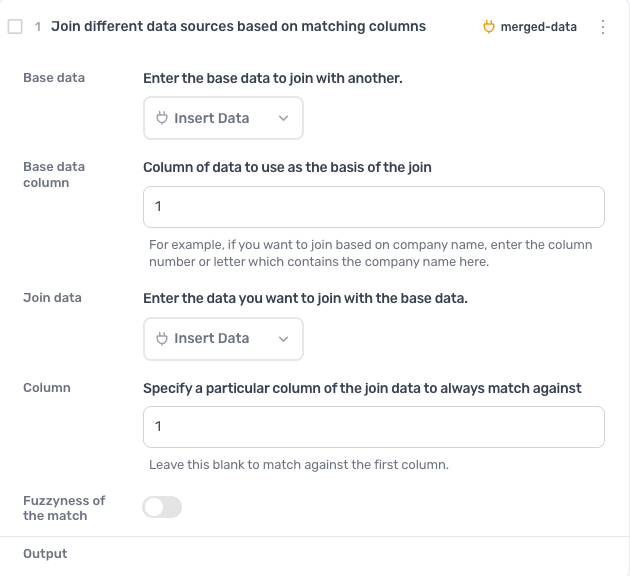
How to configure the Join different data sources step
Base data
Click Insert Data and select the data to join onto.
Base data column
Enter the column of the base data to match on, as a number or letter. To join on company name, for example, enter the column that holds the company name.
Join data
Click Insert Data and select the data to join with the base data.
Column
Enter the column of the join data to match against. Leave it blank to match against the first column.
Fuzzyness of the match
Turn the switch on to allow near matches and set a value from 0 to 1: 0 means the values must be identical, 1 means anything matches. Start low.
The step outputs the joined rows as the [merged-data] token.