 Download files step
Use this step to download many files from a web page at once. It is most useful on listing pages, like the document lists on government websites. The files are saved where the automation runs, so it needs the desktop app; to download in the cloud, use the Download a file to Google Drive step instead.
You can use this step to download files from:
- Amazon Seller Central
- Social media platforms like Instagram or YouTube
- Digital asset management sites
- Government websites
- E-commerce stores
- Legal documents
- Property records
For a walkthrough, see how to automate downloading a file from a website.
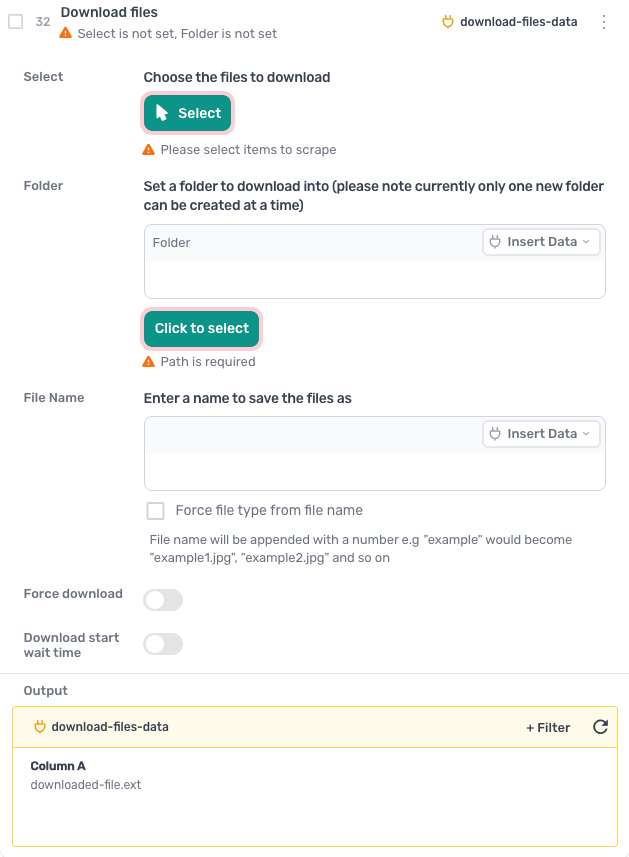
How to configure the Download files step
Select
Click Select to choose the files to download. The display transforms into the Multi Selector: click two of the download links and it selects every link with the same structure.
The Multi Selector also lets you set the selector yourself, by choosing Custom selector from the column's dropdown menu:
- Enter a custom CSS selector
- Pass a selector in from a data source like a Google Sheet, by ticking Set selector from data
Folder
Set the folder to download into: click Click to select to pick it, paste its path, or click Insert Data to pass the path in from a data source. Only one new folder can be created at a time.
File Name
Enter a name to save the files as, or click Insert Data to take it from a data source such as a Google Sheet. A number is added to each file: example becomes example1.jpg, example2.jpg and so on. Tick Force file type from file name to use the extension you typed instead of the one the site sends.
Force download
Some files open in the browser window instead of downloading. Turn the switch on to force a download. It does nothing for files that download anyway.
Download start wait time
Turn the switch on to change how long the step waits for a download to start, in milliseconds. The default is 10000, 10 seconds.
The step outputs the saved files' names as the [download-files-data] token.
Guides that use this step
Bulk download files from a website to a folder
- Go to the page I give you
- Download every PDF on it
- Save them in my Downloads folder