 Download File From Url
title: Download file from URL step description: Use this step to download a file from a URL to your computer. Combine it with a step that supplies the URLs, such as Read data from a Google Sheet, to download every file in a list. The file is saved where the automation runs, so it needs the desktop app; to download in the cloud, use the Download a file to Google Drive step instead. To download from a link on a page rather than a URL, use the Download file step.
You can use this step to download files from URLs:
- Kept in a spreadsheet
- Scraped from a website
- Stored in a CSV file
For a walkthrough, see how to automate downloading a file from a website.
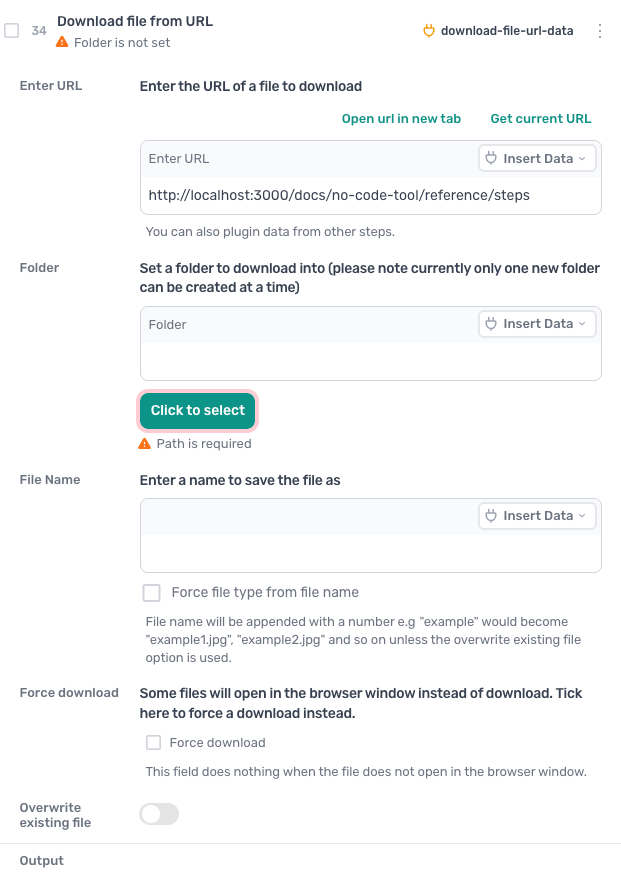
How to configure the Download file from URL step
Enter URL
Enter the URL of the file to download, click Insert Data to take it from another step, or Get current URL to use the page the bot is on.
Folder
Set the folder to download into: click Click to select to pick it, paste its path, or click Insert Data to pass the path in from a data source. Only one new folder can be created at a time.
File Name
Enter a name to save the file as, or click Insert Data to take it from a data source such as a Google Sheet. If a file of that name already exists, a number is added to the new one: example becomes example1.jpg, then example2.jpg, unless the overwrite option is on. Tick Force file type from file name to use the extension you typed instead of the one the site sends.
Force download
Some files open in the browser window instead of downloading. Tick Force download to force a download. It does nothing for files that download anyway.
Overwrite existing file
Turn the switch on to replace an existing file of the same name rather than numbering the new one.
The step outputs the saved file's name as the [download-file-url-data] token.