 Delete rows from a Google Sheet step
This step deletes a range of rows from a Google Sheet. It is most used as part of batching: read a single row from a Google Sheet, run the automation with that row's data, then delete the row before a Jump to another step step goes back to read the next one. To clear cells while keeping the rows, use the Clear data from a Google Sheet step instead.
You can use this step to:
- Remove each row once it has been processed in a batch run
- Clear processed rows from a queue sheet another app fills
To learn more about batching, see batching bot runs and the web scraping in batches template.
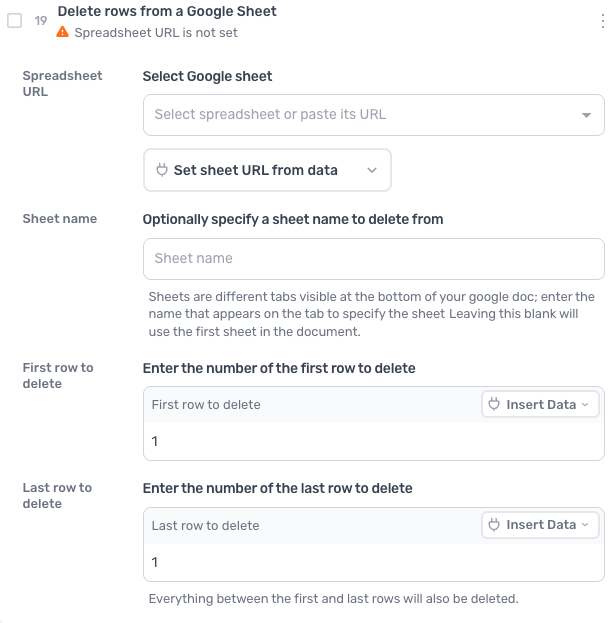
How to configure the Delete rows from a Google Sheet step
Spreadsheet URL
Select a Google Sheet, or paste its URL. You can also click Set sheet URL from data to pass a spreadsheet URL in from another step.
Sheet name
Optionally enter the name of the sheet, the tab at the bottom of the document, to delete from. Leave it blank to use the first sheet.
First row to delete
Enter the number of the first row to delete, or click Insert Data to take it from another step.
Last row to delete
Enter the number of the last row to delete. Everything between the first and last rows is deleted too, so set both to the same number to delete one row.
If you liked this step you may also wish to check out the Read data from a Google Sheet and Write data to a Google Sheet steps.
Guides that use this step
Scrape data from a list of URLs in a Google Sheet
- Open each link in column A of my Google Sheet
- Ask me which data to scrape from each page
- Put the details in that URL's row from column B
Automate data entry from a Google Sheet into a web form
- Read the rows from my Google Sheet
- Open the contact form on my site
- Fill in the name, email and message from each row
- Submit, then delete the row from the sheet