 Date and time step
This step outputs a date and time as the [date-and-time] token, in a format you choose to suit your region. It gives today's date, a date relative to today, or a date from your data converted to another format. Pass the token into an Enter text step to type a date into a form.
You can use this step to:
- Pass dates into file names
- Populate From and To dates in web forms
- Automate report downloads when a date range is needed
- Filter dates on listing pages
- Tag scraped content with the date, with the Append or merge data step
If a value or format you need is missing, let us know and we can add it.
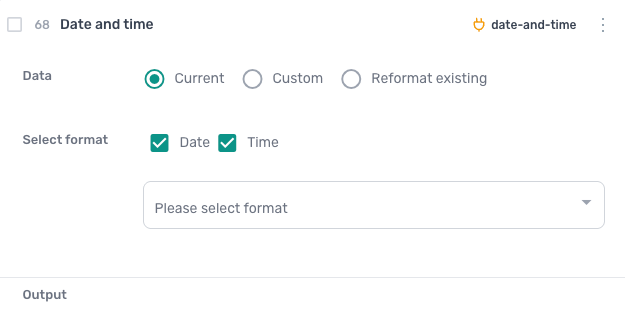
How to configure the Date and time step
Data
Choose where the date comes from:
- Current: the date and time now, in your location.
- Custom: a date relative to today. Pick Last day of previous month, First day of this month, n days ago or n days in the future, and enter the number of days for the last two.
- Reformat existing: a date from an earlier step. Click Select data to format, choose the data, then set
Data date formatto the format the data is in so the step can read it. The option appears once an earlier step outputs data.
Select format
Tick Date, Time or both, then choose the output format from the dropdown. For a date that goes into a file name, choose a format with hyphens.
Guides that use this step
Screenshot a list of websites from a Google Sheet
- Open each website link in column A of my sheet
- Save a screenshot of the page to my computer
- Write today's date in column B of the same row
Fill a date picker in a Google Form from a Google Sheet
- Read the names and dates from my Google Sheet
- Open my Google Form for each row
- Fill in the name and the date
- Submit the form
Automate date inputs with the Date and time step
- Go to the form page I give you
- Get today's date in the format the form uses
- Type it into the date field
- Submit the form
Screenshot a list of websites to Google Drive
- Open each website link in column A of my sheet
- Save a screenshot of the page to my Drive folder
- Write today's date in column B of the same row
Scrape Facebook Marketplace for every search term in a Google Sheet
- Read search terms from my Terms tab
- Skip the terms that already have a date
- Search Facebook Marketplace for each term
- Scrape the title, price and link of each listing
- Write them to my Listings tab
- Write today's date next to the term
Scrape YouTube for GTA 6 videos into a Google Sheet
- Go to the YouTube search page
- Input the GTA 6 search terms from my Google Sheet
- Scrape the video title, link and streaming data
- Write to my Google Sheet with the search term