 Date picker step
The Date picker step is used to automate interactions with specific types of date pickers, such as the Trainline date picker shown above. This step works on date pickers that feature the current month and date, along with left and right buttons to change the month, and a calendar to select the day.
You can use the Date picker step to:
- Automate entering a date when purchasing tickets
- Input a date when generating a report
- Submit a date when filling out web forms
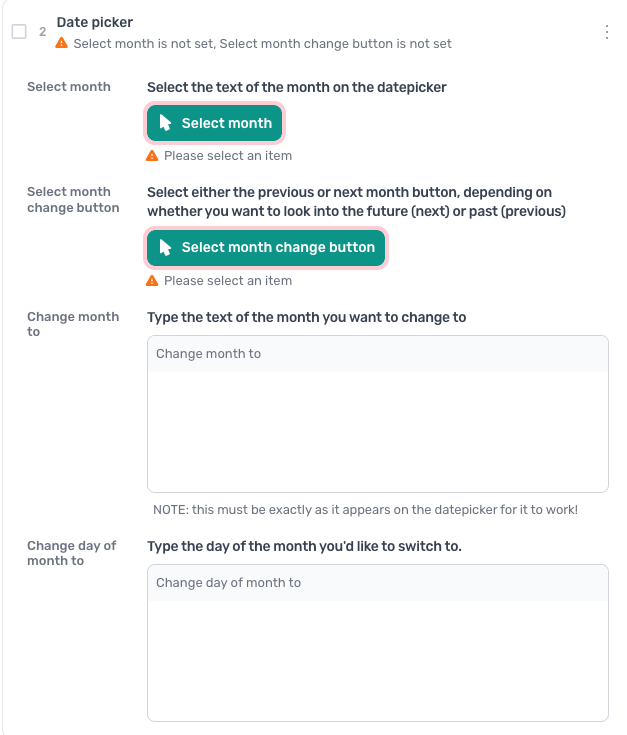
How to configure the Date picker step
Select month
Select the text of the month displayed on the date picker.
Select month change button
Choose the "Previous" or "Next" button, depending on whether you want to navigate to a future or past month.
Change month to
Enter the exact text of the month you want to change to. Note: The text must match exactly as it appears on the date picker for this to work.
Change day of the month to
Enter the day of the month you'd like to select.
Keen to learn more?
- Learn how to automate the date picker
- Explore how to automate date pickers without code
Guides that use this step
Fill a date picker in a Google Form from a Google Sheet
- Read the names and dates from my Google Sheet
- Open my Google Form for each row
- Fill in the name and the date
- Submit the form
Automate date inputs with the Date and time step
- Go to the form page I give you
- Get today's date in the format the form uses
- Type it into the date field
- Submit the form
Copy data from a Google Sheet into a web form
- Read the rows from my Google Sheet
- Open my web form
- Match each column to a field on the form
- Click the submit button
- Loop through every row of the sheet
- Date each row in the sheet once submitted