 Continue only if a condition is met step
This logic step checks a value and lets the run continue only when the condition is true; otherwise the run ends there. It can confirm content has changed by looking for a word such as New, with a scraper step fetching the value first. To run or skip a set of sub-steps instead of ending the run, use the If condition step.
You can use this step to:
- Check whether there is any data left in a Google Sheet, and stop the run if it is empty
- Check against a value on a web page by scraping it first
- Confirm a form or post has been submitted
- Control whether a bot runs depending on a value found in a Google Sheet
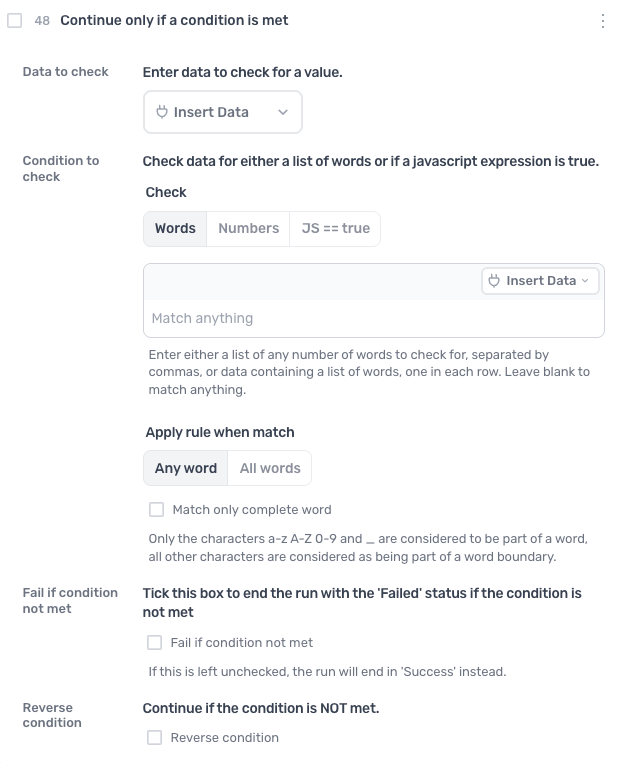
How to configure the Continue only if a condition is met step
Data to check
Click Insert Data and select the data to check. It can come from any step, for example a webhook or a scraper.
Condition to check
Choose what to check the data for:
- Words: enter a list of words separated by commas, or insert data holding one word per row. Leave it blank to match anything. Under Apply rule when match, choose Any word to pass when any of the words is present, or All words to require every one. Tick Match only complete word to match whole words only: the characters a-z, A-Z, 0-9 and
_are part of a word, everything else is a word boundary. - Numbers: enter a number and choose Greater than or equal to, Equal to or Less than or equal to.
- JS == true: enter a JavaScript expression; the condition passes when it evaluates to
true.
Fail if condition not met
Tick to end the run with the status Failed when the condition is not met. Left unticked, the run ends with Success instead.
Reverse condition
Tick to continue when the condition is NOT met, and end the run when it is.
Guides that use this step
How to post to Bluesky using an axiom.ai automation
CodeThis guide explains how to automate posting to Bluesky using an axiom.ai automation with JavaScript. Learn to authorize, create posts, and handle API responses.