 Append or Merge data step
This step joins two sets of data: horizontally, adding the second set's columns to the end of each row of the first, or vertically, adding its rows below. It is commonly used to append a page's URL to scraped data. To join two sets on a column they share, use the Join different data sources step instead.
You can use this step to:
- Combine Google Sheet data with scraped data
- Merge scraped data into a CSV
- Join two sets of scraped data
To combine more than two sets of data, use several Append or merge data steps in a row.
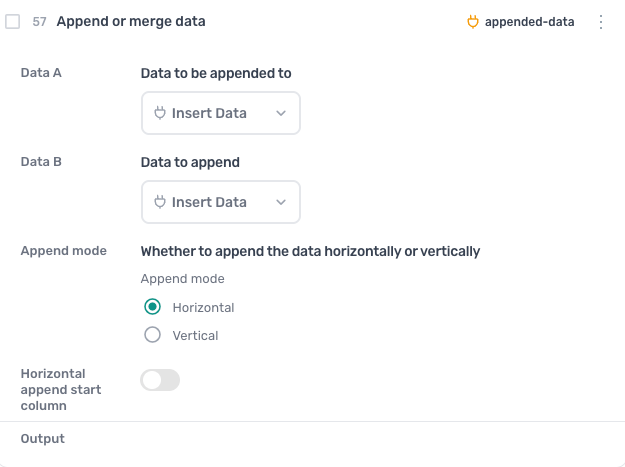
How to configure the Append or merge data step
Data A
Click Insert Data and select the data to append to, for example rows from a Google Sheet. Click the token to preview it; Save and close takes every column, or Clear all lets you pick columns one by one.
Data B
Click Insert Data and select the data to append, for example the output of a scraper step, choosing columns the same way.
Append mode
Choose Horizontal to add Data B's columns to the end of each row of Data A, or Vertical to add Data B's rows below Data A's. Data in axiom.ai is a grid of rows and columns, so horizontal is the common choice.
Horizontal append start column
Turn the switch on and enter a column number or letter, such as 5 or E, to start the horizontal append at that column, even when Data A has fewer columns. Ignored in vertical mode.
The step outputs the combined data as the [appended-data] token.
Guides that use this step
Combine variables from different steps into one
- Go to the page I give you
- Scrape the value I point out
- Get today's date
- Join them into one row in my Google Sheet
Scrape a list of URLs from Airtable back into Airtable
- Read the URLs from the Pages table in my Airtable
- Open each one and ask me which data to scrape
- Add the scraped data to Airtable in Results
Scrape YouTube search results for every search term in a Google Sheet
- Read search terms from my Terms tab
- Search YouTube for each term
- Scrape the title and link of the first 10 videos
- Write them to my Videos tab with the term
Scrape YouTube for GTA 6 videos into a Google Sheet
- Go to the YouTube search page
- Input the GTA 6 search terms from my Google Sheet
- Scrape the video title, link and streaming data
- Write to my Google Sheet with the search term