 Conditionally jump to another step
This logic step makes the bot jump to another step, or carry on, depending on a condition. Pair it with a scraper: once the scraper has extracted data, this step checks it for a value and jumps when the value is found, otherwise the run continues with the next step. To jump every time, use the Jump to another step step.
You can use this step to:
- Check for a value in a Google Sheet to bypass steps
- Check against a value on a web page by scraping it first
- Confirm a form or post has been submitted
- Control the bot's flow depending on a value found in a Google Sheet
Note: Inside a Loop through data step, only jump to a later step in the loop or out of the loop to a later step in the automation. Jumping back to an earlier step in the loop, or to a previous iteration, can break the data inside the loop.
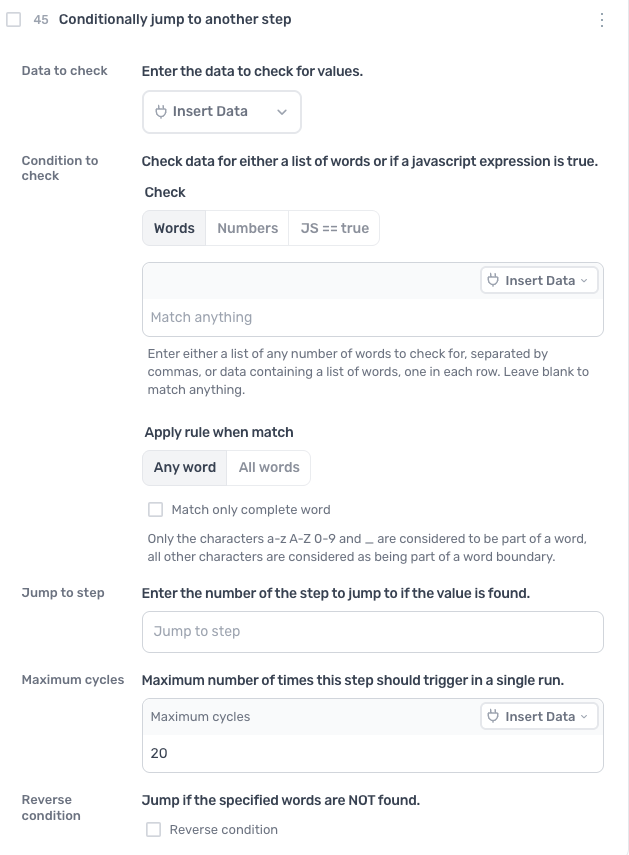
How to configure the Conditionally jump step
Data to check
Click Insert Data and select the data to check for values.
Condition to check
Choose what to check the data for:
- Words: enter a list of words separated by commas, or insert data holding one word per row. Leave it blank to match anything. Under Apply rule when match, choose Any word to jump when any of the words is present, or All words to require every one. Tick Match only complete word to match whole words only: the characters a-z, A-Z, 0-9 and
_are part of a word, everything else is a word boundary. - Numbers: enter a number and choose Greater than or equal to, Equal to or Less than or equal to.
- JS == true: enter a JavaScript expression; the condition passes when it evaluates to
true.
Jump to step
Enter the number of the step to jump to when the condition passes.
Maximum cycles
The maximum number of times this step jumps in a single run, so a jump back to an earlier step can't loop forever. The default is 20; click Insert Data to take it from a data source.
Reverse condition
Tick to jump when the words or number are NOT found, and carry on when they are.
Guides that use this step
How to post to Bluesky using an axiom.ai automation
CodeThis guide explains how to automate posting to Bluesky using an axiom.ai automation with JavaScript. Learn to authorize, create posts, and handle API responses.