 If a condition is true, run steps
The If condition step runs the sub-steps inside it only when a condition is true, and the sub-steps under its Else branch when it is not. Pair it with a scraper: once the scraper has extracted data, this step checks it for a value and runs the matching branch. To jump to another step instead of running sub-steps, use the Conditionally jump to another step step.
You can use this step to:
- Run steps based on a value found on a web page by scraping it first
- Enter data into a form depending on a condition
- Trigger another automation depending on a value found in a Google Sheet
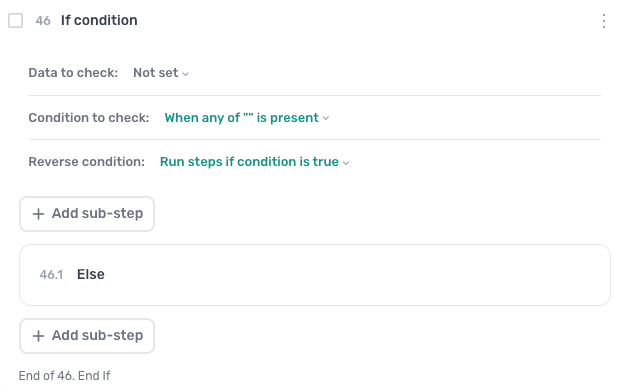
How to configure the If condition step
The step's settings sit on three lines at its top; click each to set it.
Data to check
Click Not set and select the data to check for values.
Condition to check
Choose what to check the data for:
- Words: enter a list of words separated by commas, or insert data holding one word per row. Leave it blank to match anything. Choose Any word to pass when any of the words is present, or All words to require every one. Tick Match only complete word to match whole words only: the characters a-z, A-Z, 0-9 and
_are part of a word, everything else is a word boundary. - Numbers: enter a number and choose Greater than or equal to, Equal to or Less than or equal to.
- JS == true: enter a JavaScript expression; the condition passes when it evaluates to
true.
Reverse condition
Run steps if condition is true is the default. Switch it to run the sub-steps when the condition fails instead.
Add sub-step
Click Add sub-step under the condition to add the steps that run when it passes, and under Else to add the steps that run when it does not. The step ends at the End If line.
Additional information
You can nest this step inside loops or other If condition steps.
Guides that use this step
Tick checkboxes and choose options from a Google Sheet
- Read the sign-ups from my Google Sheet
- Open the form and enter each row's name and email
- Tick the newsletter box if the row says yes
- Choose the team the row names
- Submit the form
Check if a website needs a login and log in only when it does
- Go to the site I give you
- Check if it is showing a login page
- If it is, log in with my email and password
- Then carry on with the rest of the task
Send Instagram DMs from a Google Sheet
- Read the profile links and messages from my sheet
- Skip any rows already marked Sent
- Open each profile link
- Check the profile header for the word Message
- If it is there, click Message and send the message
- Write Sent back into the row, in column C
Send X (Twitter) DMs from a Google Sheet
- Open each X profile link in my sheet
- If the profile has a Message button, click it
- Type my message and send it
- Delete the profile from the sheet once done
Send Instagram DMs and like each user's latest post
- Read the profile links and messages from my sheet
- Skip any rows already marked Sent and liked
- Open each profile link
- Check the profile header for the word Message
- If it is there, click Message and send the message
- Then open their newest post and like it
- Write Sent and liked back into the row, column C
Triage Jira tickets with AI and close the spam
- Get every ticket link from my Jira support queue
- Open each ticket and read its description
- Ask AI whether it is spam or valid
- Log the spam tickets and the date to my Closed tab