Integrate AI
The Integrate AI step sends data from your automation to a large language model and outputs the reply as the [ai-output] token. Use it to extract fields from unstructured text, generate text, or make a decision mid-run. It works with ChatGPT, Claude, Gemini, Sonar and DeepSeek, each with your own API key. For how to write the prompts, see Integrate AI.
You can use this step to:
- Extract structured data from scraped HTML or page text
- Pull details out of LinkedIn profile data
- Write a personalised DM for each row of data
- Scrape comments and draft a reply to each
- Extract data from a request received through the API
If you have an idea for a different AI feature, let us know and we can add it.
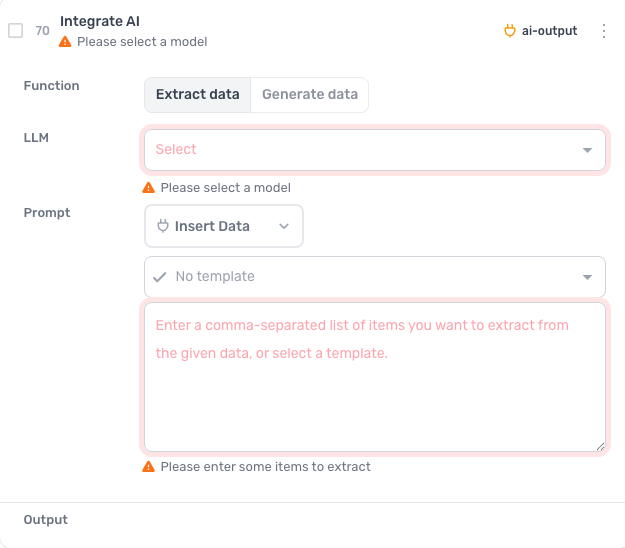
How to configure the Integrate AI step
Function
Choose Extract data to pull named fields out of the data, or Generate data to write new text from a prompt.
LLM
Select the model to use. The list covers each supported provider's current models.
API key
Once a model is chosen, a field appears for that provider's API key. Enter it once and it is saved as the default for every step that uses the provider, with an edit link in its place; you can also manage keys under External API keys on the dashboard.
Prompt
Click Insert Data to choose the data the model works on. For Extract data, enter a comma-separated list of the items to extract, or pick a template from the dropdown. For Generate data, write the prompt, with tokens from earlier steps where the text should vary.
Guides that use this step
Post a message to a Discord channel with a webhook
- Store the message I want to post
- Post it to my Discord channel by webhook
- Show it as sent by Axiom bot
Scrape any website with ChatGPT into a Google Sheet
- Open each link in the Links tab of my sheet
- Use ChatGPT to find the name, email and job title
- Add them to the Data tab
- Delete the link row once it is done
Extract data from HTML with AI into a Google Sheet
- Open each URL in column A of my sheet
- Ask me which data the AI should extract
- Put the results in that URL's row from column B
Proofread a website with AI and log typos to a Google Sheet
- Open each page link in the Links tab of my sheet
- Scrape the main text of the page
- Ask AI for spelling and grammar mistakes
- Add the URL and the mistakes to the Data tab
- Delete the link row once it is checked
Triage Jira tickets with AI and close the spam
- Get every ticket link from my Jira support queue
- Open each ticket and read its description
- Ask AI whether it is spam or valid
- Log the spam tickets and the date to my Closed tab