 Remove results which do not contain certain words step
Use this step to keep only the rows of your data that contain particular words, removing every row that does not. It is helpful for filtering scraped data or data read from a Google Sheet. To remove the rows that contain the words, use the Remove results that contain certain words step instead.
You can use this step to:
- Keep only the rows of a Google Sheet that match
- Clean data from a CSV
- Filter scraped data down to the items you want
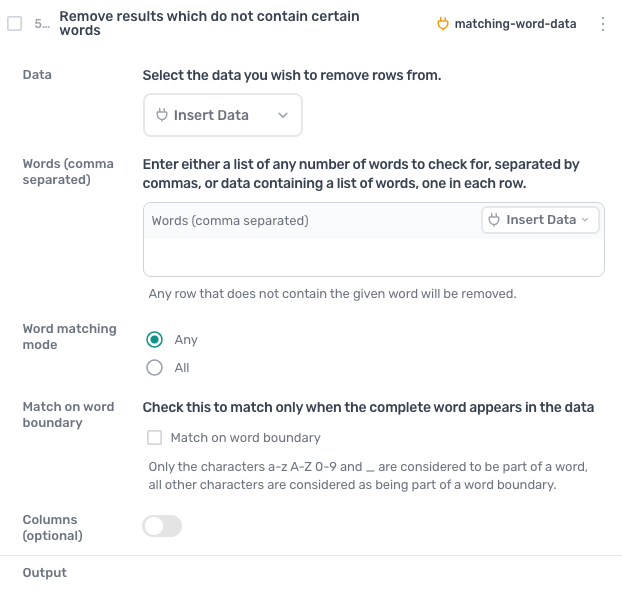
How to configure the Remove results which do not contain certain words step
Data
Click Insert Data and select the data to remove rows from.
Words (comma separated)
Enter a list of words separated by commas, or click Insert Data to use data holding one word per row. Any row that does not contain a given word is removed.
Word matching mode
Choose Any to keep a row when it contains any of the words, or All to keep it only when it contains every one. The default is Any.
Match on word boundary
Tick to match whole words only: the characters a-z, A-Z, 0-9 and _ are part of a word, everything else is a word boundary.
Columns (optional)
Turn the switch on and enter column numbers separated by commas, such as 1,2, to check only those columns.
The step outputs the remaining rows as the [matching-word-data] token.