 Press key(s) step
Press key(s) is one of the most useful steps in axiom.ai's stepbox. This feature lets you record keystrokes and replay them later, which is especially useful for web automation. To learn more about how useful the Press key(s) step is read our docs.
You can use this step to:
- Record Tabs to move between form elements
- Click a button with a Return
- Enter a date into a form input
- Up and down arrows can scroll pages
- Interact with pop-ups
This step works well in tandem with the Enter text step when automating data entry. Learn to observe where the cursor is loaded on a web page by default. If you're sending DMs on Instagram the cursor is loaded into the message box so you can enter text and record a "Return" keypress to send the message.
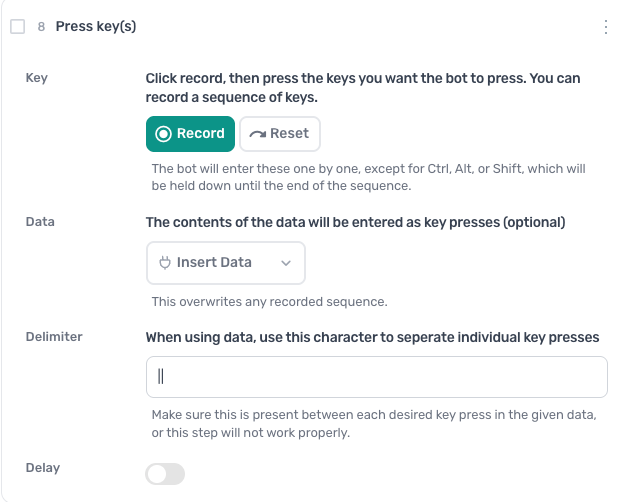
How to configure the Press key(s) step
Key
Click Record, then press the keys you want the bot to press. You can record a sequence of keys: the bot enters them one by one, except Ctrl, Alt and Shift, which are held down until the end of the sequence. Click Reset to clear the recording. Please note key combinations or special clicks can vary for Mac, Windows and Linux (The cloud runs on Linux).
Data
Input keystrokes directly from data sources such as WebHooks and Google Sheets. Each keystroke must be separated by the delimiter, or axiom.ai interprets them as a single keystroke. Data overwrites any recorded sequence.
Delimiter
Customise your delimiter, use this character to separate individual key presses. Make sure this is present between each desired key press in the given data, or this step will not work properly.
Delay
Set a delay between each key press (in milliseconds).
If you want to learn more, here are some web automation tips.
Guides that use this step
Keyboard shortcuts as a workaround in browser automation
- Go to the page I give you
- Click inside the box with the scrollbar
- Press the down arrow key to scroll it
Clear text from an input field before typing
- Go to the form page I give you
- Clear the text already in the name field
- Type the new name into that field
Close cookie pop-ups and notification prompts automatically
- Open the site's login page
- If a cookie window appears, reject the cookies
- Carry on either way
- Then sign in with my saved login
Search a website for every term in a Google Sheet and open the result
- Read the search terms from my Google Sheet
- Open the site and search for each term
- Click the first result
- Delete the row once it is done
Send Google Messages to contacts from a Google Sheet
- Read the phone numbers from my Google Sheet
- Open Google Messages and start a chat with each
- Type my message with the person's name and send it
- Delete the row once it is sent
Send X (Twitter) DMs from a Google Sheet
- Open each X profile link in my sheet
- If the profile has a Message button, click it
- Type my message and send it
- Delete the profile from the sheet once done