 Jump to another step
The Jump to another step step moves the run to the step you name, every time it is reached. Use it to make a simple loop or to skip steps. To jump only when a condition is met, use the Conditionally jump to another step step.
It is part of a technique called batching: read a single row from a Google Sheet, run the automation with that row's data, delete the row, then jump back to the read step for the next one.
You can use this step to:
- Repeat a set of steps until a Continue only if a condition is met step ends the run
- Skip steps you don't want to run
Note: Inside a Loop through data step, only jump to a later step in the loop or out of the loop to a later step in the automation. Jumping back to an earlier step in the loop, or to a previous iteration, can break the data inside the loop.
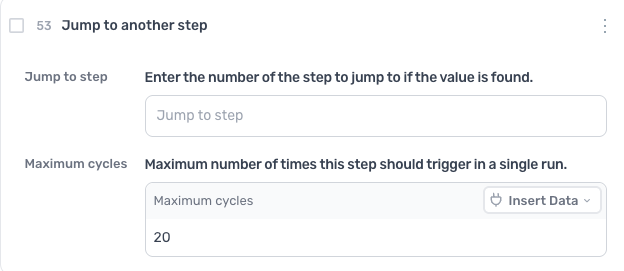
How to configure the Jump to another step step
Jump to step
Enter the number of the step to jump to. You can jump forwards or backwards.
Maximum cycles
The maximum number of times this step jumps in a single run, so a jump backwards can't loop forever. The default is 20; click Insert Data to take it from a data source.
Guides that use this step
Automate adding Apollo.io prospects to a list
- Open my Apollo.io search page
- Select all the people on the page
- Save them to my prospect list
- Go to the next page and do the same