 Find row in a Google Sheet step
The Find row in a Google Sheet step searches a Google Sheet for one or more values and returns the row number of the first cell that matches. The number is output as the [find-row-google-sheet] token, which later steps use to read, write or delete that row.
You can use this step to locate rows for tasks such as:
- Updating stock levels
- Editing scraped data
- Generating reports
How to configure the Find row in a Google Sheet step
Spreadsheet
Select a Google Sheet to search, or paste its URL.
Sheet name
Optionally enter the name of the sheet to search, the tab at the bottom of the document. Leave it blank to use the first sheet.
Values (comma separated)
Enter a list of values separated by commas, or insert data holding one value per row. The step returns the row number of the first cell that matches.
Exact match
Tick to match the whole cell value. Off, a cell that contains the value anywhere matches.
Value matching mode
Choose whether a row matches when it holds any of the values or only when it holds all of them.
Columns (optional)
Turn the switch on and enter column numbers separated by commas, such as 1,2, to search only those columns.
Write back to the row it found
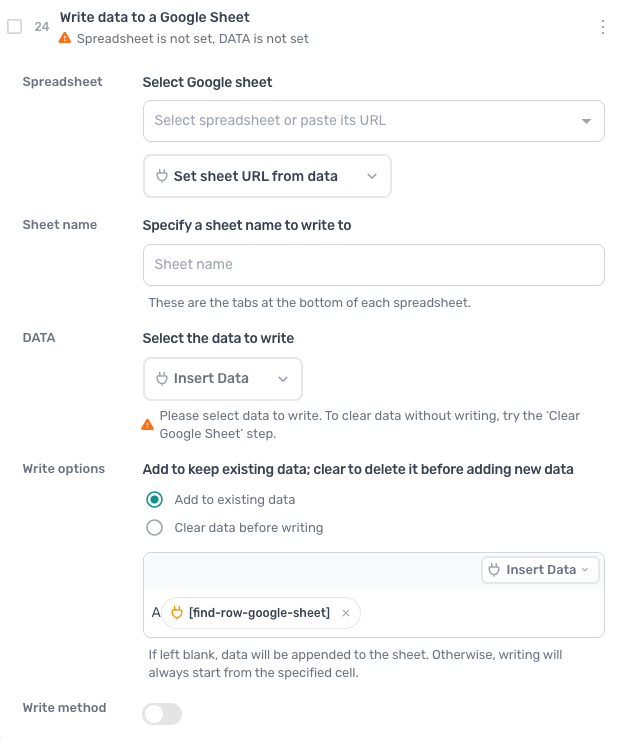
To update the row rather than append a new one, pass the token into a Write data to a Google Sheet step: choose Add to existing data, then in the starting cell box type the column letter and click Insert Data to add the [find-row-google-sheet] token after it, so A plus the token writes to column A of the row found.
Guides that use this step
Scrape data from a list of URLs in a Google Sheet
- Open each link in column A of my Google Sheet
- Ask me which data to scrape from each page
- Put the details in that URL's row from column B
Screenshot a list of websites from a Google Sheet
- Open each website link in column A of my sheet
- Save a screenshot of the page to my computer
- Write today's date in column B of the same row
Count eBay search results for every keyword in a Google Sheet
- Open each eBay search URL in column A of my sheet
- Scrape the total number of search results
- Write the total in column B of the same row
Extract data from HTML with AI into a Google Sheet
- Open each URL in column A of my sheet
- Ask me which data the AI should extract
- Put the results in that URL's row from column B
Mark Google Sheet rows as done so a run resumes where it stopped
- Read the product URLs from my Google Sheet
- Skip any rows already marked scraped
- Open each URL and scrape the fields I need
- Write what was scraped to a Results tab
- Mark each row scraped in a new column
Screenshot a list of websites to Google Drive
- Open each website link in column A of my sheet
- Save a screenshot of the page to my Drive folder
- Write today's date in column B of the same row