Run reports
Every run of an automation is logged in Run reports: the runs in progress, how each finished run ended and where it ran, and the detail behind a failure. Open them from the dashboard or from inside the builder.
Open run reports from the dashboard
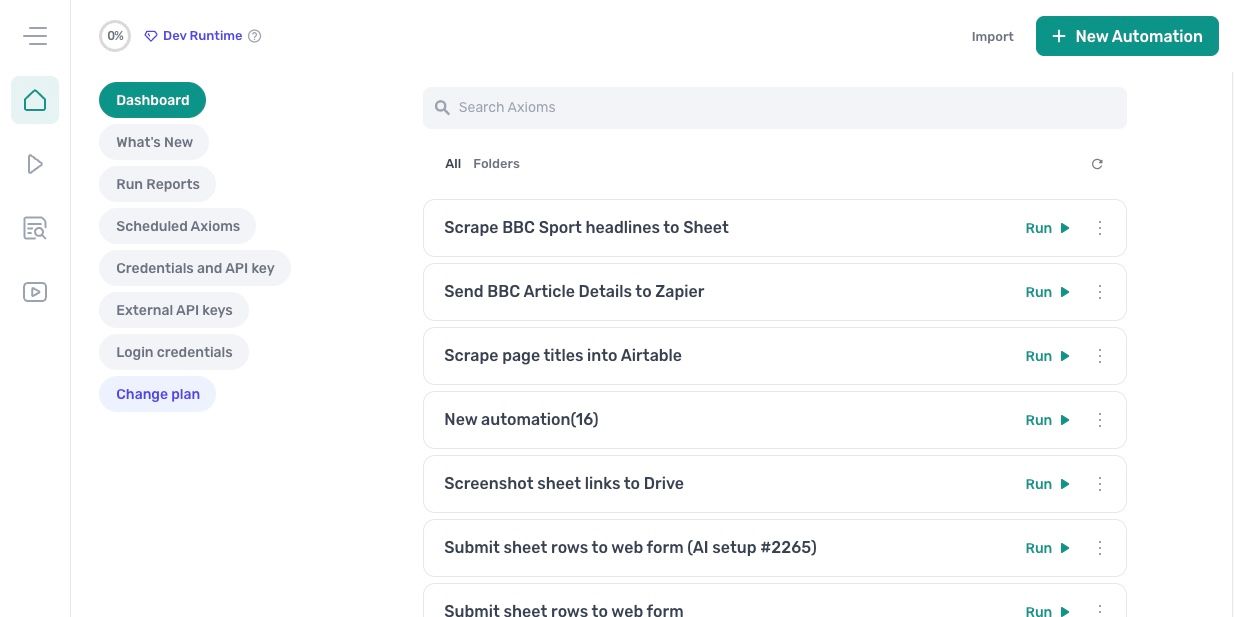
Click Run Reports in the dashboard's left-hand menu. The reports load into the main dashboard area, newest first.
Check runs from the builder
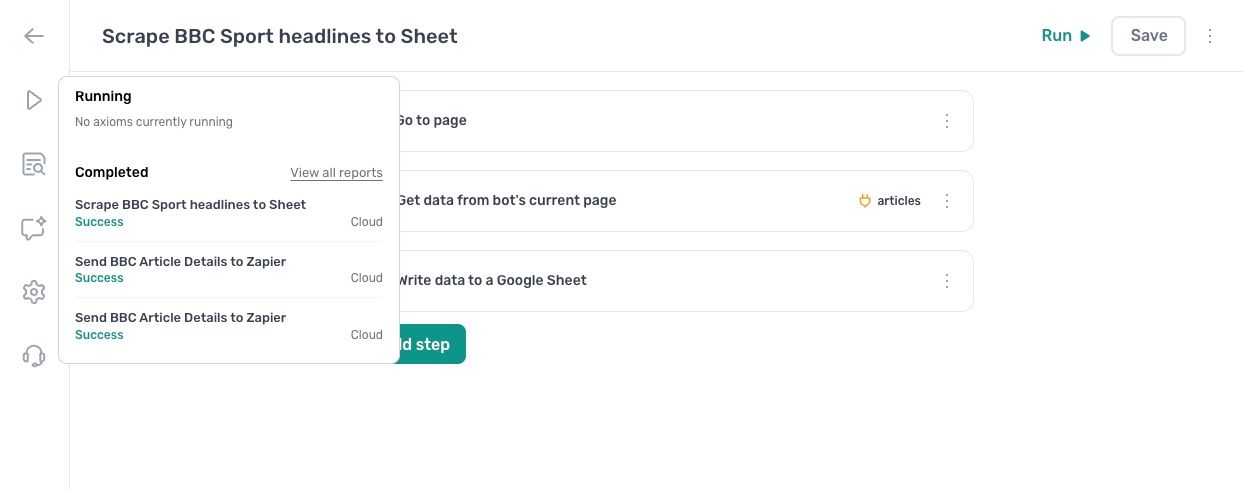
Click the runs icon in the builder's left-hand bar, under the run button. The panel lists the automations running at the moment under Running, and the latest finished runs under Completed, each with its result and whether it ran in the cloud or on the desktop. Click View all reports for the full list.
Find a run
The list shows every run, newest first: the automation's name, the result (a tick for success, Failure, or Stopped by user), the date and time, and the run time. Edit opens the automation in the builder, and Full Report opens the run's report.
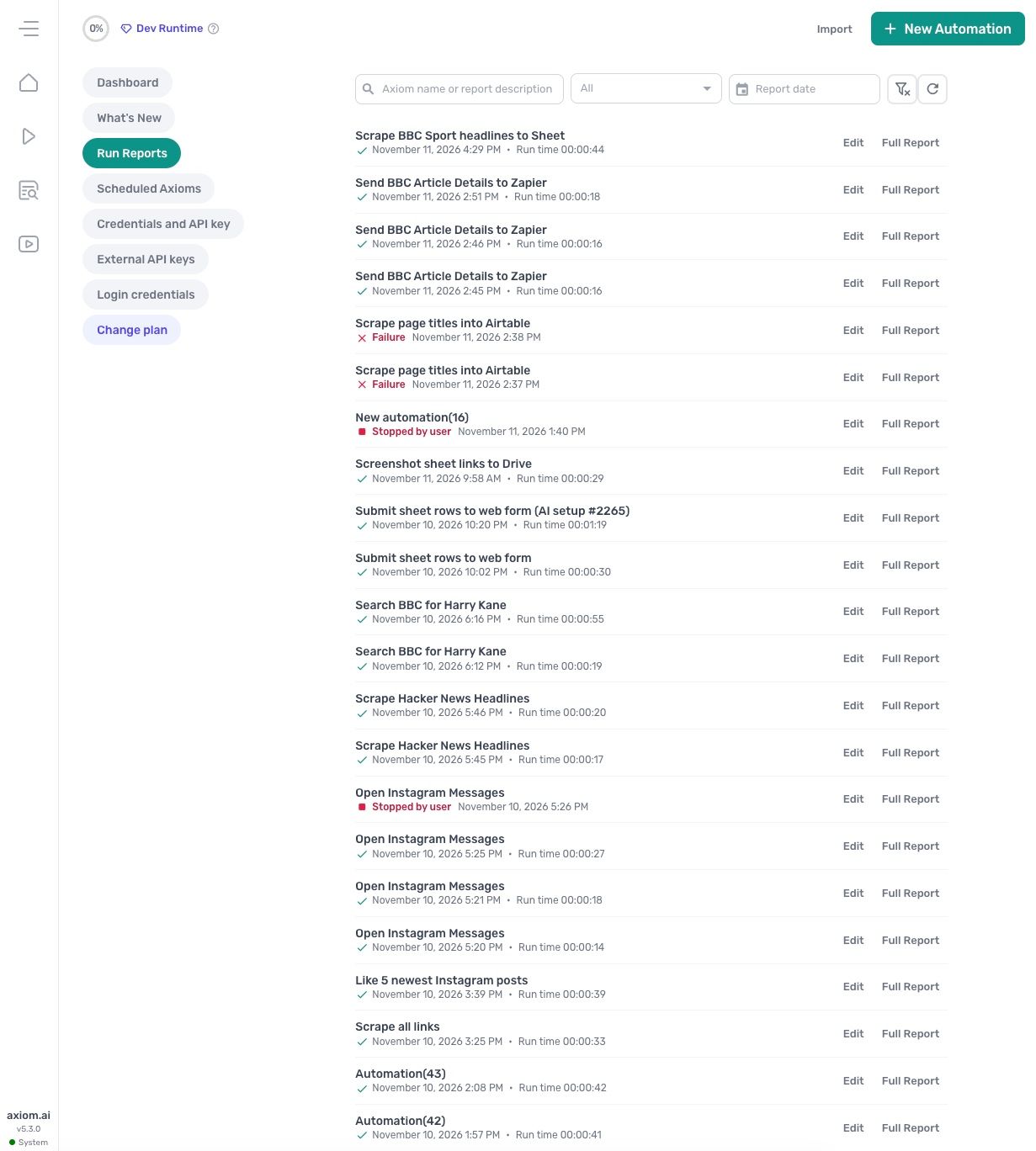
To narrow the list, use the filters above it:
- Search: type part of the automation's name or of the report's description.
- Status: pick Success, Failure, Stopped by user or In progress. All shows every run.
- Report date: pick a day to see only the runs from that day.
The clear button beside the filters removes all three, and the refresh button loads the runs that finished since the page opened.
Find out what went wrong
Click Full Report on a run to open its report. It shows the run's session ID and result, when it started and how long it ran, the version of axiom.ai that ran it and how it was started, then what happened step by step. A failed run names the step that failed and the error, the same message the builder shows at the time, so a scheduled or cloud run that failed while you were away can still be read back.
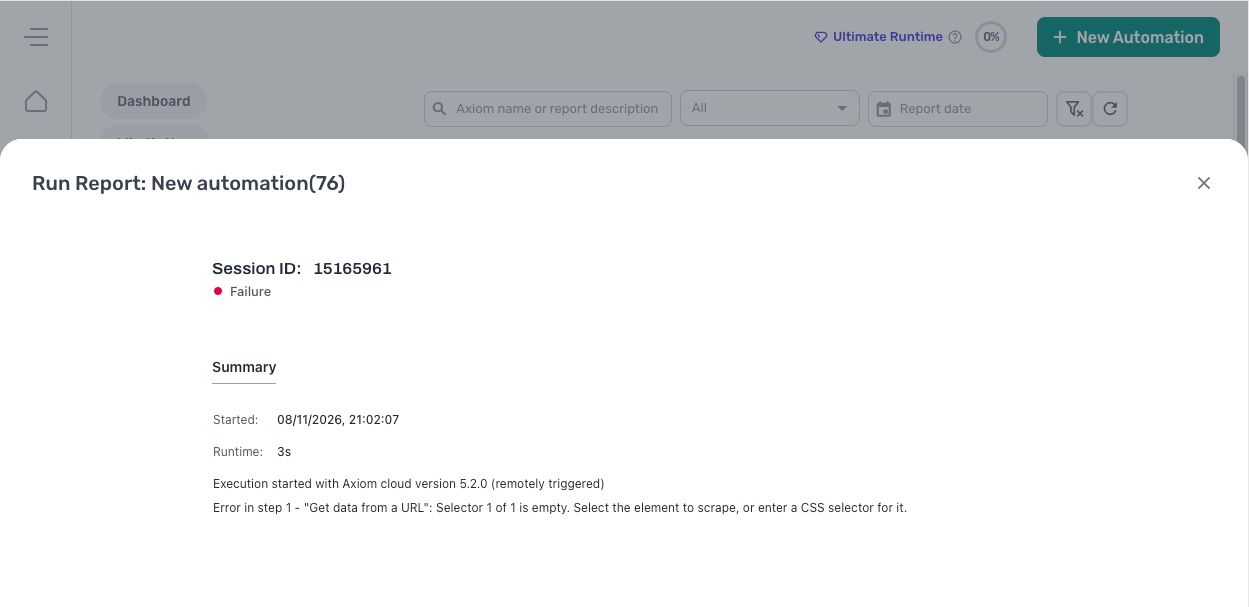
Here step 1, Get data from a URL, failed because its selector was empty: the fix is to open the automation with Edit and select the element to scrape. How to debug an automation covers reading the error and fixing the step.
Watch a recording of a failed run
On the Pro plan and above, a cloud run can be recorded. Turn on Record runs in the automation's Run options (the setting) and every cloud run from then on keeps a replay of its last minute, with a DOM Log and a Console Log beside the Summary. Open the report of a failed run and the replay sits next to it: scrub to the moment before the error to see what the browser showed.
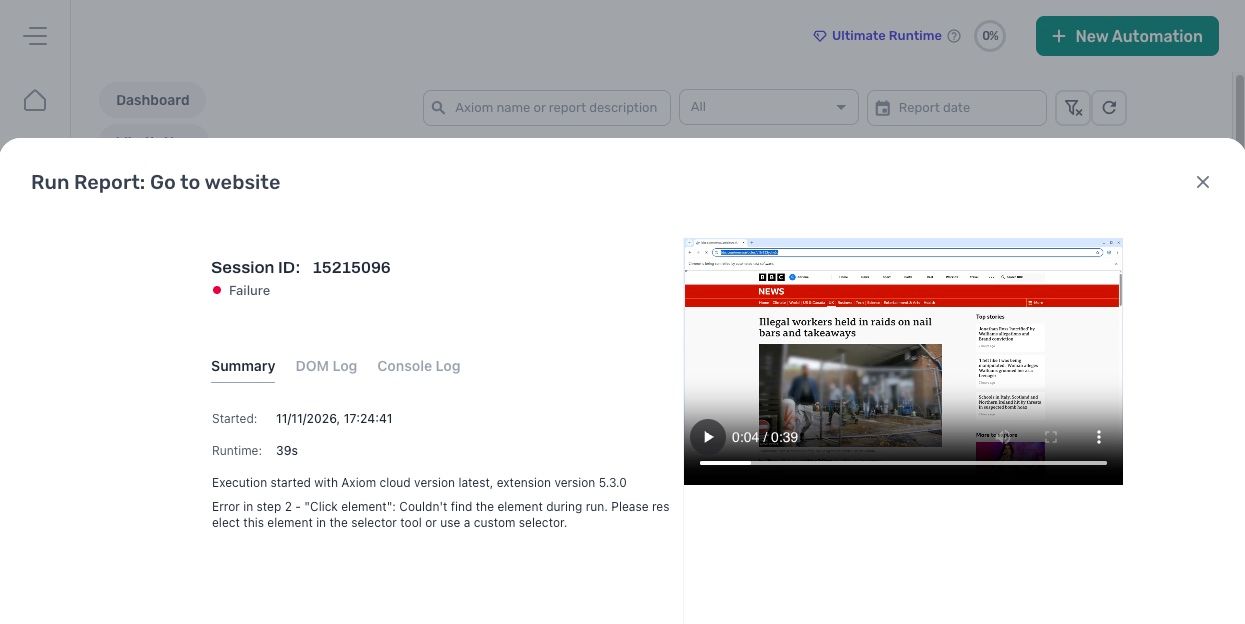
Here step 2, Click element, could not find its element, and the replay shows the page the browser was on when it looked. Record a run explains what to look for in a replay.