How to write data to a specific row
Learn how to append data to a specific row in a Google Sheet by combining a few steps using our builder. This design pattern is useful when you have a list of links and want to append some data to the same row where the link is located.
Design pattern: Write to same Google Sheet row
- Read data from Google Sheet
- Scrape data (or other actions)
- Write data to the correct row in Google Sheet
Set up a Google Sheet
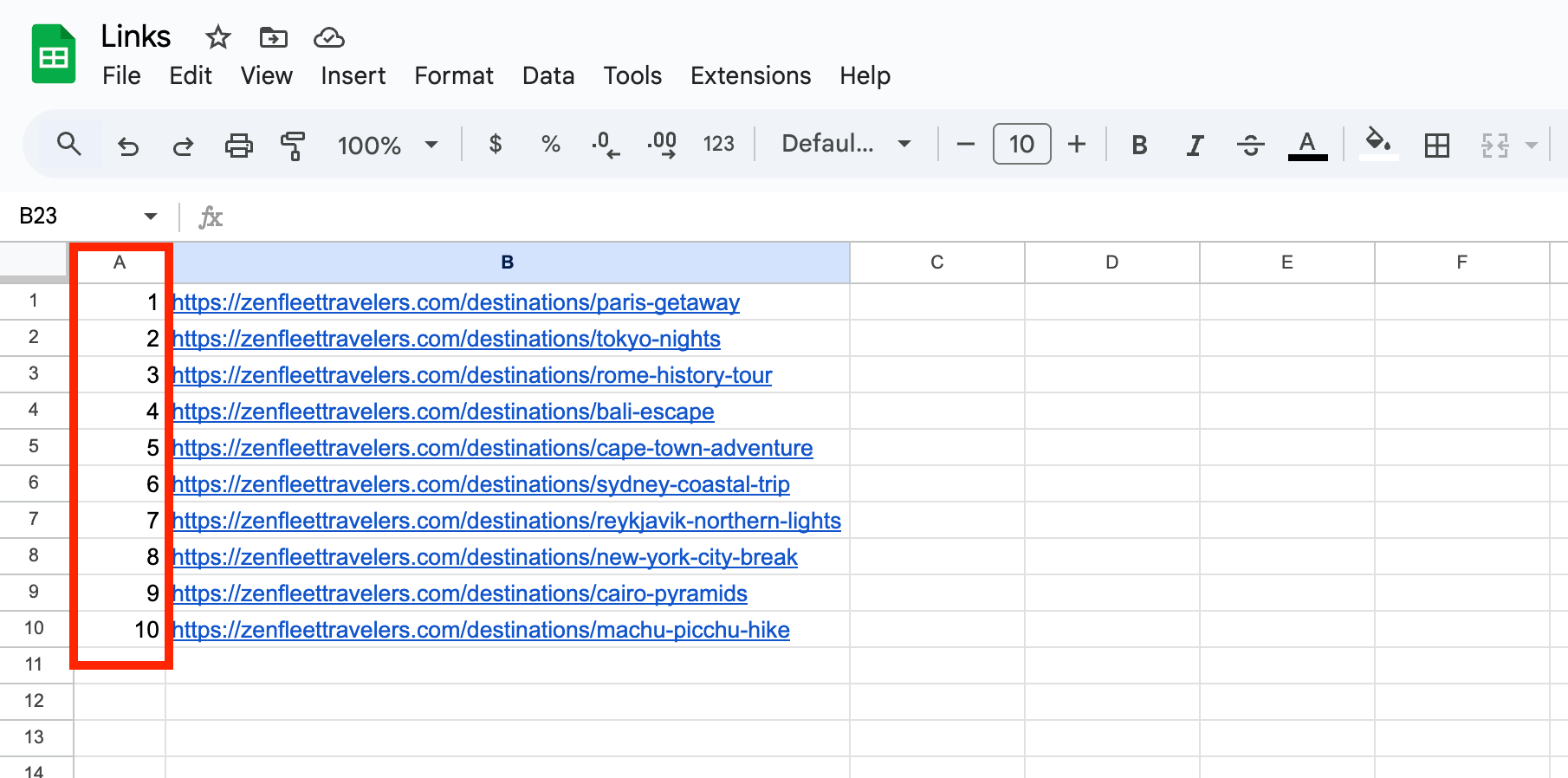
Prepare your Google Sheet by creating a separate column with the row numbers.
Add the following steps in your bot
- 1.0
Read data from Google Sheet
Spreadsheet: Select your Google Sheet.Sheet name: Choose the relevant worksheet.First cell: Specify the starting cell (e.g.A2if your sheet has headers).Last cell: Specify the last cell to limit your test range (e.g.B5for columns A and B, rows 2–5).
- 2.0
Loop through data
Token: Select the[google-sheet-data]token.
- 2.1
Add browser actions- Add any steps needed between reading and writing, such as scraping a page or clicking buttons.
- 2.2
Write to Google Sheet
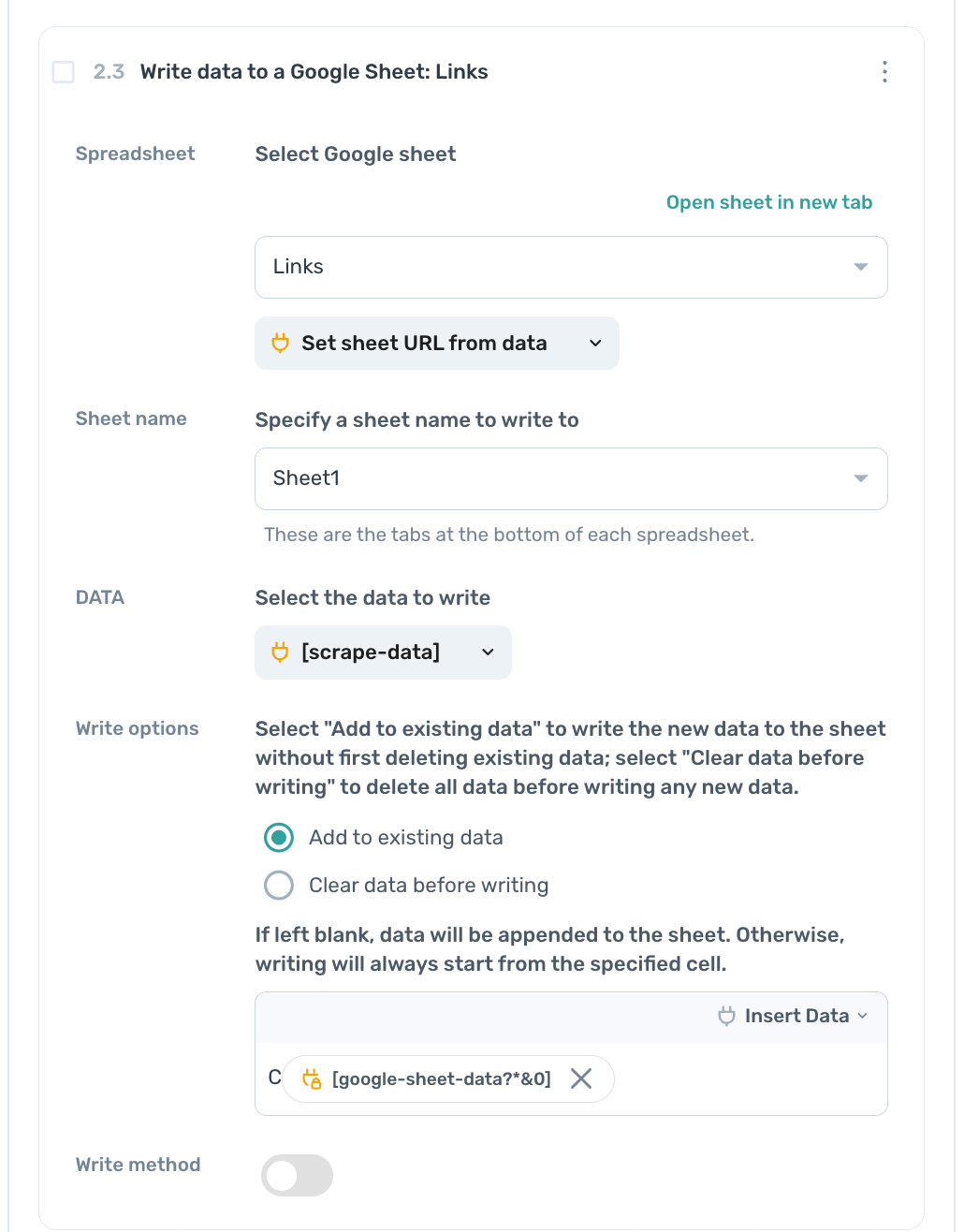
Spreadsheet: Select the same Google Sheet as above.Sheet name: Use the same worksheet, or a different one if needed.DATA: Select the token containing the data to write (often[scrape-data]).Write options: Choose the target column (e.g.CorD). Click "Insert data", then use the row number token from the "Read data" step to write to the correct row.
Wrapping up
Create an automation that reads your sheet, processes data, and writes results to the exact row using.