Download files to your computer
To save files to a local folder, use one of three steps: Download file, Download files, or Download file from URL. All three require running the automation in the axiom.ai desktop app.
Download files from the current page
Add a Go to page step that loads the page containing the file, then add Download file (single file) or Download files (multiple).
- Click Select and choose the file element on the page.
- Click Click to select and choose the destination folder, or enter a path.
- Set
File nameto the name you want the saved file to have.
Download files from multiple pages
To download a file from each page in a list, store the URLs in a Google Sheet and loop through them.
- Add a Read data from a Google Sheet step pointing at a sheet of page URLs.
- Add a Loop through data step using the sheet data.
- Inside the loop, add a Go to page step. Set the URL using Insert data to pick the column.
- Add Download file or Download files as the next sub-step.
- Click Select and choose the file element. Click Click to select for the folder. Set
File name.
Download a file from a URL
When you have direct file URLs (rather than pages that contain files), use the Download file from URL step.
- Open the step finder and add Download file from URL.
- Enter the file URL in
URL. - Click Click to select and choose the destination folder.
- Set
File name.
Download files from multiple URLs
To download files from a list of URLs:
- Add a Read data from a Google Sheet step pointing at a sheet of file URLs.
- Add a Loop through data step using the sheet data.
- Inside the loop, add a Download file from URL step.
- Set
URLby clicking Insert data and selecting the URL column. - Click Click to select and choose the destination folder.
- Set
File name. axiom.ai appends a unique number when the name is reused.
Download locally with the Google Drive step
The Download a file to Google Drive step can also save files locally when running in the desktop app. This is useful when you want a single step that works in both cloud and desktop modes.
- Add a Go to page step that loads the page containing the file.
- Open the step finder and add Download a file to Google Drive.
- Click Select and choose the file element.
- Set
Drive folder URLto the destination folder in Google Drive. - Set
File name. - Toggle
Local folderon and set a local folder path.
Note: The
Local foldersetting only takes effect when running the automation in the desktop app.
Advanced settings
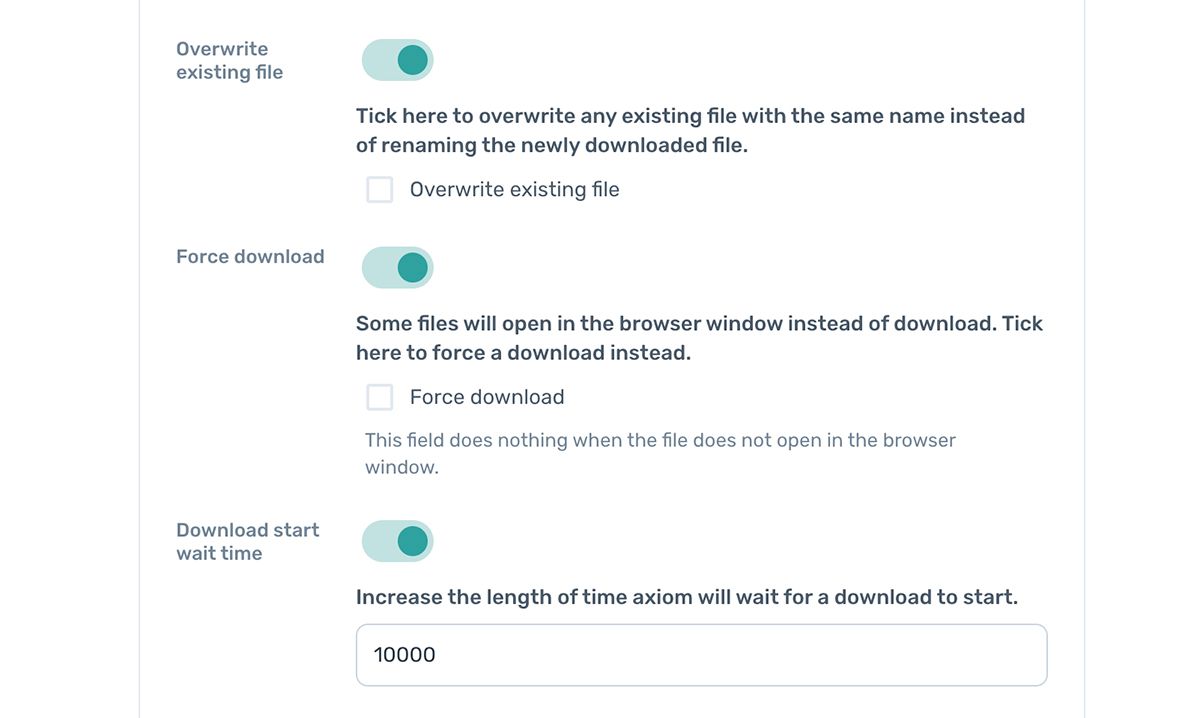
Overwrite existing file
Toggle Overwrite existing file on and tick the box to replace files with the same name instead of renaming the new download.
Force download
Some files open in the browser instead of downloading. Toggle Force download on and tick the box to force them. If the issue persists, contact support.
Download start wait time
Toggle Download start wait time on to set how long axiom.ai waits for the download to begin. The value is in hundredths of a second.
Troubleshooting
If the file doesn't download, check that the file path is correct and the destination folder has write permission set for the local user.