How to automate web forms
When you need to fill the same web form for every row in a spreadsheet. You'll read rows from a Google Sheet, then, for each row, fill in the form and submit it. Useful for bulk data entry, contact-form outreach, and any repetitive form task.
What you'll build
An automation with four steps:
- Read data from a Google Sheet: pulls in the rows, one per submission.
- Loop through data: repeats the next steps once per row.
- Inside the loop, Go to page: opens the form.
- Inside the loop, Enter text and Click element: fill each field and submit.
Build it from a description
The fastest way in: describe the task and let axiom.ai suggest the steps.
- On the What shall we automate? screen, click Build from description.
- In the Describe what the automation should do dialog, add these instructions, one per line:
- Read data from a Google Sheet
- Fill out a contact form
- Click Suggest steps. axiom.ai proposes Read data from a Google Sheet, then a Loop through data step containing Go to page, an Enter text step for each field, and a Click element step to submit.
- Click Configure steps to add them to the Builder.
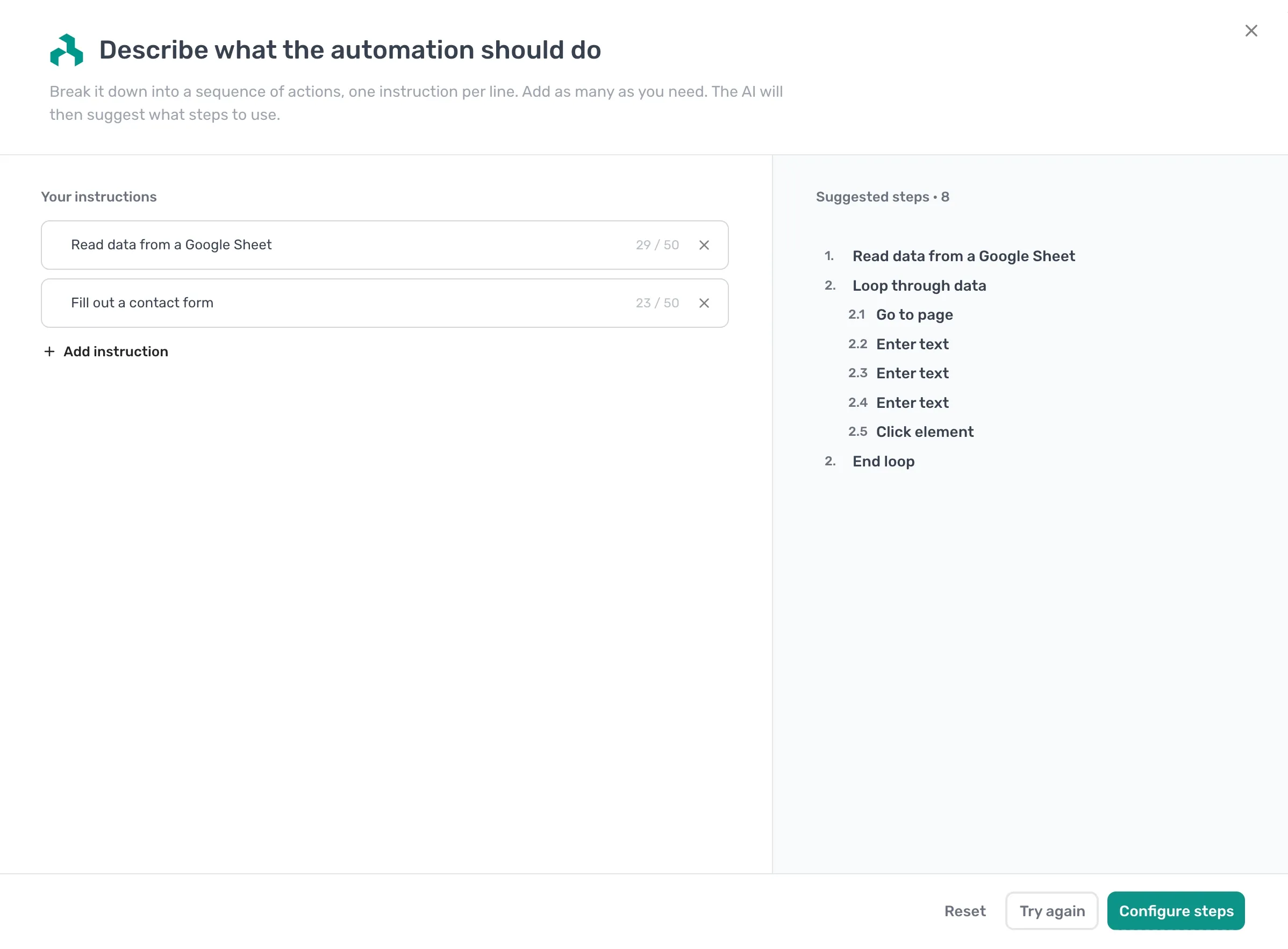
The suggestions still need wiring up: point the Read data from a Google Sheet step at your sheet, and use Insert Data in each Enter text step to pull the value from the current row, exactly as in Build it manually below.
Build it manually
Prefer to add the steps yourself? Build the same automation one step at a time.
- Add a Read data from a Google Sheet step and point it at the sheet with your form data, one row per submission.
- Add a Loop through data step. Reference the sheet data with Insert Data. Every step inside the loop runs once per row.
- Inside the loop, add a Go to page step pointing at the form.
- Add an Enter text step for each field. Use Insert Data to pull the value from the current loop row.
- Add a Click element step for the submit button.
- Run the automation and check the submissions.
The shape: read rows, loop once per row, fill the form, submit.
Things worth knowing
- Inside the loop, the sheet data refers to the current row, not all rows. Always use Insert Data to reference the current value, never paste a hard-coded one.
- Lots of sites rate-limit or block automated traffic when forms are submitted in quick succession. A Wait step inside the loop is usually a good idea.
- If any single row fails, the whole loop stops. Wrap the form steps in a Try / Catch step if you'd rather skip bad rows and keep going.
- Forms with CAPTCHAs, dynamically loaded dropdowns, or multi-page wizards need extra steps. Build against the form with dummy data first, then connect your sheet once it works.
Next steps
- The Loop through data reference covers the loop mechanics.
- The Try / Catch reference covers handling failures mid-loop.
- Full walkthroughs with templates: browser automation guides.