Automate data entry without code
Give the AI agent the URL of the web form and your data source. It scans the form, matches the data to the fields and builds a bot that enters it.
- Read the rows from my Google Sheet
- Open the customer form in my CRM
- Fill in the name, email and company
- Click Save
- Mark the row Done
How it works
Say what you type, and where.
Install axiom.ai's Chrome extension and write the workflow as a short list: the URL of the web form and where the data is. Then click Build. The AI agent opens the form in Chrome in the cloud, scans it, matches your data to the fields and builds the bot that enters it.
1. Describe the data entry in Chrome
Share the URL of the form or web app, the data source, and describe what goes where. For your first bot keep it simple: three or four lines.
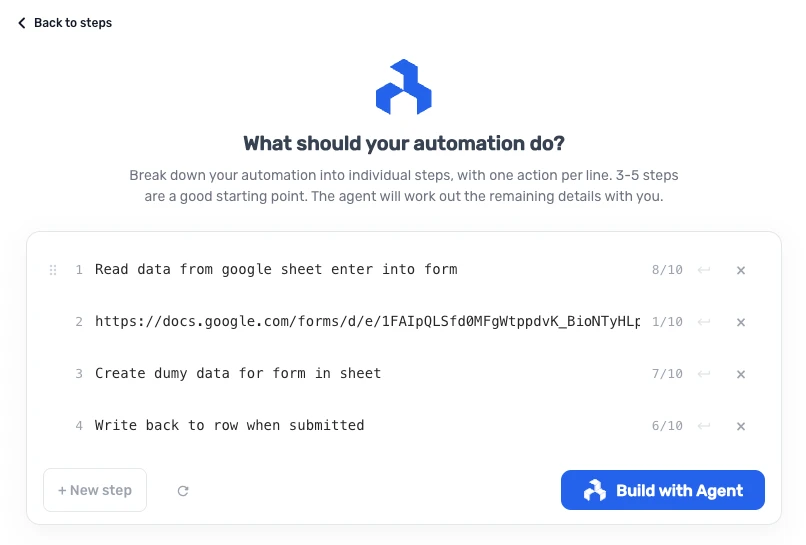
2. Answer the AI agent's questions and it builds and tests the bot
The AI agent asks for what it needs: the URL, a link to your Google Sheet or another data source. Then it opens the form in a cloud Chrome, scans the fields, maps each one to a column of your data and picks the selectors. It also works out the clicks the page needs along the way, such as a cookie banner, and does a test run.
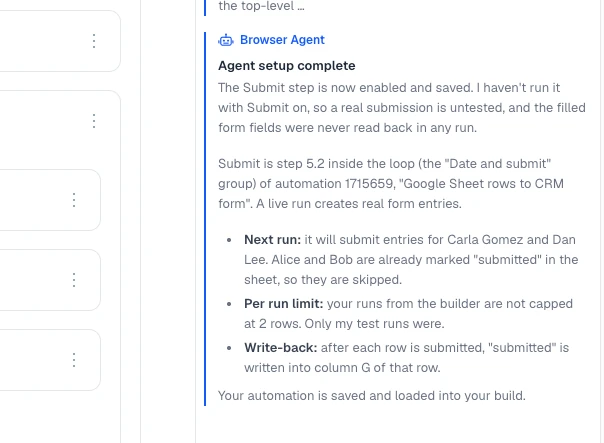
3. Edit and run it in the no-code Builder
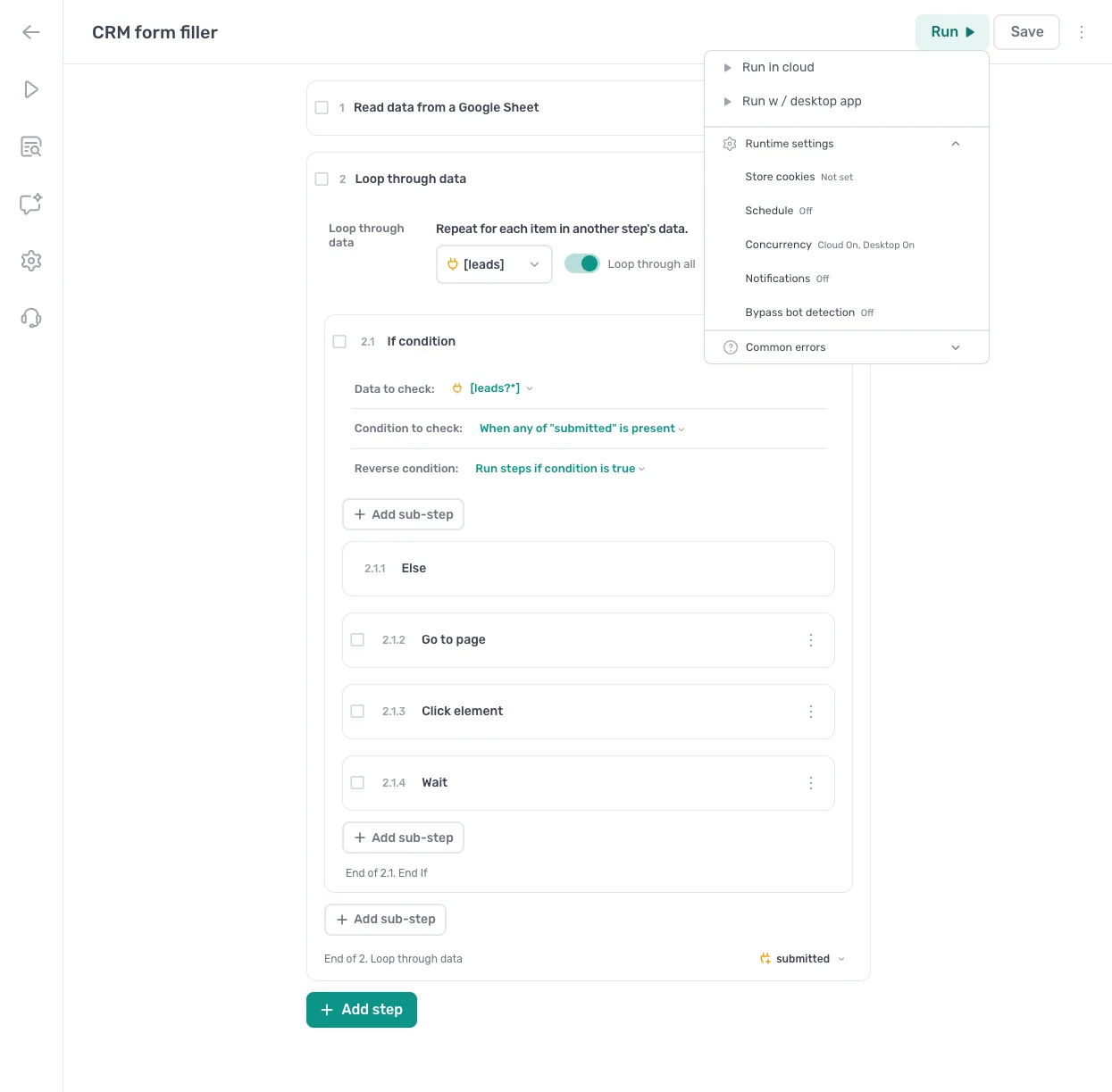
The bot is saved to your account as no-code steps. Open any step in the Builder, change it or add to it, then run it on demand, in the cloud on a schedule, or trigger it from another app through the API or a webhook.
Capabilities
What the bots can do in a form
Bots can replicate your data entry in Chrome, so you can automate it.

Read the data from any source
A Google Sheet, Excel, a CSV file, a webhook from another app.

Type into any field
Enters the value from the row with Enter text, and clears what was there first with Press keys.

Choose options, tick boxes, pick from lists
Clicks the option the row names with Click element, and picks from a dropdown with Select list.

Set a date or time
Formats the date from your sheet with Date and time, and fills a date picker with a Write javascript step.

Upload a file
Attaches a file from a path in your sheet with Upload a file, or from Google Drive on cloud runs.
Submit and start the next row
Clicks Save or Submit, then loops to the next row of your data.

Mark rows done and resume
Writes Done back to the row with Write data to a Google Sheet and skips it next time, so a run resumes where it stopped.
Log in first
Adds a login step in front of the app that needs it, using a saved login, with the 2FA code when the login has one. The AI agent never sees the password.

Create custom steps
When a no-code step does not work on the form, the AI agent writes a custom JavaScript step.

Use AI in the workflow
Generate a value or make a logic decision from a prompt with the Integrate AI step while the bot runs.
Places to start
Data entry bots the AI agent can build
Start from blank and make your own, or one click sends the description to the extension and the AI agent starts building.
See the guides for moreData entry from a Google Sheet into a web form
- Read the rows from my Google Sheet
- Open the contact form on my site
- Fill in the name, email and message from each row
- Submit, then delete the row from the sheet
Tick checkboxes and choose options from a sheet
- Read the sign-ups from my Google Sheet
- Open the form and enter each row's name and email
- Tick the newsletter box if the row says yes
- Choose the team the row names
- Submit the form
Fill a date picker from a Google Sheet
- Read the names and dates from my Google Sheet
- Open my Google Form for each row
- Fill in the name and the date
- Submit the form
Add contacts to a HubSpot sequence
- Read the email addresses in my Google Sheet
- Open my HubSpot sequence
- Enroll each contact in the sequence
- Delete each contact from the sheet once done
Fill a Google Form from an Excel sheet
- Read the rows from my Excel sheet
- Open my Google Form for each row
- Fill in each question from the row
- Submit the form and go to the next row
Data entry into a web form from Zapier
- Take the rows Zapier sends me
- Open the contact form on my site
- Fill in each row's name, email and message
- Submit the form and go to the next row
FAQ
Automating data entry
Add to ChromeA bot typing into a form or web app what you would type by hand, row after row: reading each record from a sheet, filling in the fields, choosing the options, submitting, then moving to the next. Any data you copy from one place into another in the browser can be entered by a bot.
Yes. Describe the form and the data in the axiom.ai Chrome extension and the AI agent builds the bot from no-code steps, such as Enter text, Click element and Loop through data. You can also build it step by step yourself in the no-code Builder.
A Google Sheet, an Excel sheet, a CSV file, Airtable, or another app sending rows through a webhook, such as Zapier, Make or n8n. The bot can also scrape the data off one site and enter it into another in the same run, or fetch it from an API with a custom call in a Write javascript step.
Yes. If you use the browser agent to build the bot, it scans the form and works out the fields that need filling: text fields, multiple choice, checkboxes, dropdowns, dates and file uploads. If you decide to build the bot yourself, you add the steps and configure them for the fields you want to enter data into. See tick checkboxes and choose options from a Google Sheet and fill a date picker from a Google Sheet.
The run stops on the step that failed and you are sent a notification. To keep going past a bad row, turn on continue on error; to pick up where it stopped, have the bot mark each row done and skip marked rows on the next run. The AI Assistant looks at the error and suggests fixes.
Yes. When building a browser automation you can start by sharing a cookie, or automate the login using our credentials store or 1Password. You can add the steps yourself in the Builder or ask the browser agent.
No. The browser agent has been told not to submit the form while it builds and tests the bot, though you can override that. When the bot is finished it adds the submit step and gives you the option to enable or disable it. Run the bot on a few rows first, check the results, then run the whole sheet.
Yes. Set a schedule and the bot runs in the cloud at the times you set, entering whatever rows are new since the last run, with your computer off. See fill a Google Form on a schedule from a CSV file.
Yes. Another app sends the rows to the bot through a webhook and the bot enters them: from Zapier, from Make, from n8n or from your own code through the Orchestrate API.
Any web app or form that opens in Chrome: a CRM, a Google Form, an admin panel, a supplier's portal, an internal tool. The bot works the page the way you do, so it needs no API or integration from the app. Desktop software that does not run in the browser is out of its reach.
Yes. Every run executes in a private Docker container, spun up new on demand and deleted as soon as the run ends, so your data is only processed during the run. We do not duplicate, store or share your data with any third party; the only data we store is about your account and runtime usage. We recommend you do not put data inside steps, such as a password in an Enter text step: anything typed into a step by hand is saved with the bot. Use a stored credential for logins instead.
Yes. Every bot the AI agent builds can be edited and extended by hand in the no-code Builder. Open any step and change it, add one, delete one, run it again.
Yes. Try every feature free, the AI agent included. Your first 2 hours of bot runtime are on us. See pricing for the plans.
Automate your data entry. Describe it, the AI agent builds it.
Start for free. No credit card required.