How to automate adding contacts to your Hubspot sequences
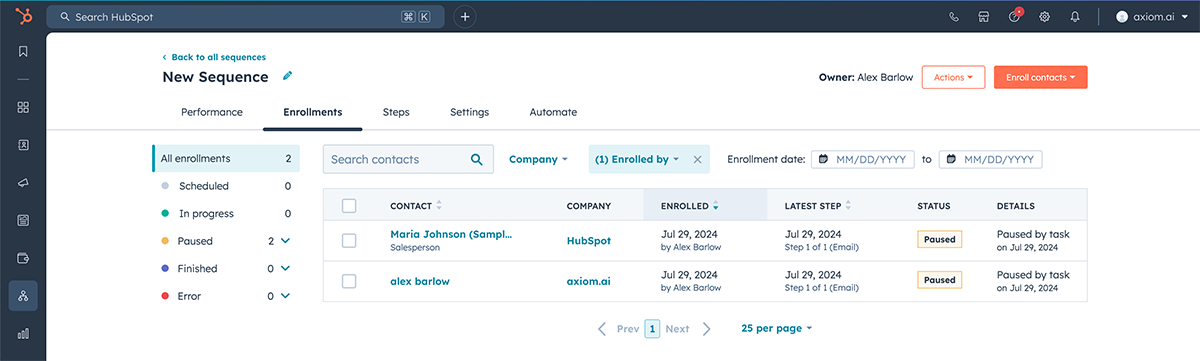
This guide shows you how to make a bot that reads contact information from a Google Sheet, opens a HubSpot email sequence, and then clicks on "Email Contacts" followed by "Enroll Contacts." It then enters the email into the "Search for Contacts" input. The bot then selects "Next" and finally "Start Sequence" before repeating the process in a loop for the next contact. Better still, the bot can be easily adapted to your use case by adding and removing steps.
Create a blank Google Sheet
Create a Google Sheet add some contact emails to the sheet. See example below.
| A | B |
|---|---|
| dummycontact@mywork.com | --- |
| dummycontact1@mywork.com | --- |
Start from blank, adding the following steps
In the axiom.ai Chrome extension, click "New Automation" and then select "Start from Blank". Use the step finder to add the steps outlined below.
- Step 1.0
Read data from a Google SheetSpreadsheet: Search for the Google Sheet you created. Once found, click to select.Sheet name: Choose a sheet tab or leave blank to use the first tab.First cell: Start from"A1".Last cell: End at"AB1".
- Step 2.0
Go to page: Hubspot SequenceEnter URL: Insert the sequence URL you wish to add contacts into.
- Step 3.0
Loop through dataLoop through data: ClickInsert data, selectgoogle-sheet-data.
- Step 3.1
Select list: Enroll contactsSelect: Highlight the “Enroll contacts” dropdown.Text: Add the text"Email contacts".
- Step 3.2
Enter text: Search for contactText: ClickInsert data, select the email column from the Google Sheet (column A).
- Step 3.3
Click element: Tick contactSelect: Highlight and select the checkbox for the top result.
- Step 3.4
Click element: NextSelect: Highlight the “Next” button and click Complete.
- Step 3.5
Click element: Start sequenceSelect: Highlight the “Start sequence” button and click Complete.
- Step 3.6
Delete rows from a Google SheetSpreadsheet: Search for the Google Sheet you created. Once found, click to select.Sheet name: Choose a sheet tab or leave blank to use the first tab.First row to delete: Set to1.Last row to delete: Set to1.
💡 Adjust the Last cell value in Step 1.0 (e.g. "AB50") to loop through multiple contacts.
Wrapping up
In just a few steps, anyone can create automation that reads contacts from a Google Sheet, opens a HubSpot sequence, and adds a contact. In fact, what you have learned is how to automate virtually any action in HubSpot. Take what you have learned and apply it to marketing, commerce, CRM, content, and even reporting to fully automate HubSpot in the browser.