How to automate checking if a site requires a login
To automate tasks that depend on the state of a web page, such as whether a user is logged in or logged out, you can implement a simple check for a unique text value like "Log in." By using an "If / Else condition" step, your automation can dynamically decide the next actions: logging in by entering credentials and clicking the login button if the text is found, or continuing with subsequent steps if it is not. This adaptable approach ensures your automation handles different page states seamlessly, improving reliability and efficiency.
This guide will teach you the basic steps you need to run your bot on a site that requires you to login. Login methods may vary, and wording may vary on your site. For tips on how to manage logins within your automation, see our Logins guide. For this example, we are going to store credentials within Google Sheets.
Creating your automation
Create a new automation by clicking "New automation", and then use the Step Finder to add steps. There are various stages to the automation that we are going to review, let's see them in plain English first:
- Navigate to the page.
- Check if the page is a login page.
- Enter your email.
- Enter your password.
- Click "login".
Navigate to the site
Use the Go to page step to navigate to the site that you wish to automate - this does not have to be the "login" page as sites will often redirect to it if a login is required.
Check if the page is a login page
There are a couple of methods of determining if the page that the bot is currently on is a login page or not. These methods both assume that you have previously encountered the login page for the site that you are automating and that you are familiar with it's structure.
The Get current bot URL step can be used to retrieve the current URL of the bot - this can be helpful in situations where the login page includes words like login" or sign-in", for example.
The Get data from bot's current page step can be used to scrape the page - this can be used to scrape any elements on the login page, such as a title with "Login" in it's contents. We recommend encapsulating this with a Try / Catch step as this will produce an error if the bot does not need to log into the site, and the "Try / Catch" step can catch this error.
Checking the returned output
The Get current bot URL step will return the current URL of the bot, you will need to use an If condition is true, run steps step to check this value. Add the step and configure as described below:
- 1.0
Data to check[current-url]: Select this as the value to evaluate.
- 2.0
Condition to checkLogin: Enter the text value you want to match.
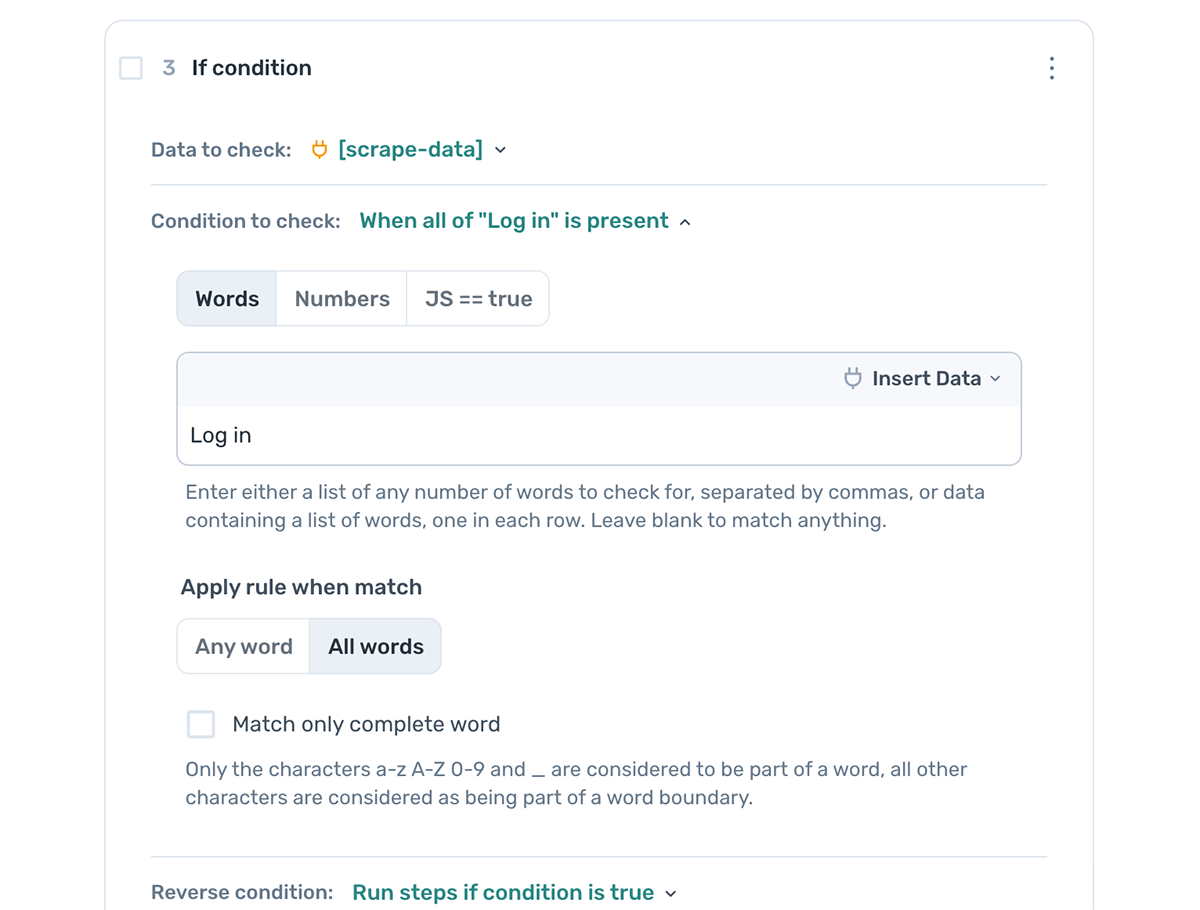
If you have set up the Get data from bot's current page step inside a "Try / Catch" step, you will need to insert any further steps related to the login into the "try" portion of this step. You will need to use an If condition is true, run steps step to check this the value returned from the step against the value that you are looking for. Add the step inside the "try" portion of the "Try / Catch" step, under the "Get data from bot's current page" step and configure as described below:
- 1.0
Data to check[scrape-data]: Select this as the value to evaluate.
- 2.0
Condition to checkLogin: Enter the text value to check for, for example "Login".
Entering credentials
Next, inside of the "If condition is true, run steps" step, add two "Enter text" steps. The first should be configured to enter your email/username and the second should be configured to enter your password. If you are reading these credentials in from a third-party, such as Google Sheets, use the "Insert data" option to input your data tokens containing these credentials.
Finally, use a Click element step to click the "login" button on the site to complete the login.
Final automation structure
If you used the "Get bot's current URL" step, your automation should look similar to the structure below:
- 1.0
Go to page: Navigate to the login page. - 2.0
Get bot's current URL: Store the current page URL. - 3.0
If condition is true, run steps: Run the following steps only if the condition matches.- 3.1
Enter Text:Emailtype your email address. - 3.2
Enter Text:Passwordtype your password. - 3.3
Click Element: Click the login button.
- 3.1
- 4.0
Continue flow: Add any other steps here.
If you used the "Get data from bot's current page" step, your automation should look similar to the structure below:
- 1.0
Go to page: Navigate to the login page. - 2.0
Try / Catch: Run steps that may fail.- 2.1
Get data from bot's current page: Select login text. - 2.2
Catch.- 2.3
Enter Text:Emailtype your email address. - 2.4
Enter Text:Passwordtype your password. - 2.5
Click Element: Click the login button.
- 2.3
- 2.1
- 3.0
Other steps: Continue the flow as needed.
Wrapping up
The method that you choose to use will depend on how the site that you are looking to automate handles logins - some sites will have a specific subdomain that they use, some will have a simple page, and some may even have a popup that you will need to take into consideration when building your automations.
We would also recommend reviewing our documentation on managing Logins for further tips and tricks to use, including using your pre-existing login session in the cloud, see Learn how to store cookies for more details.
Some login activity may prompt the site to display a CAPTCHA challenge to continue, see our 2Captcha integration for more details on navigating sites with CAPTCHA enabled.