Enhancing Your Automations with Notifications
When running your automations unattended, it's important to know that your automation is running as expected - and when it's not running as expected, you need to know as soon as possible so you can intervene and resolve any issues that your automation is experiencing. axiom.ai offers a few options to receive notifications from your automations in the event of success, warnings, or failures.

Why use notifications
Receiving notifications from your automation helps you track runs and ensure everything is working as expected, whether running in the cloud or on your desktop. If an automation fails, instant notifications let you quickly jump into axiom.ai, resolve any issues, and get back on track. Notifications can be configured for each of your automations, meaning that you can have additional notifications set up for your more mission critical automations.
Notifications are also a great way of being notified that your automation has completed successfully - if you're using an automation to gather data, this may be a signal to your team that the data is now ready for use. Or it could be used to trigger a third-party service using webhooks, more on this later in the article.
Setting up notifications
To set up notifications, open your automation, go to Settings, and select "Set up notifications." You can enable notifications based on the automation’s final status: success, success with warnings, or failure. If you're running large-scale operations in axiom.ai, we recommend enabling failure notifications only to avoid overwhelming your team with emails. For more mission-critical automations, you may wish to enable the "Notify only when a run has warnings" options within the notification settings.
When you enable any notification type, you will then be shown the "How to notify" section, this is where you will configure the notifications. Let's dive into this next!
You can learn more about setting up notifications in our notification tutorial page.
Email notifications
Notifications can be set to notify you via email. This field accepts a list of email addresses that can be entered by adding a single email address per line, for example:
example@organisation.com
example@organisation.com
The email notification will include the error that your automation has encountered - this is the same error message that you would see within your Run report or within the builder. See common errors for more details on specific errors.
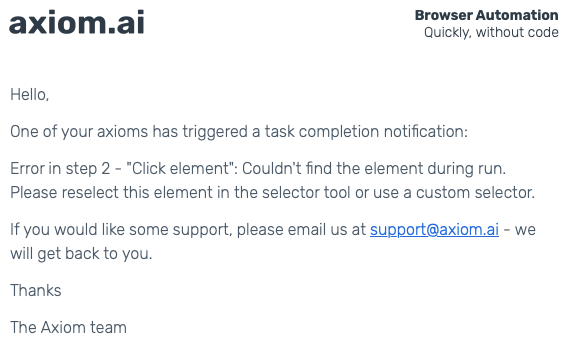
Email notifications can also be added into your automations as "checkpoints" - using the Send an email step within your notification allows you to receive notifications throughout the running of your automation. For example, you might want to track the data flow through your automation runs but do not have the time to view the automation as it runs - adding "Send an email" steps that have custom bodies, including the data tokens that are being generated, can give you insight as to what's happening within your automation.
💡 See adding more error data to your notifications to learn more about powering up your email notifications.
Webhook notifications
Notifications can be set to notify you via webhook. This field will accept a single webhook that a request will be sent to in the event of a notification. This can be very useful for triggering another service when your automation has finished it's run. The webhook will be sent in the following format:
{
    "status": "<STATUS>",
    "log": "<MESSAGE>"
}
The log key will include "Axiom run completed successfully" if the run has completed as expected, however, in the event of a failure it will include the error message that prevented the automation from finishing successfully. This can be useful for debugging your automation.
An example of using this to trigger a third party service may be to use this webhook notification to trigger a Slack Workflow, a Zapier Zap, a Discord notification, an IFTTT automation, or Make. Check out our API guides for some other services that we have written about, but you can use any service that can accept a webhook, including your own!
💡 Use webhook notifications to trigger a third-party service to trigger a new automation run in the event of failure
Similar to email notifications, webhooks can also be used throughout your automation to send data throughout the lifecycle of the automation run. The Trigger webhook step can be used to trigger a webhook with a custom payload, and has the ability to insert data tokens into your automations. We find this helpful for having a log of how the automation runs are going - being table to track the data throughout the automation run as it changes.
💡 See adding more error data to your notifications to learn more about powering up your webhook notifications.
Adding more error data to your notifications
In the event of an automation failure notification, this will always include the error message that has stopped the automation from completing successfully - this is to help you debug your automation. In addition to this error, there may be instances where you want to add your own metadata to this. To do this, you'll need to add an Add error metadata step before the step that you believe may cause an error, such as a click element that you expect may fail on occasion.
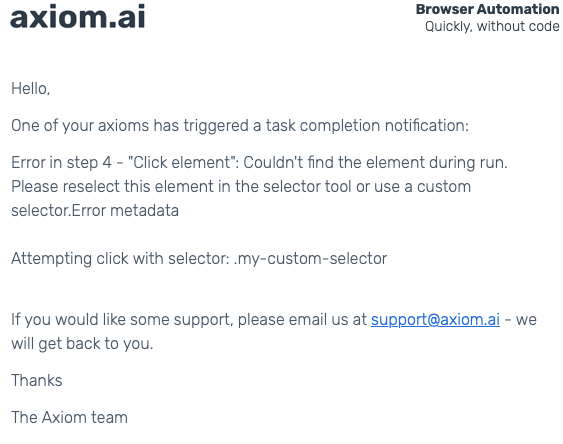
You may use this to add additional context to your error messages, for example, let's say that we have a custom selector stored in a custom data token that we want to use within a Click element step. We would add the "Add error metadata" step before the click element and add the message: "Attempting click with selector: custom-data."
![A screenshot of the axiom.ai interface displaying an automation setup. It includes three steps: 'Enter custom data,' 'Add error metadata,' and 'Click element.' In the 'Add error metadata' step, there is a custom error message being configured. The message field contains the text 'Attempting click with selector:' followed by a token labelled '[custom-data].' A description above the message field explains that users can build custom error messages and insert tokens to display runtime values.](/_ipx/_/blog/enhance-your-automations-with-notifications-add-error-metadata-setup.png)
When an error is triggered, this will include the metadata within the body of the email alongside the error message that the offending step has produced:
Wrapping up
Notifications can provide a very helpful health check for your automations - they give you peace of mind that you don't need to keep checking in to ensure that everything is happening as it should be while you go about your day. From mission-critical automations to automations for personal use, it's vital that you know when there is an error - or when an automation is finished.
Here at axiom.ai we find it helpful to be notified when an automation has finished - using a Slack Workflow (guide) we can get notified when a specific automation has finished running. This sends a notification to our team so we know that the data that it has processed is ready to act on.
Have you built something creative using the notification system? We would love to hear about it over in our community.