How to monitor website content for new website links with Google Sheets
If you're regularly scraping the same website, it's useful to monitor the content for new results only, rather than scraping all the data each time. This guide shows how to compare scraped data with existing data in a Google Sheet and filter out any duplicates - leaving only new links or results.
Design pattern: Filter existing data
# Read the existing data from Google Sheets
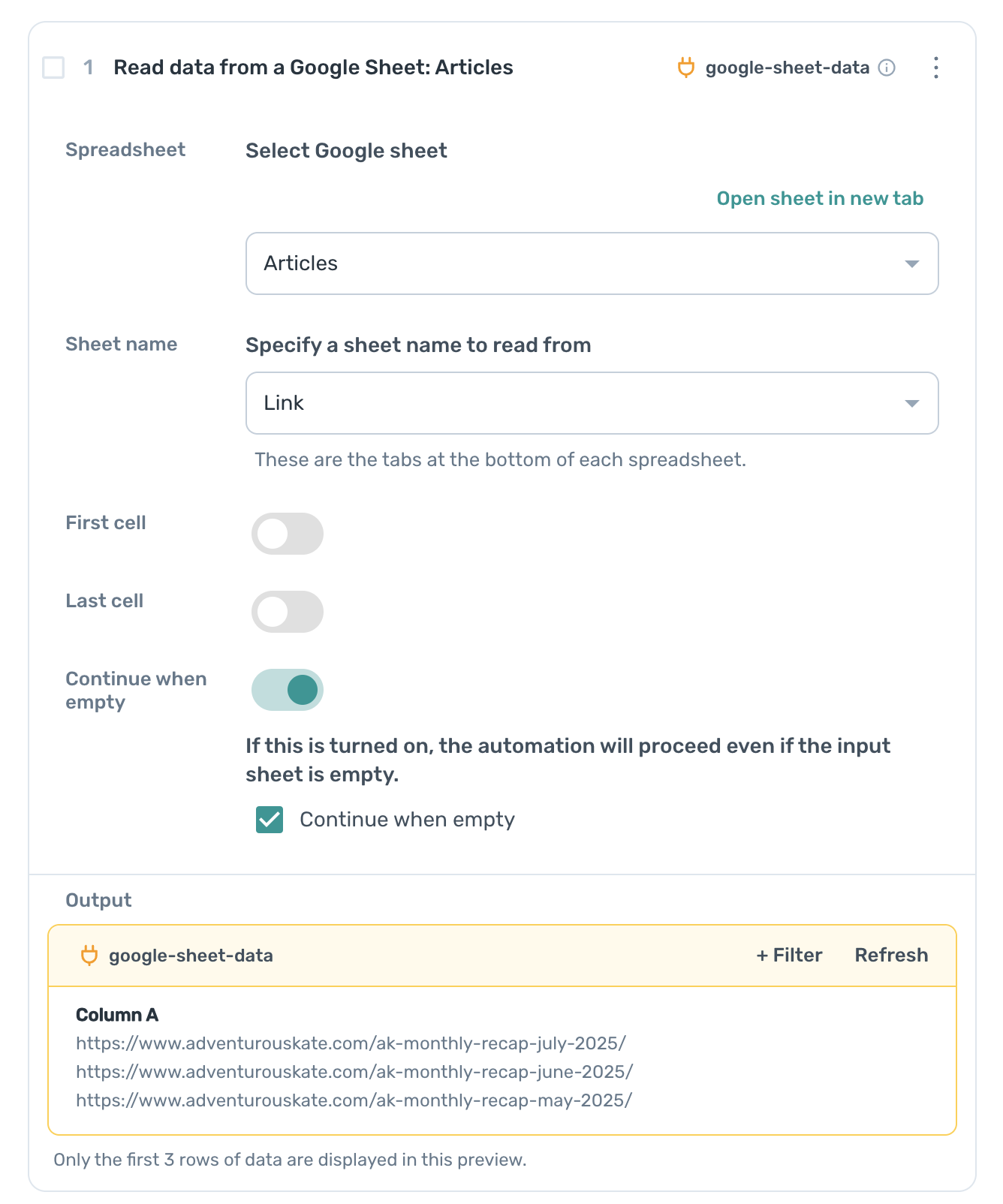
We’ll start by reading the list of already-scraped links from a Google Sheet or alternatively, just set up an empty Google sheet where the scraped results will be stored if you are just starting out.
- Open the step finder and search for
Read Data from a Google sheet. - Select Read data from a Google Sheet.
- Connect your sheet and select the tab/column that stores previously scraped links.
- If the sheet is empty, enable the
Continue when emptyoption as otherwise the automation will show an error and won't be able to continue.
This step will act as your reference list to compare against later.
# Scrape the latest data from your website
Next, we’ll scrape the current version of the website.
- Add a "Go to page" step and add the URL of the page you would like to scrape dat from.
- Then, search for and add the "Get data from current page" step.
- Use the point-and-click selector to grab the links or content you want.
- Optional: Add a pager or loop if you're scraping a paginated or dynamic site.
# Filter results to remove duplicates or unwanted items
Now it’s time to remove links that have already been scraped and saved in your Google Sheet. This way, your automation only continues with new links.
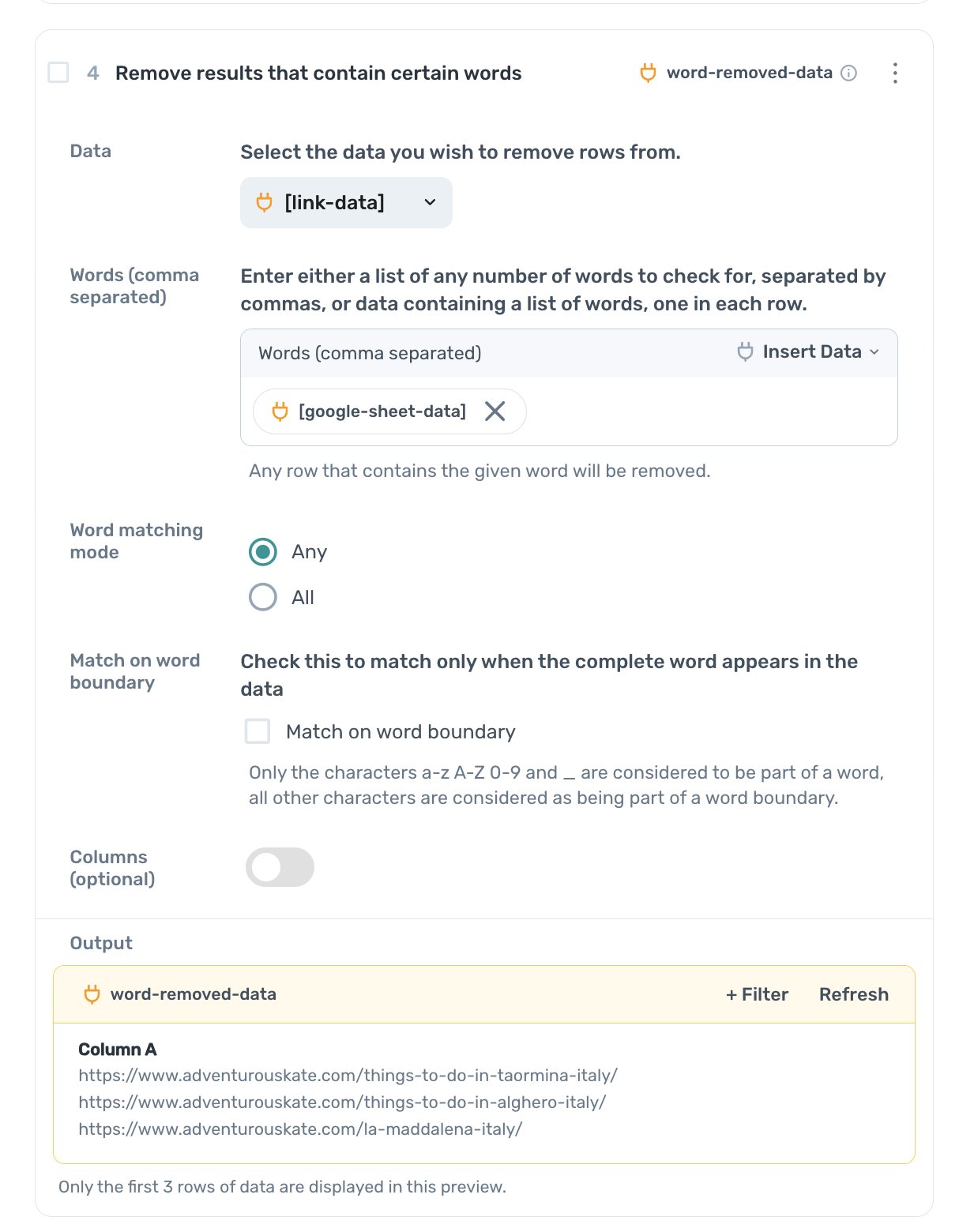
- Add the
Remove results that contain certain wordsstep - For Data, select the token from your scraper step (e.g., `[link-data]``)
- In the
Wordsfield, insert the token from your Google Sheet step (e.g., `[google-sheet-data]``) — this treats each row in the sheet as a "word" to remove - Leave
Word matching modeset toAny(default)
This ensures only new, relevant links continue to the next step.
# Write only new results to Google Sheets
Once filtered, let’s write the new links to the same Google sheet.
- Add the
Write data to a Google Sheetstep - For Spreadsheet, select your target sheet (in this case,
Articles). This sheet is in most cases, the same as the one you added in theRead data from a Google sheetstep - Under Sheet name, specify the tab where you want to store the data (e.g.,
Link) - For Data, choose the output from the filter step — in this case,
[word-removed-data]. This will ensure only new results are added to the Google sheet. - Under Write options, select
Add to existing dataso new links are appended without deleting previous entries - Leave the starting cell blank to write below existing data automatically
This ensures your sheet is always up to date with the newest scraped links, while avoiding any duplicates.
Once your steps are set up, run the automation manually or set up to run it on a schedule - daily, weekly, or whenever suits you. That way, you’ll always stay on top of what’s new without having to manually check or review duplicates.