Automate browser clicks and typing
Every browser task comes down to clicks and typing. Clicking a button in the browser, choosing from a menu, typing into a field, pressing Enter. A bot can do all of it for you, the same browser actions you would make by hand, on every row of your data. There are three ways to start, with no code, with code, or with a Claude skill.
What I mean by automating clicks
A click is the smallest thing you do in a browser, and typing is right next to it. Clicking and typing are the building blocks of every browser task. Automating browser clicks and typing means a bot makes those moves for you. A left click on a website button, a double click, a right click for a menu, a key press like Enter or Tab, and text typed into a field. String a few together and you have a task. axiom does each one as a step in the browser, with the value coming from you or from a sheet.
The hard part of a click is making it land
Firing a browser click is easy. Making it land on the right element every time is the part that takes care, and it comes down to how you point at the button in the browser.
Often a button has unique text on it, like Submit or Download. The single selector tool can select an element by that text, which is the quickest way to tie a click to the right button. When the text is not unique, use a custom selector that matches an attribute on the button. Most buttons carry something stable you can target, for example:
button[type="submit"]
Two more things decide whether a click works. Timing, the element has to be on the page before you click it, so the bot waits rather than firing into a page that has not loaded. And the kind of click, a plain click, a double click, a right click, a hover, or a key press, each is its own action. Get the target, the wait, and the type right, and a click just works.
Who this is for
This is for anyone repeating the same clicks and keystrokes all day. Clicking through a queue, typing the same values into a form, pressing the same buttons in the same order. And for anyone with a sheet of data that needs typing into a web app one field at a time. No-coders and coders both, since you can build it without code and drop into code when you want.
How I'd approach it
Do the task once and write down each click and keystroke in order. Click here, type that, press Enter, click next. Then build those as steps. For each click, pick the element with the selector tool so it targets the thing and not a spot on the screen. Add a wait where a page loads between actions. If the values change each time, read them from a sheet and loop.
Map the clicks, target the elements, then loop. That order keeps it simple. I would lay out the first draft with Build with description.
Automate clicks from a description
Describe the clicks and typing in plain words in the Chrome extension and it builds the steps for you. Give it a few short lines, check what it made, and run it. Explore no-code. Note: Build from description is coming very soon. In the meantime you can still use the no-code builder.
To the right is an example. Describe the clicks and typing and let the AI lay out the steps.
Chrome extensionInstructions
- Go to the page14 / 500
- Click into the search field27 / 500
- Type the query from a Google Sheet34 / 500
- Press Enter11 / 500
- Click the first result22 / 500
Automate clicks in code
Build with code. If you would rather script it yourself, this is the path. Explore code
Connect Playwright (or Puppeteer) to our cloud Chromium and write the same scripts you'd run locally, without managing the browser.
Code toolimport { chromium } from "playwright";
const browser = await chromium.connectOverCDP(
`wss://cdp-lb.axiom.ai/?token=${process.env.AXIOM_API_KEY}`
);
try {
const context = browser.contexts()[0];
const page = context.pages()[0] ?? await context.newPage();
// Each value would come from your Google Sheet
const queries = ["widgets", "gadgets", "gizmos"];
for (const q of queries) {
await page.goto("https://example.com");
// Click into the field, type, and press a key
await page.click("#search");
await page.fill("#search", q);
await page.keyboard.press("Enter");
// Wait for the element, then click it. Targets the element, not a pixel.
await page.waitForSelector(".result");
await page.click(".result:first-child");
}
} finally {
await browser.close();
}
Build with a Claude skill
Build no-code or code bots with a skill.
Add the Claude skill and describe the clicks and typing you want. It builds the bot for you, no-code or code, targeting each element so the clicks land even when the page changes.
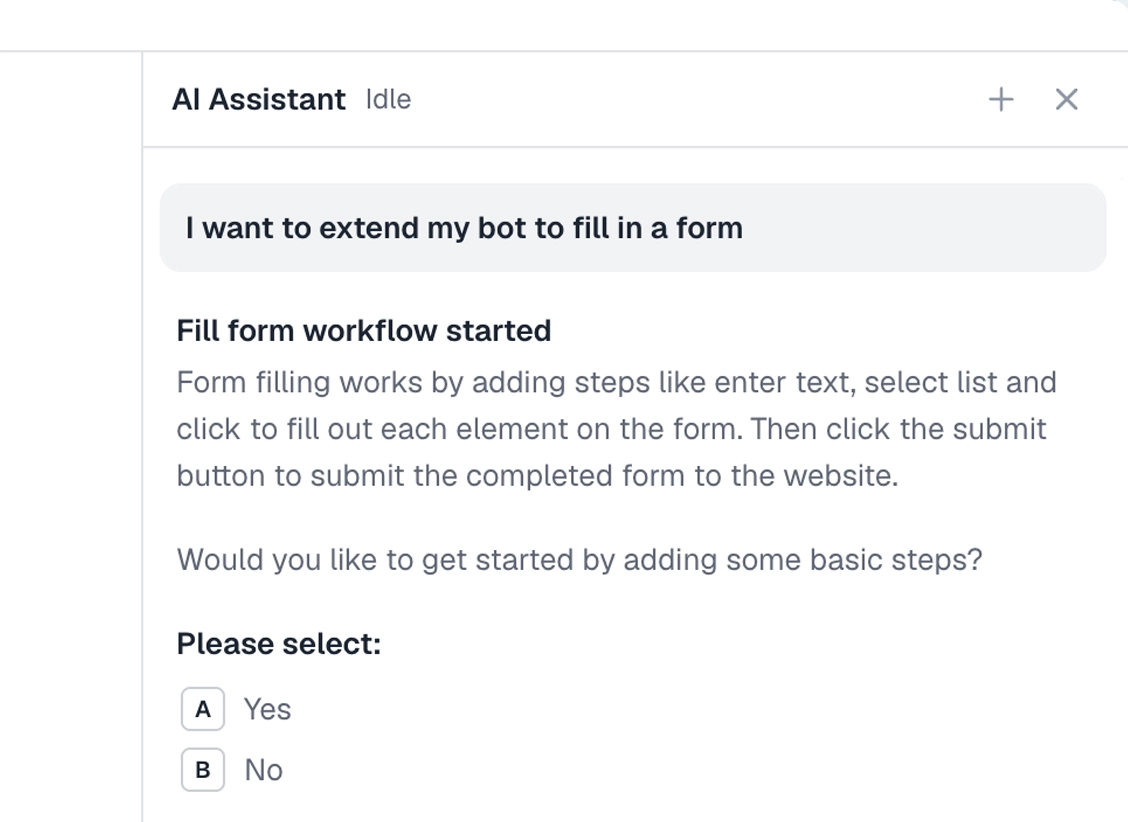
What can you automate?
Most clicks and keystrokes. A couple of cases worth knowing first.
Works well
- Clicking buttons, links, and menus
- Typing into fields from a sheet
- Key presses like Enter and Tab
- Selecting from dropdowns
- Hovers, double clicks, and right clicks
Harder
- Clicking a list of buttons with steps in between
- Drag and drop
- Canvas and custom widgets with no real element
- Clicks gated behind bot detection
Don't try
- Click fraud or fake ad clicks
- Anything against a site's terms
- Hammering a button faster than a human could
What I'd watch out for
A click looks trivial until it lands in the wrong place. Here is what I would watch for.
Clicking a whole list of buttons
When a page has a list of buttons, like a download on every invoice row, click them in turn by reading their selectors from a sheet and looping. Give each button a custom selector, either nth-child by position or a unique class, then a Click element step that sets its selector from the loop. There is a full walkthrough in interacting with a button list.
Wait before you click
If the click fires before the element is on the page, it misses. The no-code tool has auto-wait algorithms built in that hold each step until the element is ready, so most of the time you do not have to think about it. When you do, add an explicit wait for the element.
An element that will not click
If a click does nothing, the selector is probably matching the wrong element, or none at all. Switch to selecting the button by its text in the single selector tool, which is often the most reliable way to pin it down.
Elements inside an iframe
If a button or field sits inside an iframe, turn on iframe mode in the no-code single selector before you pick it. You will know you are on an iframe element because the selector highlight turns blue. With iframe mode off, the click cannot reach inside the frame.
The right kind of click
A menu that needs a right click or a hover will not open on a plain click. Match the action to what the page expects, a double click, a right click, or a hover.
Typing that does not register
Some fields ignore text that is set instead of typed. If a value does not take, type it key by key, or click the field first to focus it.